Page 15
DIRECTV SD (Satellite 101)
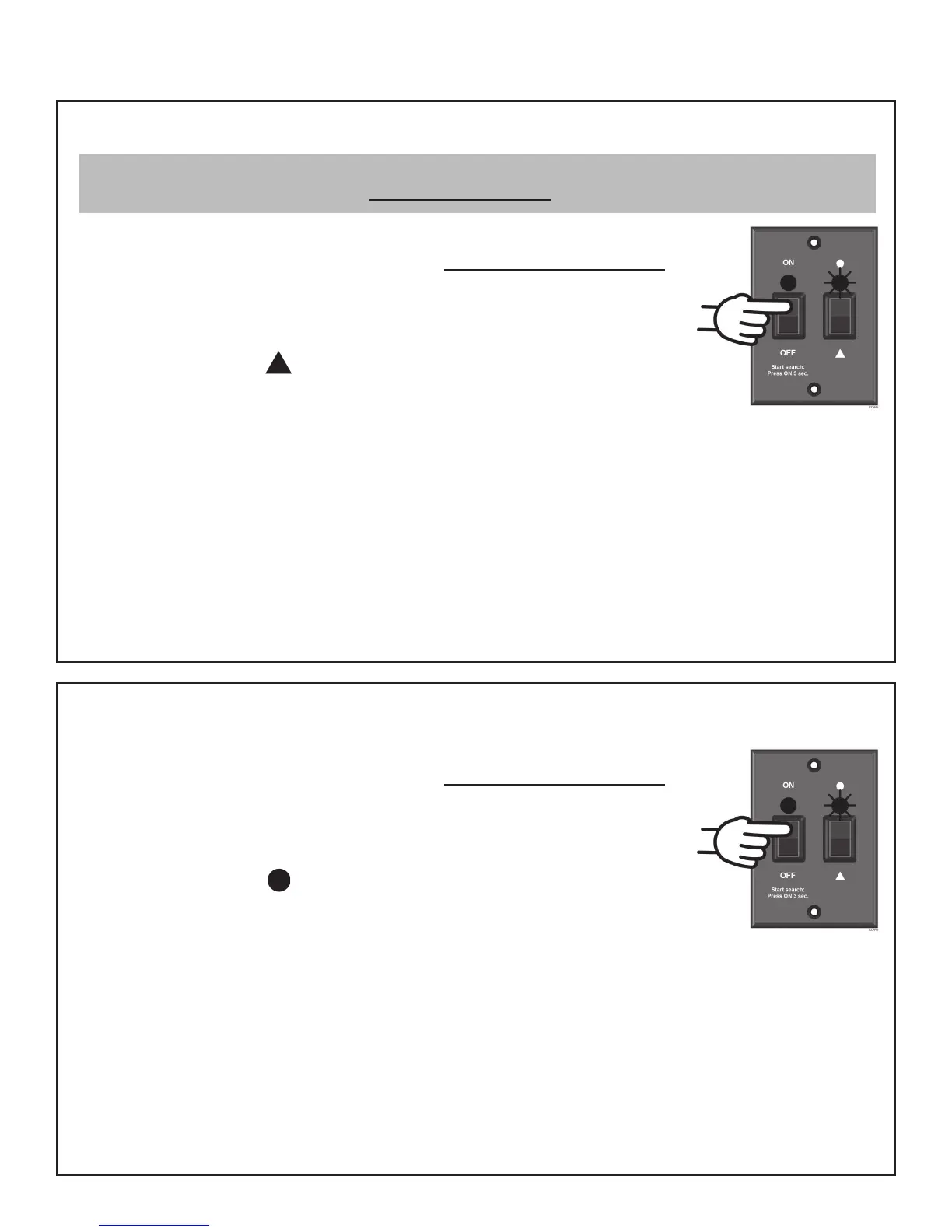
1. On the KING Dome controller, press and release the ON button.
Wait for status light to fl ash orange, then WAIT 4 MORE SECONDS.
2. Press and release the ON button 16 times.
The status light starts rapidly fl ashing green and red.
3. Press and hold the button for 4 seconds. The status light will turn
orange for 1 second, and then start fl ashing green or red.
4. Press OFF.
RECEIVER CONFIGURATION
5. If you have a newer receiver or current software, choose the following dish confi guration
settings (do this through the receiver’s satellite set-up menu screens):
Switch Type: 02:Multiswitch Dish Type: 01: 18” Round
If you have an older receiver, choose round dish-1 satellite.
Confi guration is complete. Go to page 26.
The KING Dome is factory pre-set for the DIRECTV 101 satellite. Unless the antenna has been confi gured for
another option since leaving the factory, PERFORM STEP 5 ONLY.
DIRECTV ANTENNA CONFIGURATION
DIRECTV SD with Locals (Satellites 101, 119)
1. On the KING Dome controller, press and release the ON button.
Wait for status light to fl ash orange, then WAIT 4 MORE SECONDS.
2. Press and release the ON button 8 times.
The status light starts rapidly fl ashing green and red.
3. Press and hold the button for 4 seconds. The status light will turn
orange for 1 second, and then start fl ashing green or red.
4. Press OFF.
RECEIVER CONFIGURATION
5. If you have a newer receiver or current software, choose the following dish confi guration
settings (do this through the receiver’s satellite set-up menu screens):
Switch Type: 02:Multiswitch Dish Type: 02: 3-LNB (18 x 20”)
If you have an older receiver, choose oval dish-2 satellites.
Confi guration is complete. Go to page 26.



 To Next Page