
 Need help?
Do you have a question about the Kingston Technology IRONKEY D500S and is the answer not in the manual?
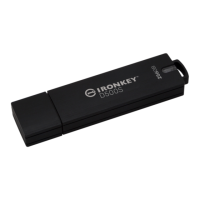
Details the key features of the IronKey D500S, including FIPS certification and hardware encryption.
Explains that the manual covers the IronKey D500S based on its factory image.
Lists the PC, Mac, and Linux platform and OS requirements for using the D500S.
Discusses the FAT32 file system and the implications of reformatting the drive.
Provides key recommendations for keeping data safe while using the D500S.
Offers guidance on creating secure passwords, including Complex and Passphrase modes.
Guides users on how to access the IronKey D500S on a Windows system.
Guides users on how to access the IronKey D500S on a macOS system.
Explains how to create a password using Complex or Passphrase modes, including criteria.
Details how to use the virtual keyboard for protection against keyloggers and screenloggers.
Describes how to show or hide the password as it is typed during initialization.
Explains how to enable and configure Admin and User accounts for multi-password functionality.
Guides on creating and adjusting separate Admin and User partitions on the drive.
Explains how to enter optional contact details during the initialization process.
Details the login process when both Admin and User accounts are enabled.
Explains the login process for a drive configured in User-Only mode.
Describes how to unlock the drive in a read-only state to protect against malware.
Explains the device's behavior and consequences of multiple failed login attempts.
Details how files are automatically encrypted/decrypted and how to access them.
Covers changing login passwords, contact info, language, and other settings.
Allows users to view their secure files on the IronKey drive.
Explains how to format the secure data partition, warning about data loss.
Provides a link to Kingston's support website for additional information.
Displays application, firmware, and serial number details for the D500S.
Guides on how to properly shut down the D500S before physical removal.
Details manual password changes for the User account via Admin Options.
Explains how to force a temporary password and require a change on next login.
Describes enabling and using a single-use password for user recovery.
Explains the feature to securely erase all data and reset the drive to factory state.
Details enabling a forced read-only mode for the User's data access.
Explains the security feature that locks the drive after maximum failed login attempts.
Guides users on how to reset the device, which formats the drive and erases data.
Addresses potential drive letter conflicts in Windows operating systems.
Describes common error messages encountered, such as "Unable to create file".
Introduces the four commands available for managing the D500S in Linux.
Explains how to locate and view the IronKey D500S command files in Linux.
Details the `ikd500s_about` command for retrieving device information.
Guides on logging into the D500S using the `ikd500s_login` command in Linux.
Describes how the D500S handles incorrect login attempts in Linux.
Explains how to securely log out of the D500S using the `ikd500s_logout` command.
Details the `ikd500s_resetdevice` command for crypto-erasing and resetting the drive in Linux.
 General
| Interface | USB 3.0 |
|---|---|
| Certifications | FIPS 140-2 Level 3 |
| Operating Temperature | 0°C to 60°C |
| Storage Temperature | -20°C to 85°C |
| Password Protection | Yes |
| Brute Force Protection | Yes |
| Weight | 30g |
| Encryption | AES 256-bit |
| Compatibility | Windows, macOS, Linux |


 To Next Page