Audio Settings
Now that everything is clean and connected, let’s check some of your smartphone's audio
settings as these can cause setup and temperature reading issues as well.
NOTE: We will be calibrating / setting up the thermometer after checking these settings. If setup
was completed once before, don’t worry. Calibrating the thermometer a second time can only
help with temperature reading accuracy.
Most Androids will look something like this, but with slightly different names and locations.
1. Open your Android Settings.
2. Navigate to Accessibility > Hearing.
3. If turned on, switch “Turn off all sounds” to off.
4. If turned on, switch “Mono audio” to off.
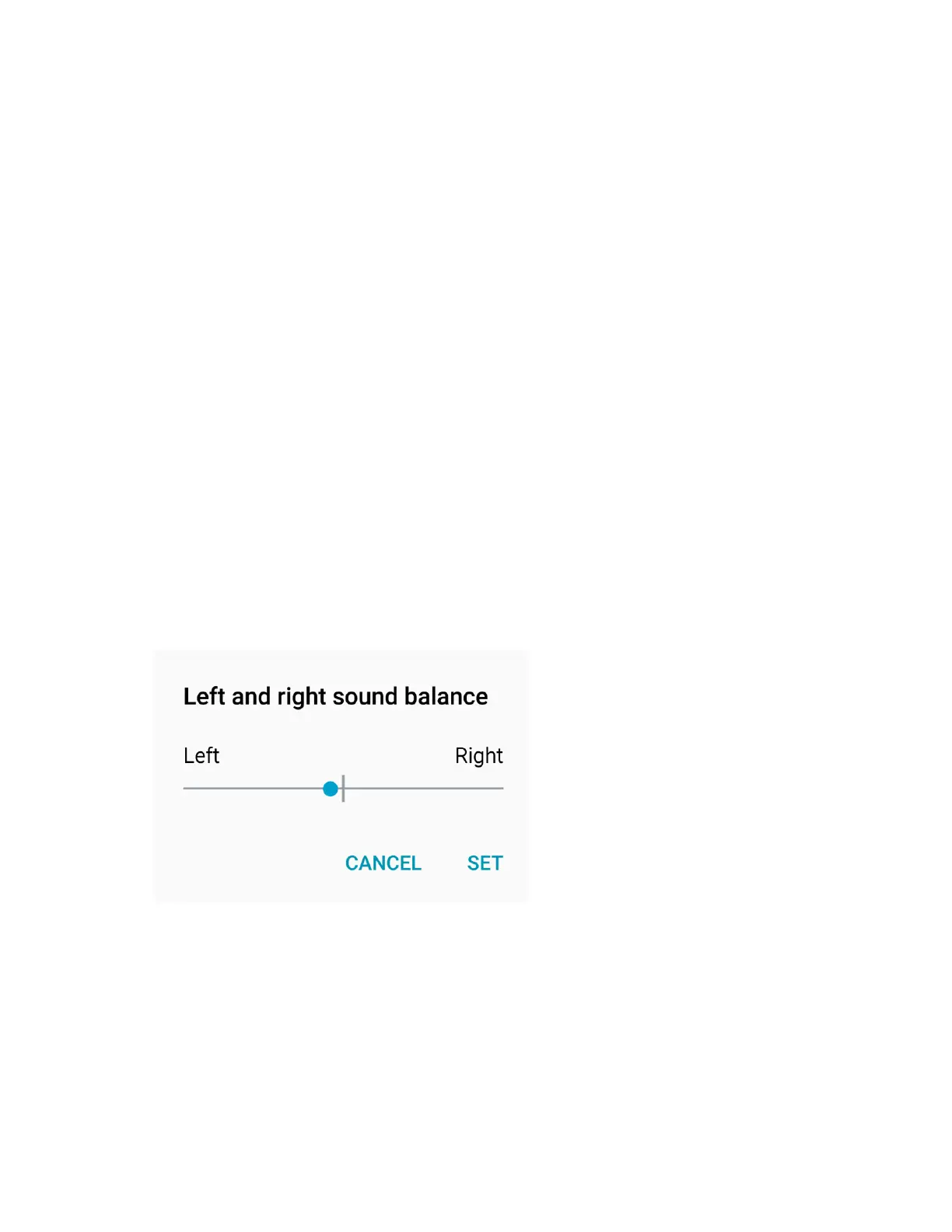
5. Access the Sound Balance section (you might need to tap “Left and right sound
balance”). Nexus 6 users: Because you DO NOT have a sound balance section, if you
have installed an app that allowed you to change the audio balance, open that app to
center the audio.
6. Move the audio balance slider to the far left and release it.
7. Move the slider back to center. It should snap into place once you're close enough. Make
sure the slider is completely centered. If it is even slightly off like the first image below
you’ll need to try again. The second image is centered.
8. Tap SET (if displayed).


 To Next Page