II. INSTALLATION
Mouse installation
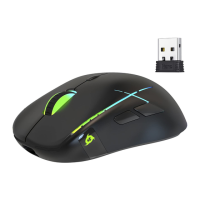
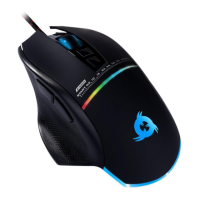
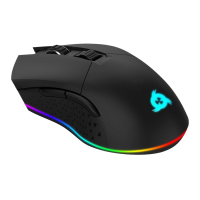
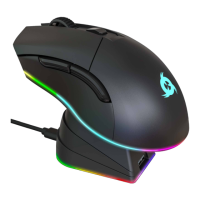
Simply plug the mouse to a USB port on a compatible device. The lights will turn on and
the mouse will be functional immediately.
In the event it does not light up or is not recognized by the system, please refer to the
Troubleshooting section at the end of this manual.
Driver installation
Our dedicated software for Windows lets you customize several aspects such as lighting,
button mapping, macros and more.
You can download it from our website: www.klimtechs.com/drivers
NOTE: if you receive a warning indicating that the program is potentially harmful, this is
due to Windows certifications. We are in the process of obtaining these
certifications. However, the driver remains perfectly safe to use.
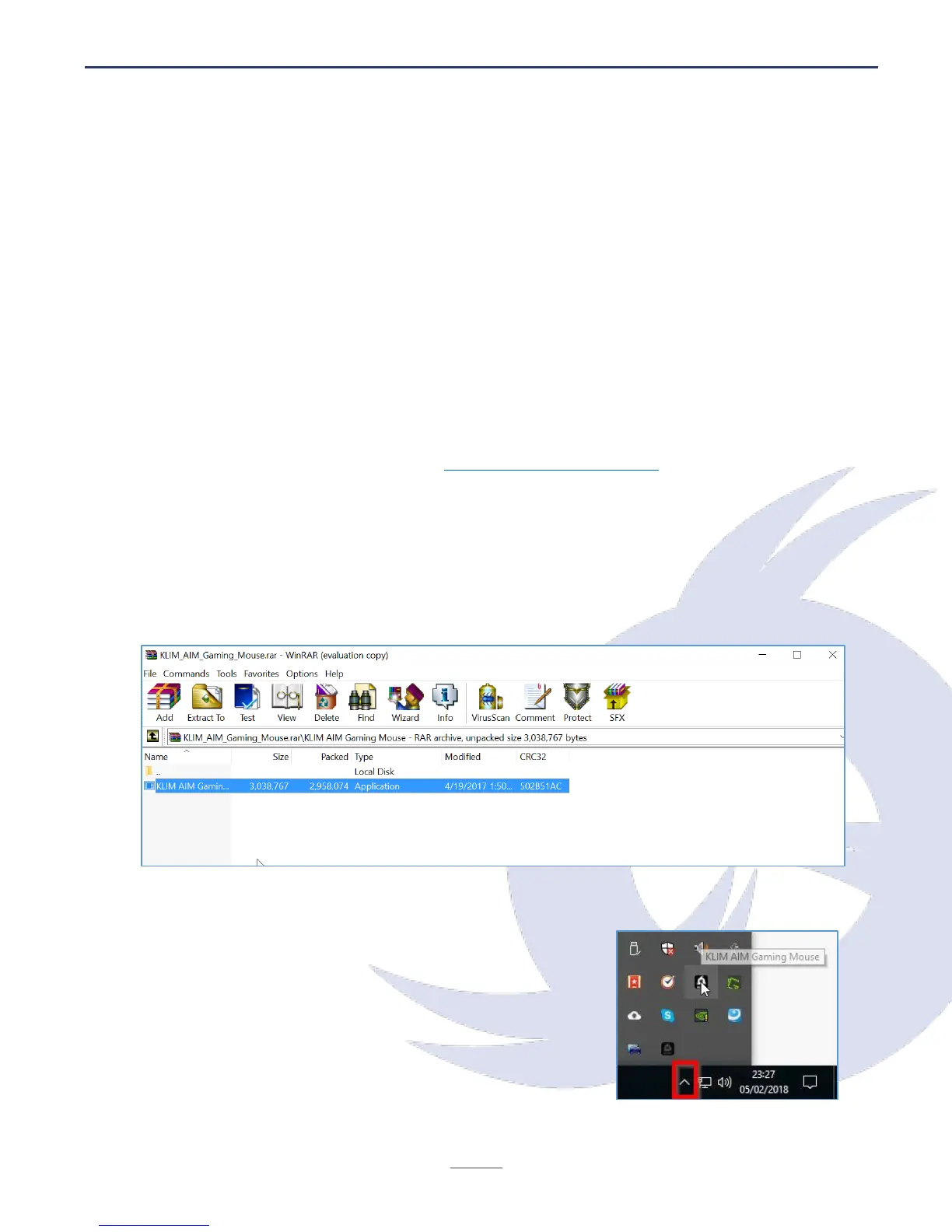
Once the driver has been downloaded you can use a decompressing tool such as WinRar to
extract it as shown below:
Extract it on your hard drive and double click on the
KLIM Aim Gaming mouse.exe. Once the installation
process is complete, the driver will automatically
launch. In order to open it, click the KLIM Aim Driver icon
on your taskbar (bottom right part of your desktop).


 To Next Page