IV. TROUBLESHOOTING
If you ever encounter any problems, remember that we remain at your disposal to help you
with any issues. Do not hesitate to contact us at support@klimtechnologies.com for
additional support.
I have installed the software but it does not open
The software is executed automatically once installed. In order to display it, look for the
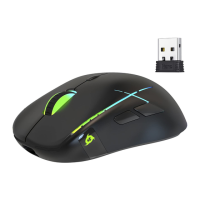
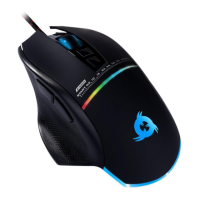
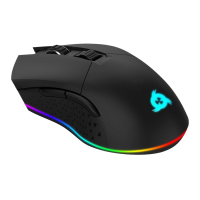
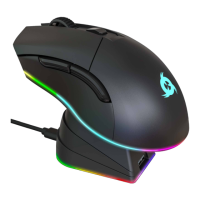
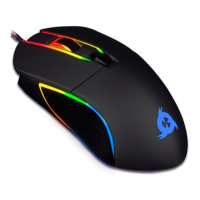
KLIM Aim Gaming Mouse icon on your Windows task tray and click on it.
I have used the software to change the brightness and now the lights are too dim even at
maximum level.
Brightness level goes from 1 to 50. In order to reveal levels beyond 7, hold the left click
button on the dropdown menu and move the mouse downwards.
I cannot customize the colours of the mouse using the software.
Individual LED customization is available only for Breathing and Static modes. Select a
compatible mode to customize colours.
My changes are not saved when I finish customizing the mouse.
Check that you click "Apply" before pressing OK and closing the window.
The lights stay on even after I switch off my computer.
Some computers provide energy to the USB ports even if the computer is off. You can
usually solve this by accessing your BIOS energy options and activating ErP. If you are not
sure about this procedure, please contact us.
We thank you again for your purchase and hope that you enjoy using our KLIM Aim gaming
mouse. Do not hesitate to leave a comment on the site you purchased it from, it will help
us tremendously :)
The KLIM team


 To Previous Page