Adjusting the DPI
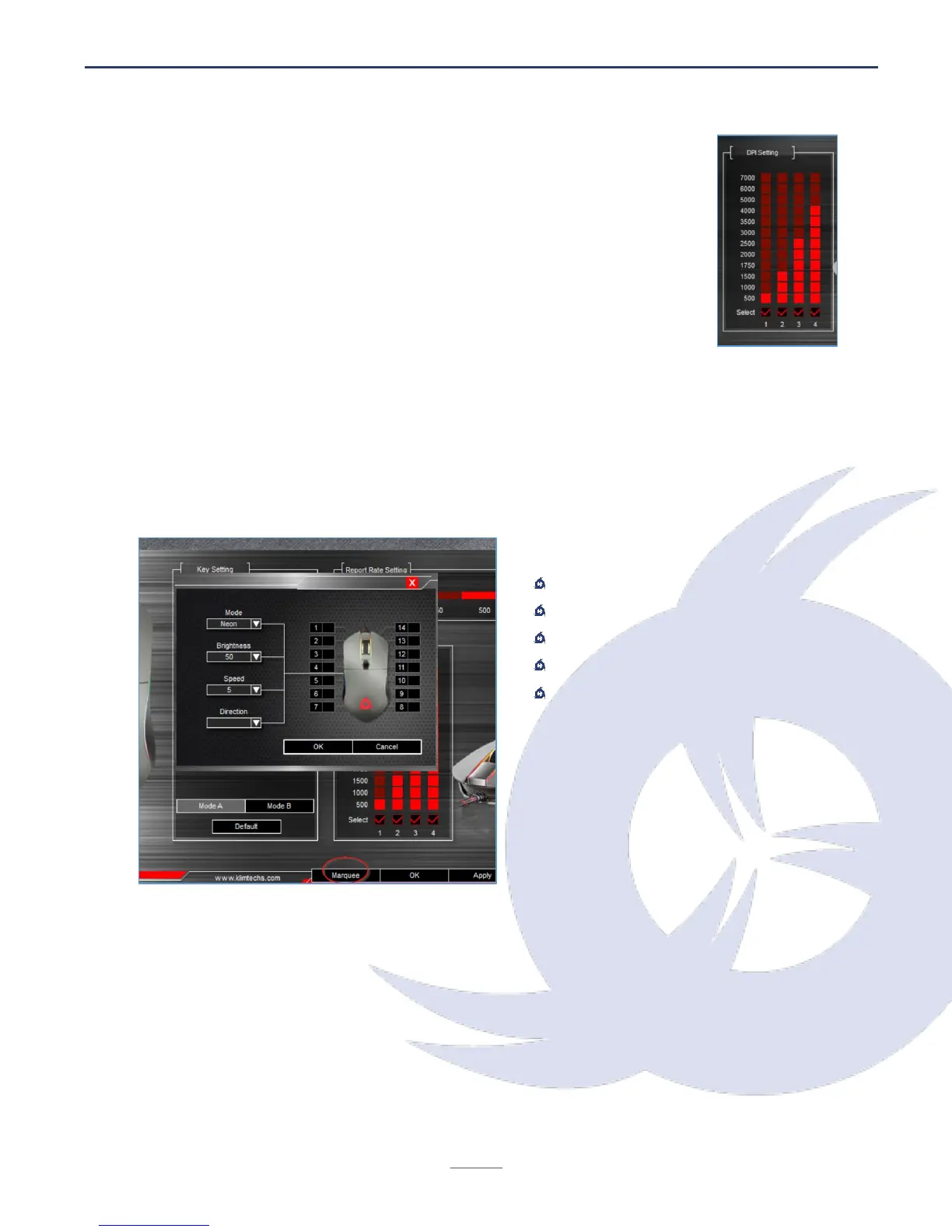
The KLIM Aim Gaming mouse has 4 different DPI levels, which you can
change using the DPI Loop button (6). Use this screen to specify the
DPI for each one of the 4 levels. If you prefer to have less DPI levels,
tick the checkbox at the bottom so it loops only between the selected
levels.
Colours
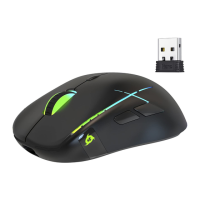
Click on Marquee to access color and effect customization. You may select different modes
and change their intensity, brightness, speed and color (for selected modes only).
Neon mode is selected by default.
Available color modes
Static
Breathing
Neon
Recirculating Water
Symmetrical Flow
To change the color of each individual LED, click on the black square (numbers 1-14) and
select the desired color. This option is available for Breathing and Static modes. If you
want to turn off the mouse lighting completely, select black squares for numbers 1-14.
Depending on the selected mode, you may also adjust the speed and direction of the
effects.
NOTE: Brightness levels go from 1 to 50. Hold the left click on any number from the
brightness dropdown menu and move the mouse down to reveal all levels.


 To Next Page