KLIM Puma User Manual www.klimtechs.com
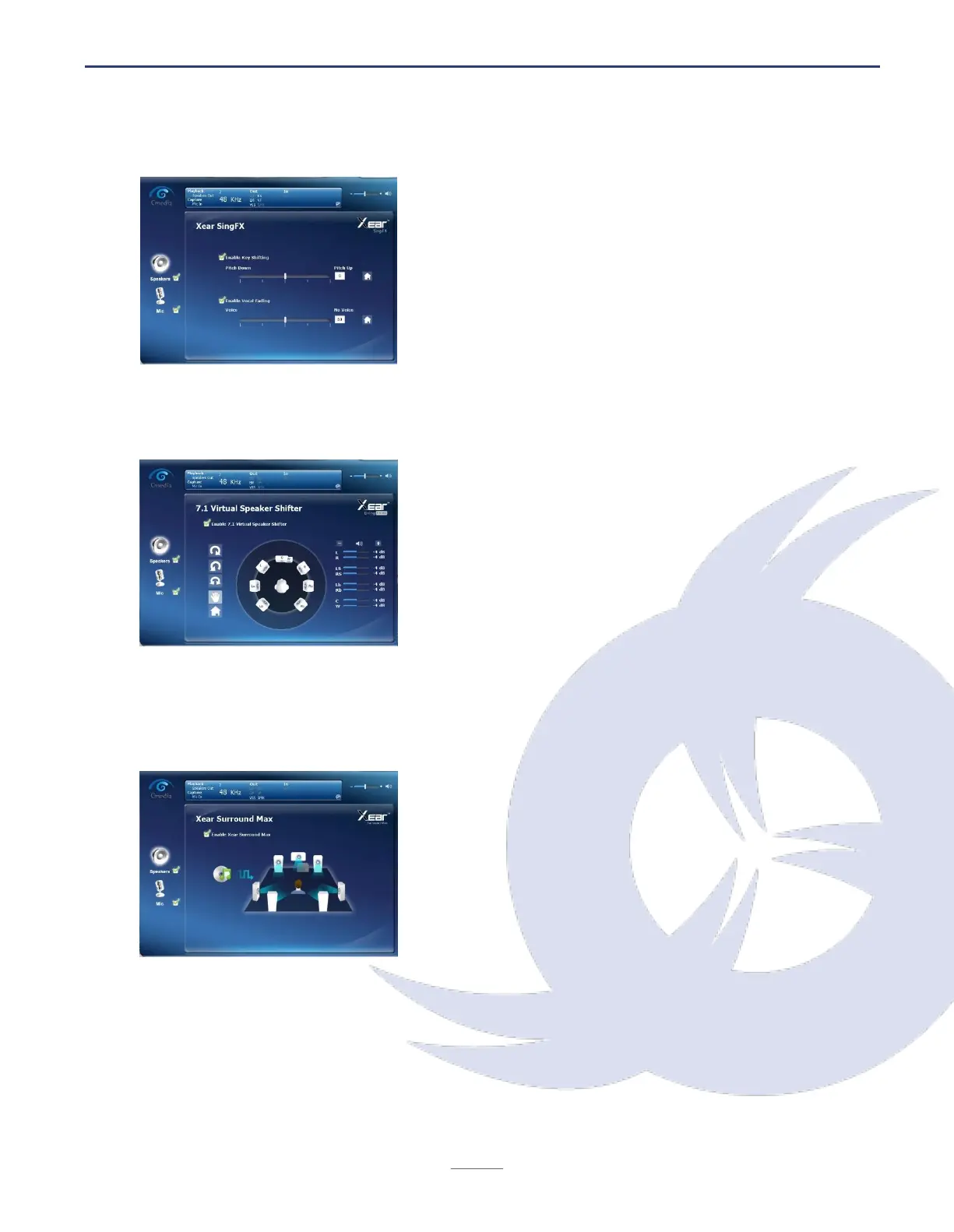
Vocal effects
Use the top slider to change the pitch of incoming
audio.
Use the bottom slider to change vocal fading (right:
less vocals, left: more vocals).
Click on the Default button (house icon) to revert to
the original values.
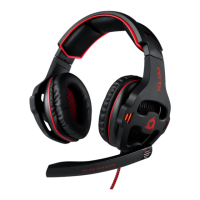
7.1 Virtual Sound
Customize your KLIM Puma's Virtual 7.1 Surround
Sound experience by checking the Virtual 7.1
Speaker Shifter button at the top. Use the arrow
icons to test the effects.
You may also move each speaker to place it in a
different position by dragging the icons around.
Click on the Default button (house icon) to reset to
the original values.
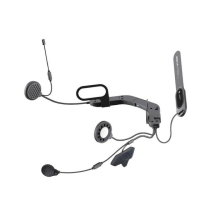
7.1 Surround Max
Maximize the KLIM Puma's 7.1 surround features by
checking the Surround Max option.
NOTE: 7.1 virtual sound must be activated before
enabling Surround Max.


 To Next Page