KLIM Puma User Manual www.klimtechs.com
II. INSTALLATION
KLIM Puma setup
Windows
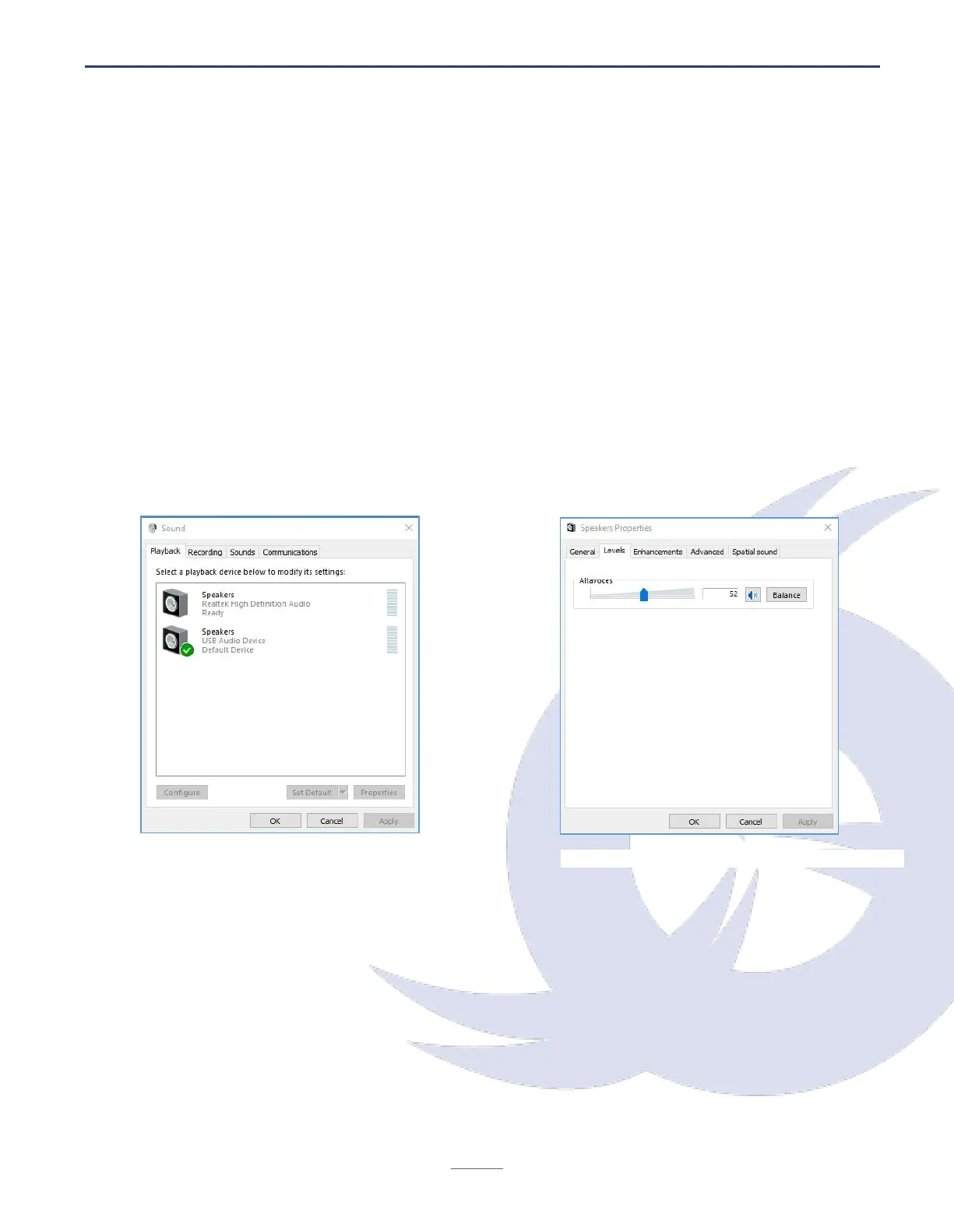
1. Go to your Control Panel > Hardware & Sound > Sound > Playback tab (at the top).
You can also access this screen by right clicking the Speaker symbol located at the
bottom right corner of your screen, in the toolbar, and clicking "Playback devices".
2. Check that the KLIM Puma is set as the default playback device (green tick). If it
isn't, right click on it, and click Set as default device. Also, click on Set as default
communications device.
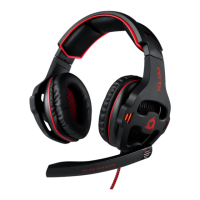
3. Next, click on Properties. Under the Levels tab, adjust the output volume and verify
that the device is not muted (speaker icon next to the slider). After you have made
the necessary adjustments, click Apply, then Accept.
4. Set up the microphone by clicking on the Recording tab at the top. Choose the KLIM
Puma as the default microphone and access the Properties screen to adjust the
recording level.
1. Sound Settings > Playback screen
2. Properties > Levels screen


 To Next Page