II. INSTALLATION
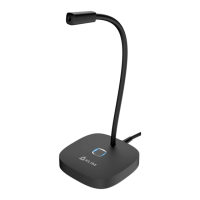
The microphone does not require any drivers. You just have to plug it in and it works.
However, in some cases the microphone is not prioritized compared to the in-built
microphone on a laptop, or to other recording devices previously connected to your
computer.
Follow these steps to set up your microphone in case it is not active when you plug it in:
Windows
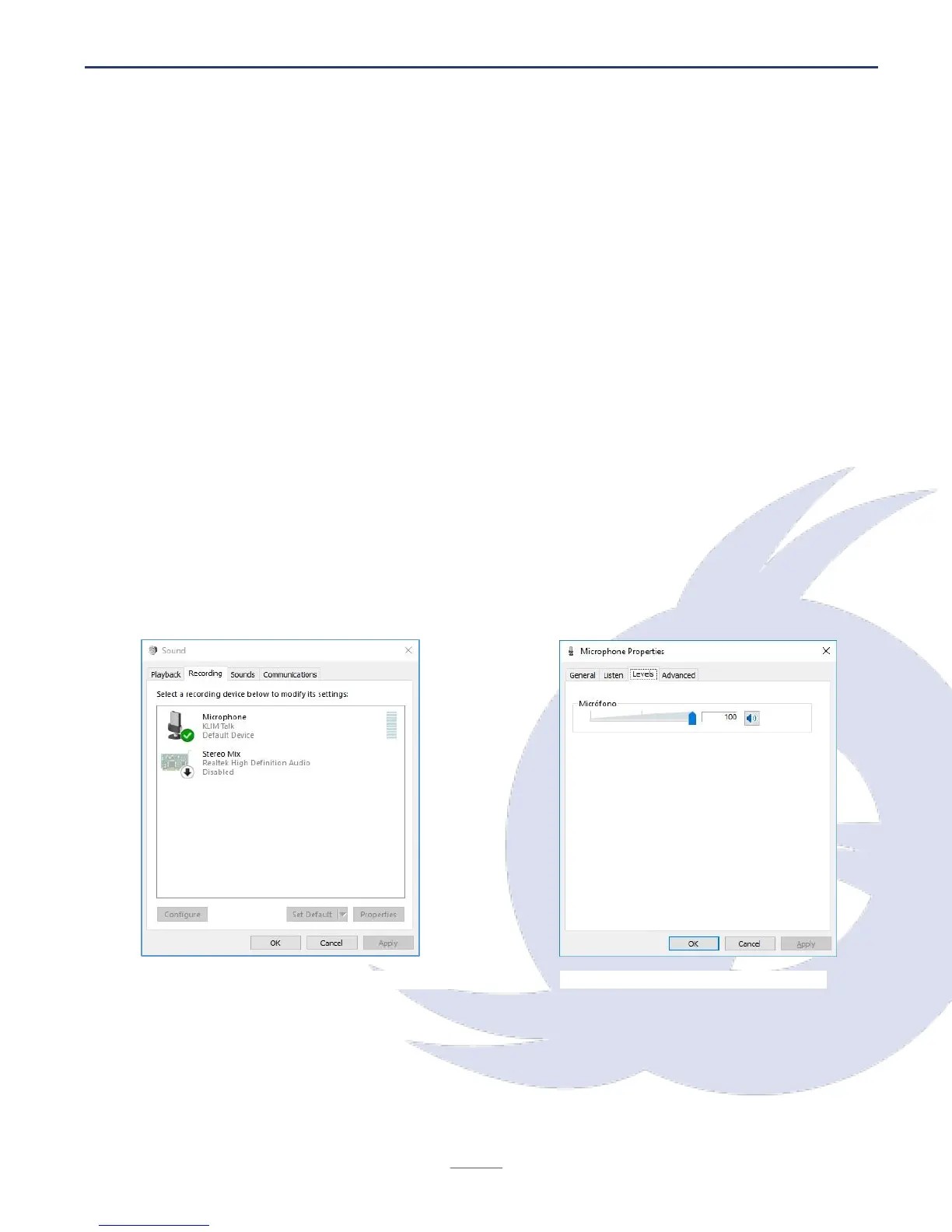
1. Go to your Control Panel > Hardware & Sound > Sound > Recording tab (at the top).
You can also access this screen by right clicking the Speaker symbol located at the
bottom right corner of your screen, in the toolbar, and clicking "Recording devices".
2. Check that the the correct microphone (KLIM Talk) is set as the default recording
device. If it isn't, right click on it, and click Set as default device. Also, click on "Set
as default communications device".
3. Next, click on Properties. Under the Levels tab, adjust the microphone volume (we
recommend 75 or more) and verify that the device is not muted (square button next
to the slider). After you have made the necessary adjustments, click Apply, then
Accept.


 To Next Page