Using Audacity to reduce background noise
Whenever you use the microphone, it is strongly recommended that you do it in a quiet
area. However, sometimes there can be some background noise which you might want to
remove from your recordings. You can do this easily by using Audacity, a free open-source
audio recording and editing software (https://www.audacityteam.org/)
Step 1 - Find some background noise
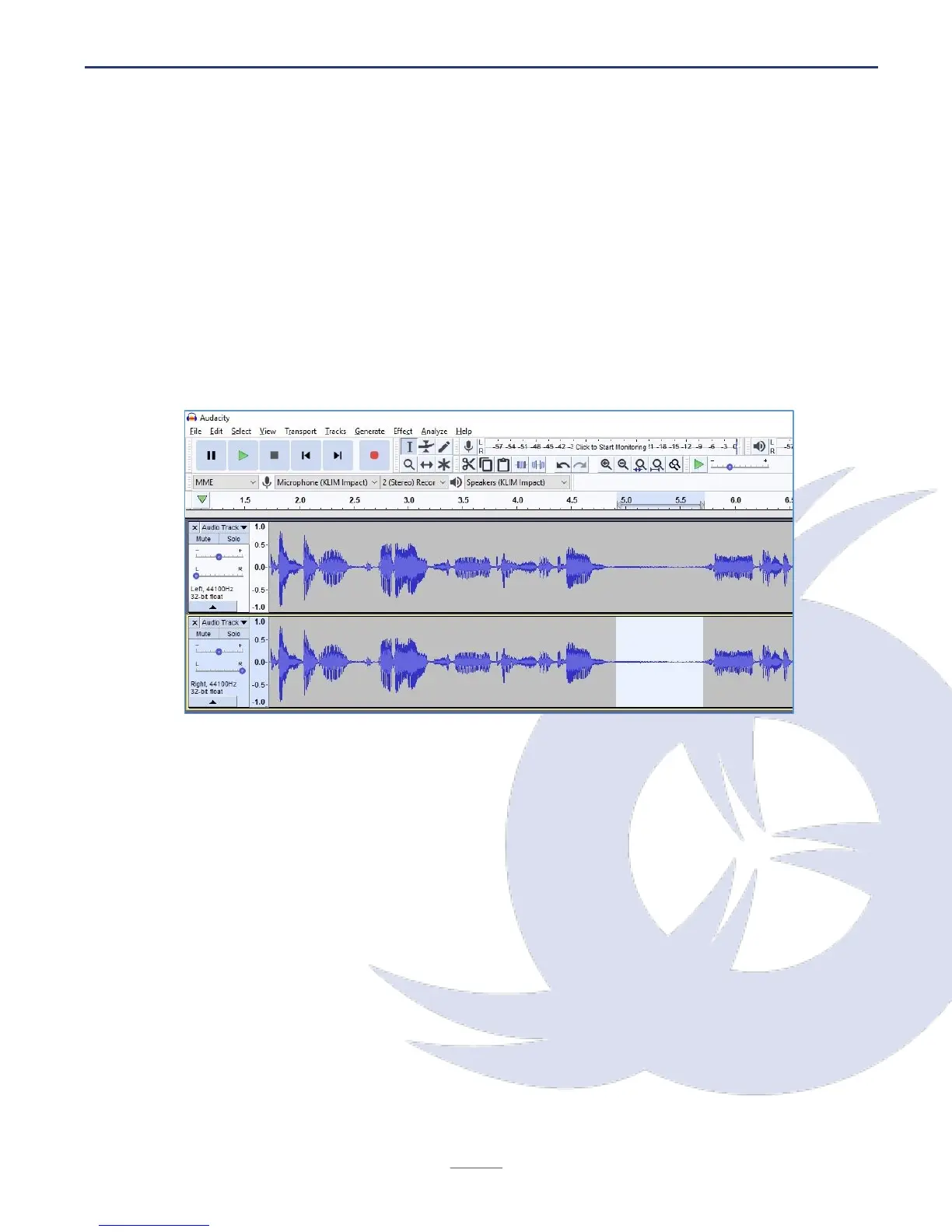
To filter out the ambient background noise, you’ll need to find a section of audio where it
can be heard alone, isolated. This might involve splitting a stereo track to two mono tracks
(via the down-arrow on the Track Control Panel, and selecting Split Stereo Track).
Once you’ve found the audio — which Audacity will use as an example — you should select
it with the mouse. Make sure the Selection tool is selected, then left-click and drag the
section of background, ambient audio.
This audio selection will be used by the Noise Reduction feature in Audacity to find similar
background ambient audio, and remove it from the track(s). Not only is it pretty clever, the
end results are almost always superb.


 To Next Page