3 FPGAconf
FPGAconf is a multifunction software provided with your FPGA board.
3.1 Board selection
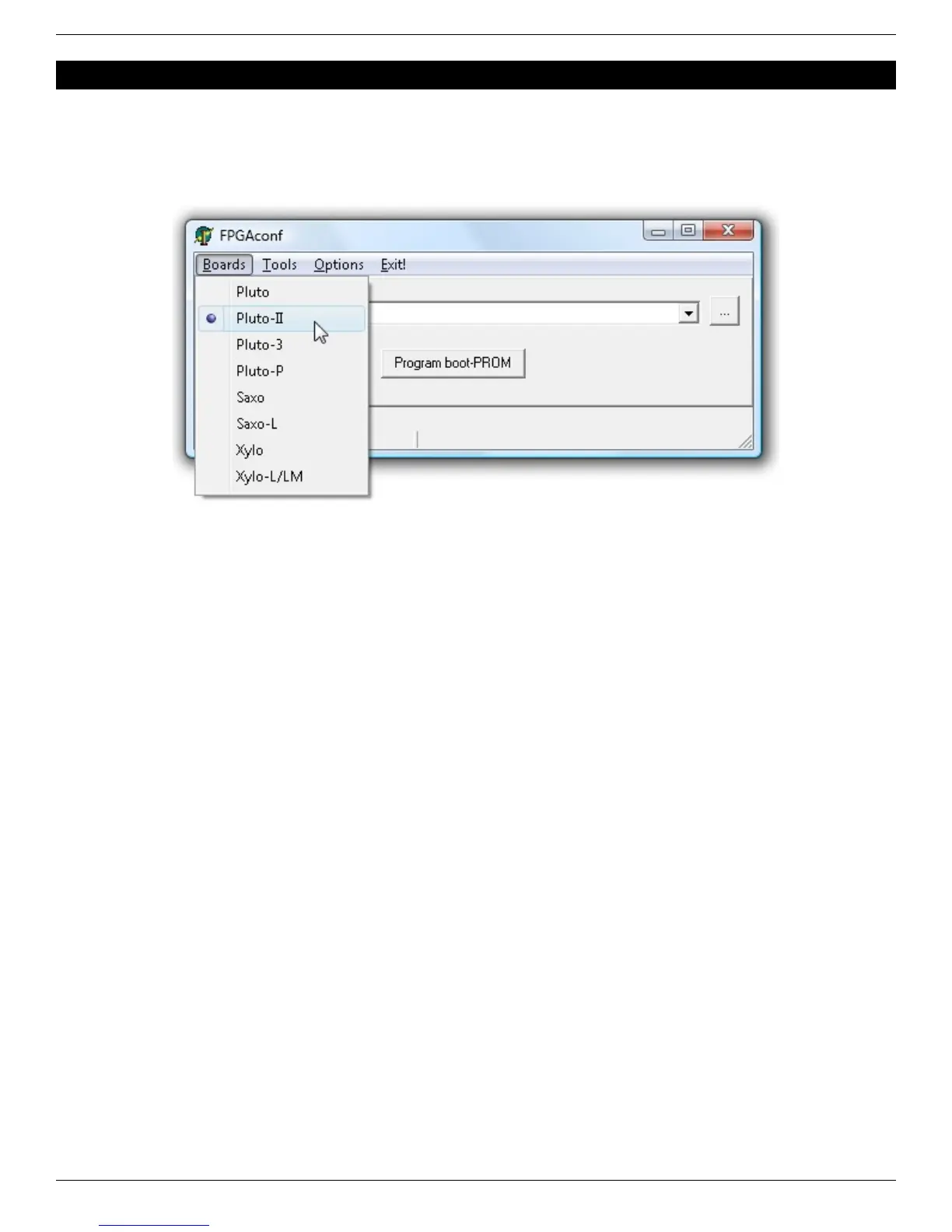
FPGAconf can be used with different boards – make sure that your board is selected.
For example, we select Pluto-II below.
3.2 Configuring the FPGA
FPGAconf makes FPGA configuration very easy.
1. Select an RBF or BIT bitfile (i.e. click on the browse button to select a file – the browse button is shown as “...”).
2. Click “Configure”.
After a few seconds, the FPGA should be configured. If not, see the board checklist (chapter 17).
For your convenience, sample RBF and BIT files are provided in the startup-kit. In particular, try “LEDblink” and “LEDglow”
from the LED directory.
When the FPGA is not configured, the board's LED glows slightly. With practice, you’ll be able to recognize immediately if
the FPGA is configured or not.
3.3 FPGAconf options
The different settings available are:
1. “Beep after configuration”
2. “COM port” (choose from COM1 to COM32)
3. “Look for any COM port available” (if the COM port specified fails, FPGAconf uses the next port it can open)
4. “Use alternate COM port for the terminal” (useful if you want the terminal window to use a different port)
5. “Keep COM port open after configuration” (some PCs reset the Pluto board unless this is enabled)
6. “Turbo mode” (allows faster FPGA configuration, works on most boards)
FPGA RS-232 development boards Page 7



 To Next Page