EasyManua.ls Logo

Kodak 8810 - User Manual

Kodak 8810
38 pages
Print Icon
To Next Page IconTo Next Page
Loading...
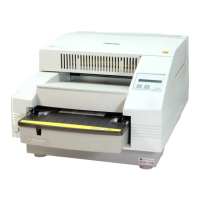
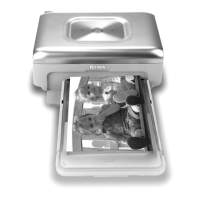
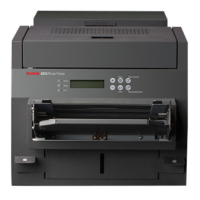
KODAK 8810 Photo Printer
June 2009
8810 Photo Printer
User’s Guide

Questions and Answers

  • P
    Peter FrederickAug 18, 2025
    What to do if Kodak 8810 shows 'Paper Jam XX'?
    • J
      Joel MorganAug 18, 2025
      If your Kodak printer displays 'Paper Jam XX', it means that the paper is jammed. Clear the paper jam, then reload the paper. If the error continues, turn the printer off and then on again.
  • S
    Stephanie CrawfordAug 20, 2025
    Why does my Kodak 8810 Printer show 'Cover Open'?
    • S
      Sara GonzalesAug 21, 2025
      If your Kodak printer displays 'Cover Open', it means that the top cover is open. Ensure that the top cover is securely closed.
  • J
    James SanchezAug 23, 2025
    Why does my Kodak printer show 'Paper Cover Open'?
    • C
      Cheryl FaulknerAug 23, 2025
      If your Kodak printer displays 'Paper Cover Open', it indicates that the paper cover is open. Make sure the paper cover is securely closed.
  • R
    Rachel RamseyAug 26, 2025
    What to do if my Kodak Printer prints have vertical streaks?
    • L
      Linda GloverAug 26, 2025
      If your Kodak printer produces prints with vertical streaks, the thermal print head is likely dirty. Clean the thermal print head.
  • J
    Jennifer MaynardAug 28, 2025
    What to do if my Kodak 8810 Printer prints have streaks made up of small dots?
    • L
      Larry HolderAug 28, 2025
      If your Kodak printer produces prints with streaks made up of small dots, it indicates that the platen roller is dirty. Clean the platen roller to resolve this issue.
  • S
    sullivandavidAug 31, 2025
    What to do if Kodak Printer says 'Paper Empty'?
    • M
      Morgan DiazAug 31, 2025
      If your Kodak printer displays a 'Paper Empty' message, it means that the paper tray is empty, the paper is not installed correctly, or the label is still attached to the roll. To fix this, load or reload the paper.
  • S
    stacyfloresSep 2, 2025
    Why does my Kodak 8810 Printer say 'Cooling'?
    • M
      Michael YoungSep 2, 2025
      If your Kodak printer displays 'Cooling', it indicates that the printer is too hot to print. Wait for the printer to complete cooling before attempting to print again.
  • H
    Heather RoySep 4, 2025
    Why Kodak Printer prints incorrect size or aspect ratio?
    • R
      rjonesSep 4, 2025
      If your Kodak printer is producing prints with an unexpected size or aspect ratio, the image file or printing options in your photo printing software program need adjustment. In your photo printing software program: * Use the Fit to Page or the Clip options if available. * Adjust the image size to match the paper size. * Make sure the Portrait/Landscape setting matches the orientation of the image.
  • H
    Haley DanielsSep 7, 2025
    Why does my Kodak printer show 'Ribbon Empty'?
    • Y
      ydavisSep 7, 2025
      If your Kodak printer displays a 'Ribbon Empty' message, it indicates that the ribbon is either empty, not loaded, or stuck to the paper. To resolve this, load or reload the ribbon.
  • J
    Jeffery LeonardSep 9, 2025
    Why does my Kodak 8810 display 'Incorrect Ribbon'?
    • S
      susan11Sep 10, 2025
      If your Kodak printer displays 'Incorrect Ribbon', the printer could not read the bar code on the ribbon or the wrong type of ribbon is installed. Check that the ribbon has a bar code and/or replace it with the correct type.

Summary

Setting Up the Printer

Package Contents

Lists items included with the KODAK 8810 Photo Printer.

Preparing the Printer for Use

Instructions for unpacking and setting up the printer physically.

Connecting the Power Cable

Steps to connect the printer's power cable to an outlet.

Connecting the USB Cable

Steps to connect the printer to a computer via USB.

Turning On the Printer

How to power the printer on and off, and indicator lights.

Handling and Storing the Paper and Ribbon

Guidelines for proper handling and storage of paper and ribbon.

Loading the Ribbon

Step-by-step instructions for loading the ribbon into the printer.

Loading the Paper

Instructions for loading the paper roll into the printer.

Making a Test Print

Procedure to print a test page to verify setup.

Operating the Printer

Making Prints

How prints are made using software applications.

Handling and Storing Prints

Best practices for handling and storing printed photos.

Operator Panel Lights

Explains the meaning of different lights on the operator panel.

Operator Panel Buttons

Describes the function of each button on the operator panel.

Printer Settings

Details on how to view and change printer settings via the operator panel.

Maintaining the Printer

Performing Routine Maintenance

Overview of essential cleaning tasks for printer maintenance.

Cleaning the Exterior

Instructions for cleaning the printer's outer surfaces and filter openings.

Cleaning the Thermal Print Head and the Peel Roller

Steps to clean the thermal print head and peel roller.

Cleaning the Platen Roller

Procedure for cleaning the platen roller using an alcohol pad.

Cleaning the Cleaning Rollers

Steps to clean the front and rear cleaning rollers.

Troubleshooting

Common Printing Problems

Lists common issues like paper jams, streaks, and incorrect print sizes.

Resolving Operator Panel Status;Error Messages

Details on understanding and resolving error messages displayed on the operator panel.

Clearing a Paper Jam

Step-by-step instructions for safely removing jammed paper from the printer.

Recovering from a Power Interruption

Guidance on how to handle printer operations after a power outage.

Appendix A: Additional Information

System Requirements

Lists the necessary computer hardware and software for the printer.

Printer Specifications

Technical details and dimensions of the KODAK 8810 Photo Printer.

Printer Supplies

Information on available print kits and cleaning supplies.

Packing and Transporting the Printer

Instructions for safely packing and moving the printer.

Getting Help

Resources for obtaining technical assistance and support.

Appendix B: Safety and Regulatory Information

Important Safety Information

General safety precautions and warnings for using the printer.

Safety Labels

Identification and explanation of safety warning labels present on the printer.

Regulatory and Safety Compliance

Details on safety standards and regulatory compliance like FCC and EMC.

Noise Emission

Information regarding the noise levels produced by the printer during operation.

Disposal

Guidance on the proper disposal and recycling of the printer and its components.

China RoHS

Information related to China's RoHS directive concerning hazardous substances.

Kodak 8810 Specifications

General IconGeneral
Print TechnologyInkjet
Max Print Resolution4800 x 1200 dpi
Operating System CompatibilityWindows, Mac
ConnectivityUSB 2.0
Paper SizeLetter, Legal, 4x6", 5x7", 8x10"
Paper Sizes SupportedA4

Related product manuals