2. CONNECTING THE ROUTER TO THE AIR HANDLING UNIT
1. Connect one end of the LAN cable to the connector on PING 2 module that is marked with a special icon
.
2. Connect the other end of the LAN cable to one of the several router connections marked with the text “LAN”.
Their number is usually 4 or more.
3. Connect one end of the special cable to the J1 connector in PING 2 module, and the other end to the con-
troller connector J1 of the air handling unit C4.
3. CONNECTION TO THE AIR HANDLING UNIT WITH KOMFOVENT HOME APP
COMPLEXITY
(Situation 1 – local area network address in the router’s default settings: 192.168.0.1 )
1. Use your phone to connect to the router’s WiFi network to which you have connected the air handling unit.
2. Run the app, if the local area network is located in the xx0.x subnet, the app will immediately connect to the
air handling unit.
If the connection failed, in your mobile app, select Menu > Settings > Connectivity > and click the Add
button. Enter the name of the object you want to create, the new IP address (192.168.0.29) and the Port
number (502), then click ü. The app will add it to the list. Select an object created from the list and click the
Exit arrow, then conrm the changes.
COMPLEXITY
(Situation 2 – the local area network address is not 192.168.0.x in the factory default settings of the router, but
the address is known – for example: 192.168.1.x)
1. Use your phone to connect to the router’s WiFi network to which you have connected the air handling unit.
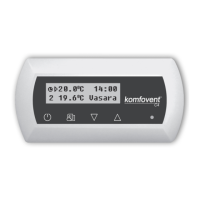
2. Change the subnet number from the panel at the device. Change the IP address from 192.168.0.29 to
192.168.1.29.
3. Run the app, because the local area network is located in the subnet xx1.x. The app will attempt to connect
to the default factory address, which is 192.168.0.29, but will fail. In such case, in the app, select Menu
> Settings > Connectivity > click Add, enter the name of the object you are creating, the new IP address
(192.168.1.29), and the Port number (502), then click ü. The app will add it to the list.
4. Select an object created from the list and click the Exit arrow, then conrm the changes.


 To Next Page