5
GETTING STARTED
Getting started with video calling
To begin your video call, you must first install and use a third-party application, such as
Microsoft Teams or Zoom.
Your computer needs to have a broadband Internet connection (e.g., DSL, T1, or cable).
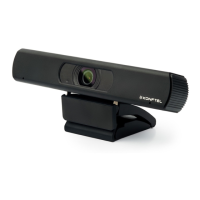
The Konftel Cam10 has two built-in microphones, but you can also use a computer with
speakers, or use a headset.
Your Konftel Cam10 supports full HD 1080p video calling.
For full HD 1080p video calling please check your preferred video calling software
requirements. Requirements may vary between applications, but usually a minimum of
2-megabit upload speed is required.
Specify your video and microphone
All video clients have the option to set the audio and video device.
• Review the audio selection to ensure the Konftel Cam10 microphone is selected.
• Review the video selection to ensure the Konftel Cam10 camera is selected.
Specify your Pan, Tilt, and Zoom (EPTZ)
Access to the webcam properties is usually available from your selected video client.
Select webcam properties and review the options available.
• Use the buttons and/or slider to increase zoom.
• Use the buttons and/or slider provided to pan left or right, or to tilt up or down.


 To Next Page