EasyManua.ls Logo

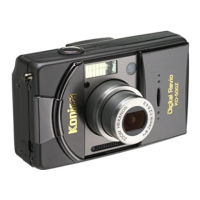
Konica Minolta Digital Revio KD-500Z - User Manual

Konica Minolta Digital Revio KD-500Z
125 pages
Print Icon
To Next Page IconTo Next Page
Loading...
Digital Still Camera
Thank you for your purchase. For the correct usage of this product,
please read this User’s Manual and warranty card carefully and
keep them in a safe place for future reference.
Before accepting the warranty card, please make sure that the
date of purchase and the dealer’s details have been completed.
User’s Guide

Table of Contents

Questions and Answers

  • R
    Roger ClarkAug 14, 2025
    What to do if Konica Minolta Digital Revio KD-500Z Digital Camera power will not turn ON?
    • P
      Patrick HebertAug 14, 2025
      If your Konica Minolta Digital Camera won't turn on, here are a few things to check: * **Battery Level:** Ensure the battery isn't too low. * **Battery Insertion:** Make sure the battery is correctly inserted. * **AC Adapter:** Verify the AC adapter is properly attached.
  • L
    Lucas HarrisAug 18, 2025
    What to do if my Konica Minolta Digital Camera can’t take a picture?
    • J
      John DominguezAug 18, 2025
      If your Konica Minolta Digital Camera isn’t taking pictures, consider these potential causes: * **Power Supply:** Ensure the power is turned on. * **Write Protection:** Check if the SD Memory Card or Memory Stick is write-protected; if so, remove the write protection. * **Maximum Pictures:** If the maximum number of pictures has been reached, erase unwanted ones. * **Self-Timer Mode:** If the camera is set to Self-Timer mode, change the mode. * **Flash Charging:** If the flash is charging, wait until it's fully charged.
  • K
    Kim LyonsAug 21, 2025
    Why does my Konica Minolta Digital Revio KD-500Z Digital Camera power turns OFF right after turning on?
    • R
      Richard MitchellAug 21, 2025
      If your Konica Minolta Digital Camera turns off immediately after being turned on, it could be due to: * A low battery level, so check the battery level. * Low ambient temperature, so try to increase the ambient temperature.
  • A
    Ashley KingAug 25, 2025
    Why Konica Minolta Digital Camera image appears dark?
    • A
      Aaron CareyAug 25, 2025
      If your Konica Minolta Digital Camera images appear dark, it might be because: * The distance to the subject is too great for the flash to reach, so reduce the distance. * There is not enough light, so increase the lighting conditions.
  • C
    Connie CampbellAug 27, 2025
    How to fix Konica Minolta Digital Revio KD-500Z image with no natural color?
    • T
      Tiffany KingAug 28, 2025
      If your Konica Minolta Digital Camera image has no natural color, it might be because the white balance is incorrect. You should adjust the white balance.
  • R
    Rachel CordovaAug 31, 2025
    What to do if Konica Minolta Digital Camera image too bright?
    • D
      Daniel EllisAug 31, 2025
      If your Konica Minolta Digital Camera image is too bright, it's possible that the flash was used when the subject was too close. Try moving the subject further away from the flash.
  • T
    Terry HughesSep 3, 2025
    Why my Konica Minolta Digital Revio KD-500Z LCD monitor display and images are not clear?
    • D
      dgrahamSep 3, 2025
      If the LCD monitor display and images on your Konica Minolta Digital Camera are not clear, this could be due to: * Incorrect LCD brightness adjustment, so adjust the LCD brightness. * Fingerprints or dirt on the monitor, so clean the monitor.
  • R
    robert88Sep 7, 2025
    How to fix Konica Minolta Digital Revio KD-500Z that Doesn’t Flash?
    • J
      Julie MarksSep 7, 2025
      If your Konica Minolta Digital Camera doesn’t flash, it might be set to 'Flash off' mode. Change the setting from 'Flash off' mode.
  • L
    ltranSep 9, 2025
    Why Konica Minolta Digital Revio KD-500Z won’t play back?
    • B
      Brandon FaulknerSep 9, 2025
      If your Konica Minolta Digital Camera won’t play back images, consider the following: * **PLAY Button:** Ensure the PLAY button is turned ON. * **Image Data:** Verify there is image data on the storage medium. * **Erased Data:** If all image data is erased, attempt to recover or restore it.

Summary

Getting Started

Caution for Extended Camera Use

Safety advice regarding camera heat during extended use.

About trademarks

Information on trademarks used in the manual.

Important Safety Precautions

Definitions of the symbols

Explains warning and caution symbols used in the manual.

Preparation

Necessary Accessories

Lists and describes the items included in the camera package.

Names of Parts

Identifies external components and buttons of the camera.

Attaching the Strap

Details on how to securely attach the camera strap.

Preparing the Power Supply

Details on charging and installing the battery, and connecting the AC adapter.

Basic Operation

Holding Your Camera

Proper grip and handling techniques for stable shooting.

Viewfinder and Indicator LEDs

Explanation of the viewfinder display and indicator lights.

Taking Pictures

Guide to composing and capturing photos using the viewfinder or LCD.

Selecting the Shooting Mode

Explains various shooting modes like Auto, Red-Eye, Macro, Self-Timer.

Advanced Shooting

Using the REC Menu

Accessing and using the recording settings menu for customization.

Shooting Movies

Guide to recording video clips with sound.

Basic Playback;Erasing

Playback

Navigating and viewing recorded images and movies on the LCD.

Erasing the Playback Image

Deleting single or multiple recorded images.

Advanced Playback;Erasing

Using the PLAY Menu

Accessing and using the playback and editing menu options.

Copying an Image

Transferring images between different memory media.

Reducing Image Size (Resizing)

Creates smaller image files, suitable for email or web use.

Advanced Operations

Using the Set-up Menu

Detailed guide for configuring camera settings and preferences.

Formatting a Memory Card

Initializes memory cards, erasing all data to restore factory state.

Others

Connecting to your PC

Instructions for transferring data and connecting the camera to a computer.

Troubleshooting

Solutions for common camera problems and issues.

Main Specifications

Overview of the camera's key technical specifications and features.

Warranty and After-sales Service

Information on warranty, repairs, and customer support.

Konica Minolta Digital Revio KD-500Z Specifications

General IconGeneral
CategoryDigital Camera
Image Resolution2560 x 1920 pixels
Digital Zoom4x
ISO SensitivityAuto, 50, 100, 200, 400
File FormatJPEG
ModelKD-500Z
Image Sensor1/1.8 inch CCD
Effective Pixels5.0 million
Lens3x optical zoom
Focus Range50 cm to infinity
LCD Screen1.5-inch TFT
Storage MediaSD card
Video RecordingYes
BatteryLithium-ion battery

Related product manuals