EasyManua.ls Logo

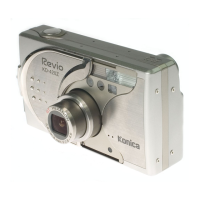
Konica Minolta REVIO KD-420Z - User Manual

Konica Minolta REVIO KD-420Z
141 pages
Print Icon
To Next Page IconTo Next Page
Loading...
Digital Still Camera
Thank you for your purchase. For the correct usage of this product,
please read this User’s Manual and warranty card carefully and
keep them in a safe place for future reference.
Before accepting the warranty card, please make sure that the
date of purchase and the dealer’s details have been completed.
User’s Guide

Table of Contents

Questions and Answers

  • J
    Jeffrey BuckAug 17, 2025
    What to do if my Konica Minolta Digital Camera can't take a picture?
    • P
      perezkimberlyAug 17, 2025
      If your Konica Minolta Digital Camera won't take a picture, here are a few things to check: * Ensure the power supply is turned ON. * If using an SD Memory Card or Memory Stick, verify that write protection is disabled. * If the maximum number of pictures has been reached, erase unwanted pictures. * If the camera is set to Self-Timer mode, change the mode. * If the flash is charging, wait until it's fully charged.
  • I
    iphillipsAug 20, 2025
    How to fix Konica Minolta Digital Camera if power will not turn on?
    • R
      robert60Aug 20, 2025
      If your Konica Minolta Digital Camera won't turn on, the issue might be: * Low battery level: Check the battery level. * Incorrectly inserted battery: Insert the battery correctly. * AC adapter attached incorrectly: Attach the AC adapter correctly.
  • J
    Joshua ColemanAug 22, 2025
    Why does my Konica Minolta REVIO KD-420Z Digital Camera power off right after turning on?
    • M
      Michelle NicholsonAug 23, 2025
      Your Konica Minolta Digital Camera might be turning off immediately after being turned on due to: * Low battery level: Check the battery level. * End of battery service life: Fit a new battery. * Low ambient temperature: No suggested solution mentioned.
  • J
    Joshua RomeroAug 26, 2025
    How to troubleshoot focusing issues on Konica Minolta Digital Camera?
    • K
      Karen TranAug 26, 2025
      If you're having trouble focusing with your Konica Minolta Digital Camera, consider the following: * Subject not in the center: Center the subject in the frame. * Subject hard to focus: Adjust focus settings. * Dirty lens: Clean the lens. * Incorrect distance from the subject: Adjust distance from subject.
  • C
    Chad WilsonAug 28, 2025
    Why does my Konica Minolta Digital Camera image appear dark?
    • G
      gatesashleyAug 28, 2025
      If images from your Konica Minolta Digital Camera appear dark, it could be due to: * Too great a distance, preventing the flash from reaching the subject: Reduce the distance to the subject. * Insufficient light: Increase lighting. * Improperly adjusted exposure correction: Adjust the exposure correction.
  • W
    Walter LarsenAug 31, 2025
    How to improve LCD monitor display clarity on Konica Minolta REVIO KD-420Z?
    • L
      Lori DixonAug 31, 2025
      If the LCD monitor display and images on your Konica Minolta Digital Camera are not clear: * Adjust the LCD brightness if it's set incorrectly. * Clean the monitor if there are fingerprints or dirt on it.
  • E
    Eric MonroeSep 2, 2025
    What causes images from Konica Minolta REVIO KD-420Z to be too bright?
    • K
      Kelsey ClementsSep 3, 2025
      Images from your Konica Minolta Digital Camera might appear too bright if: * The flash was used with the subject too close: Increase the distance from the subject. * The exposure correction is not adjusted properly: Adjust the exposure correction.
  • K
    Kim EspinozaSep 5, 2025
    What to do if Konica Minolta Digital Camera won’t play back images?
    • J
      Jane MackSep 5, 2025
      If your Konica Minolta Digital Camera won’t play back images: * Ensure the PLAY button is turned ON. * Make sure there is image data present. * If all image data has been erased, attempt to restore or save image data.
  • P
    Phillip BrownSep 8, 2025
    How to enable flash on Konica Minolta Digital Camera?
    • J
      Joshua MooreSep 8, 2025
      If the flash on your Konica Minolta Digital Camera isn’t working, it might be set to “Flash off” mode. Change the setting to enable flash.
  • H
    hallshelleySep 12, 2025
    Why does my Konica Minolta REVIO KD-420Z Digital Camera produce images with no natural color?
    • B
      Brian ChavezSep 12, 2025
      If your Konica Minolta Digital Camera produces images with no natural color, the white balance may be incorrect. Adjust the white balance.

Summary

Getting Started

Caution for Extended Camera Use

Warns about potential overheating and skin burns from prolonged use.

Important Safety Precautions

Definitions of the Symbols

Explains the meaning of warning, caution, and prohibition symbols.

Important Safety Precautions (Cont’d)

Product Usage Warnings

Lists critical warnings about product misuse, dismantling, water exposure, dropping, and unstable surfaces.

Electrical and Fire Hazard Warnings

Warns against looking at sun, lightning contact, unapproved adapters, and battery mishandling.

Camera Maintenance and Environment Precautions

Covers flash cleaning, battery polarity, soiled batteries, AC adapter disconnection, and unsuitable locations.

Battery and LCD Monitor Handling

Advises on battery removal, force on controls, tripod use, battery leakage, and LCD monitor care.

Usage Cautionary Notes

Advises on lens pointing, finger safety, airplane use, and flash proximity to eyes.

Preparing the Power Supply

Charging the Battery Pack

Explains how to charge the supplied battery pack using the charger.

Preparing the Power Supply (Cont’d)

Battery Installation and Status

Guides on installing battery pack and understanding the battery level indicator.

Battery Recycling and Safety Warnings

Explains battery recycling and safety warnings about short-circuiting, peeling covers, and dismantling.

Connecting the AC Adapter

Provides step-by-step instructions for connecting the optional AC adapter.

AC Adapter Usage Notes

Continues AC adapter connection instructions and provides safety advice.

Preparing the Power Supply (Cont’d)

Inserting;Removing Cards

Inserting a Card

Explains how to insert SD Memory Cards, MultiMedia Cards, or Memory Sticks.

Inserting;Removing Cards (Cont’d)

Card Removal and Handling Precautions

Guides on removing cards and crucial warnings for their operation.

Turning the Power ON;OFF

Power Management Procedure

Explains how to turn the camera power on and off using the lens cover.

Setting the Menu Language;Date and Time

Initial Language and Date;Time Setup

Guides through the first-time setup for language and date/time.

Setting the Menu Language;Date and Time (Cont’d)

Completing Date and Time Settings

Details how to adjust month, day, year, and time formats.

Taking Pictures

Selecting the Shooting Mode

Explains how to choose between AUTO, SCENE SELECT, MOVIE/VOICE, MANUAL, and SETUP modes.

Taking Pictures (Cont’d)

Taking Pictures (Cont’d)

Shooting with the LCD Monitor

Basic procedure for shooting still images in AUTO mode using the LCD screen.

Composing and Focusing Shots

Guides on composing shots, using zoom, and half-pressing the shutter for focus/exposure lock.

Focusing Issues and Auto Power Off

Addresses focus problems and the camera's automatic power-saving feature.

Focus Lock and Focusing Challenges

Covers using focus lock and identifying subjects difficult to focus on.

Shooting Movies

Instructions on how to record movies with sound.

Selecting the Flash;Macro Mode

Flash Mode Options

Explains how to select AUTO, Fill-In, and Off (Flash Override) modes.

Macro Mode Options

Explains how to select AUTO and Macro-photo modes.

Selecting the Flash;Macro Mode (Cont’d)

AUTO (Auto Flash) Details

Explains the functionality of the AUTO flash mode and its shooting distances.

Off (Flash Override) Mode

Details the Off mode where flash is prohibited or not used.

Fill-In Flash Mode

Describes the Fill-In flash mode for balancing shadows and backlighting.

Macro-photo Mode Details

Explains the Macro-photo mode for close-up shots and its shooting distances.

Playback

Playing Back Pre-recorded Images

Instructions on how to view still images stored on the camera.

Playback (Cont’d)

Playing Back Movies

Guides on how to play back recorded movie clips.

Erasing the Playback Image

Erasing Unwanted Images

Explains how to select and delete single, multiple, or all images.

Erasing the Playback Image (Cont’d)

Erasing Multiple Images (SELECT)

Details the process for selecting multiple images for deletion using the SELECT option.

Erasing the Playback Image (Cont’d)

Advanced Operations and Shooting

Using the Shooting Menu (cont’d)

Using the Auto mode menu (cont’d)

Using the Auto mode menu (cont’d)

Continuous Shooting Modes

Details Single, Continuous, and Super Continuous shooting modes.

Selecting the Image Size

Explains the three available image sizes and their pixel counts.

Using the Scene Select Mode Menu

Using the Scene Select Mode Menu (Cont’d)

Using the Scene Select Mode Menu (Cont’d)

Selecting the Right Scene Mode

Explains how to choose the best scene mode for your shot.

Available Scene Modes Explained

Describes Portrait, Scenery, Night, Snap, Sports, and Angel scene modes.

Using the Movie;Voice Mode Menu

Using the Movie;Voice Mode Menu (Cont’d)

Using the Movie;Voice Mode Menu (Cont’d)

Using After Recording (Voice Comments)

Explains how to add voice comments to existing photos.

Erasing Recorded Voice Comments

Details how to delete voice comments from photos or delete voice and picture together.

Adjusting Exposure Compensation

Explains how to brighten or darken the overall image exposure.

Adjusting White Balance

Guides on setting white balance to match ambient light conditions.

Using the Manual Mode Menu

Using the Manual Mode Menu (Cont’d)

Using the Manual Mode Menu (Cont’d)

Program Mode and Mode Differences

Explains Program mode and its advantages over Auto mode.

AF Lock and AE Lock Functions

Details how to use AF lock and AE lock functions.

Advanced Playback

Playback (Cont’d)

Using the PLAY Menu

Using the PLAY Menu (Cont’d)

Using the PLAY Menu (Cont’d)

Camera Settings

Using the Set-up Menu (Cont’d)

Using the Set-up Menu (Cont’d)

Connecting to your PC (Cont’d)

Installing software and downloading images

Installing software and downloading images (Cont’d)

Installing software and downloading images (Cont’d)

Care and Storage

Care and Storage (Cont’d)

Troubleshooting

Power and Shooting Problems

Lists common power and shooting issues and their solutions.

Troubleshooting (Cont’d)

Playback and Image Quality Issues

Lists common playback and image quality problems and their solutions.

Warranty and After-sales Service

Konica Minolta REVIO KD-420Z Specifications

General IconGeneral
ModelREVIO KD-420Z
CategoryDigital Camera
Effective Pixels4.0 Megapixels
Optical Zoom3x
Digital Zoom4x
TypeCompact
Sensor Resolution4.0 Megapixels
Image SensorCCD
LCD Screen Size1.5 inches
Storage MediaSD Card
Battery TypeLithium-ion
Weight150 g (without battery)

Related product manuals