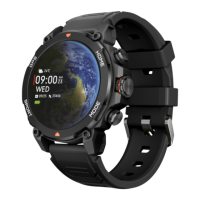
· Via Sports mode button
- Below the flashlight, you will find the Sports mode button.
Press it once to access the sports menu.
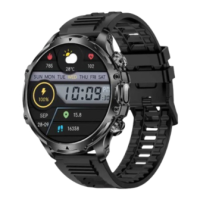
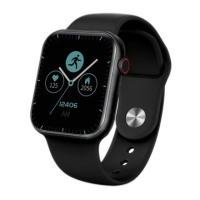
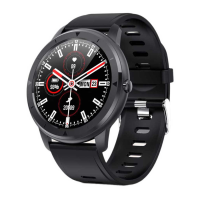
3.2 Changing the watch face
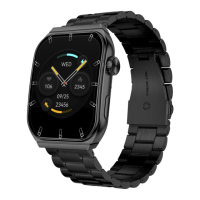
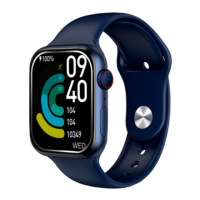
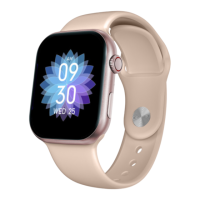
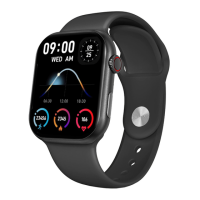
There are three ways to change the watch face:
- The first option is to spin the power dial button from the
main screen.
- The second option is to long tap the main screen. When
you do so, swipe right or left to choose between the options.
- The third option is from within the app. From the app
device section, tap on Watch Face Gallery. There are
hundreds to choose from. When you download one watch
face it will be automatically set as the main screen theme of
the smartwatch. It will also be added to the list of watch
faces stored inside the smartwatch. You will also be able to
design your own dials, even with your own pictures or videos.
3.3 Calls
The Venture smartwatch allows you to make, receive,
answer and reject calls. You can maintain a phone call
conversation with just the smartwatch thanks to its built-in
microphone and speaker.
· Receiving, answering and rejecting calls
It is very important to have the call notifications feature
enabled to receive calls. Calls will appear in real time on the
screen and the watch will sound/vibrate.
Calls can be accepted by pressing the green icon and
rejected by pressing the red icon. The Venture smartwatch
features a built-in microphone and speaker so that you will
be able to attend incoming calls without the need for your
smartphone.
If the call is accepted, it can be ended by pressing the red
icon. To reject the call, tap on the red icon before answering
it. A lost call notification will appear on the smartwatch’s
display. In case the incoming call function is not activated,
the smartwatch will only display incoming call notifications,
but will not emit real time signals or vibrate.
· Making calls
There are three options when it comes to making calls:
- Call a contact: The Venture smartwatch allows you to call
contacts stored in your smartphone. To synchronize
contacts with the smartwatch, you can do it from the app.
After you have stored in the Venture the 8 contacts of your
choice, access the blue phone icon “Call menu”. All the
contacts that you have previously selected via app will show
here. Tap on the desired contact and tap on the phone icon
to make the call. You can also access your contacts through
the blue Contacts icon.
- Dialpad: From within the “Call menu” feature, the green
phone icon, one of the options that will show is the Dialpad.
Tap on it to access it. Once inside, you will be able to dial a
phone number. To make the call tap on the phone icon.
- Call records: From within the same smartwatch feature, the
green phone icon, one of the options that will show is the
Call Record. Tap on it to access it and view all the made,
received and lost calls. Tap on the phone number/contact
and then on the phone icon to make the call.
3.4 Notifications
The smartwatch displays your notifications. This includes
apps such as: WhatsApp, Gmail, Instagram, Twitter,
LinkedIn, among many others.
To access the notifications received, swipe the main screen
downward.
3.5 Voice assistants
The Venture smartwatch is compatible with voice assistants.
To correctly configure the voice assistants, you must have
successfully synchronized the smartwatch to your


 To Next Page
 Loading...