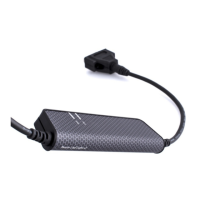
The Kvaser Leaf is a versatile interface designed for use with Windows operating systems, enabling communication with CAN (Controller Area Network) devices. This installation guide primarily focuses on setting up the Kvaser Leaf under Windows XP, but the procedures are largely consistent for Windows 98, Windows 2000, Windows Server 2003, and Windows Vista. The document is applicable to all variants of the Kvaser Leaf, simplifying references to the device as simply "Kvaser Leaf."
Function Description
The Kvaser Leaf acts as a bridge between a personal computer and a CAN bus. It allows users to connect to a CAN network, monitor traffic, send messages, and develop applications that interact with CAN devices. The interface is designed to be plug-and-play, leveraging USB connectivity for ease of use. It relies on specific driver software to function correctly within the Windows environment, which is provided by Kvaser. The device supports both 32-bit and 64-bit operating systems, with the appropriate drivers automatically selected during installation.
Usage Features
The Kvaser Leaf is designed for straightforward installation and operation.
- Driver Installation: The installation process begins by running a dedicated driver installation program. For Windows 2000, XP, and Server 2003, Administrator rights are required to initiate the installation. On Windows Vista, the system will prompt for administrative credentials. The installation wizard guides the user through several steps, including a welcome screen, an option to view release notes and detailed installation instructions (which are highly recommended for useful information), and a component selection screen where users can choose to install drivers and/or create Start Menu shortcuts. Users can also specify the installation directory, though keeping the default is generally advised. The installation typically completes within a minute, after which a confirmation screen is displayed.
- Driver Signing: To ensure the integrity and authenticity of the driver software, Kvaser digitally signs its drivers. During installation on Windows Vista, users will encounter a "Windows Security" prompt asking if they would like to install the device software. Users are advised to click "Install." An option to "Always trust software from 'Kvaser AB'" is available, which, if checked, will prevent similar prompts from appearing for future Kvaser software installations. For system administrators, Kvaser's software signing certificate can be installed in the computer's certificate store or deployed via Group Policy Objects (GPO) in a Windows domain to suppress these messages.
- Hardware Installation: After the drivers are installed, the Kvaser Leaf hardware can be connected. The device needs to be installed once for each USB port it will be used with, a characteristic behavior of Windows. Users simply plug the Kvaser Leaf into a free USB port on their PC. The "Found New Hardware Wizard" will automatically appear. Users should select "Install the software automatically" and proceed. For Windows XP Service Pack 2 or later, users might be asked about connecting to Windows Update; answering "No, not this time" is recommended to avoid lengthy delays.
- Installation Verification: To confirm that the Kvaser Leaf is correctly installed and communicating with its device driver, users can open the Windows Control Panel. A "Kvaser Hardware" icon should be visible. In Windows XP, Server 2003, and Vista with "Category View" enabled, this icon can be found under the "Printers and Other Hardware" category. Double-clicking this icon opens the "Kvaser Hardware" program, which displays information about all Kvaser hardware connected to the computer, including virtual drivers. By clicking on a specific device channel, users can view detailed information such as serial number, firmware revision, and EAN number. The presence of this information confirms successful communication between the hardware and its driver.
Maintenance Features
The Kvaser Leaf system includes provisions for updates and troubleshooting to ensure continued optimal performance.
- Updating an Existing Installation: If a driver installation becomes corrupted, Kvaser recommends completely removing the existing drivers before reinstalling them. For upgrades from older driver versions (older than CANLIB 3.4, released in May 2003), a complete removal of old drivers is also advised before installing the new version. However, for upgrades from comparably newer drivers (version 3.4 or later), the new driver can be installed without first uninstalling the old version.
- Firmware Update: Firmware updates for the Kvaser Leaf are made available by Kvaser. Instructions and the updates themselves can be found on the Kvaser website's download section. Users can check the current firmware version of their Kvaser Leaf using the "Kvaser Hardware" program.
- Driver Update: Similar to firmware, driver updates are also provided on the Kvaser website's download page. Users can determine their current driver version through the "Kvaser Hardware" program.
- Support Resources: Kvaser maintains a homepage (http://www.kvaser.com) that serves as a central hub for frequently asked questions, troubleshooting tips, and other helpful information. Direct support is also available via email (support@kvaser.com).
In summary, the Kvaser Leaf is a robust and user-friendly CAN interface designed for seamless integration with Windows PCs. Its installation process is well-documented, and features for verification, updates, and support ensure a reliable experience for users working with CAN networks.

 Need help?
 General

 To Next Page