Page | 5Wi-Fi Wind Station
MOBILE DEVICE REQUIREMENTS
iOS Requirements:
Mobile device with iOS with cellular or Wi-Fi service
Android Requirements:
Mobile device with Android OS with cellular or Wi-Fi service
GET YOUR STATION READY
Ensure your station’s Wi-Fi Indicator is flashing. If it is not, press and hold the Plus (+) and Minus (–)
buttons down together until it begins flashing. This tells you that your station is ready to connect.
DOWNLOAD
Visit the App Store or Google Play Store to download the free LaCrosse View™ app onto your mobile
device.
LAUNCH & FOLLOW
Open the LaCrosse View™ app and follow the on-screen instructions.
HAVING TROUBLES CONNECTING?
Make sure your mobile device is connected to your router’s 2.4GHz Wi-Fi network, and that you’ve
correctly entered your Wi-Fi password.
For more troubleshooting tips and support visit: www.lacrossetechnology.com/lacrosseviewsupport
CONNECT TO LA CROSSE VIEW™ APP
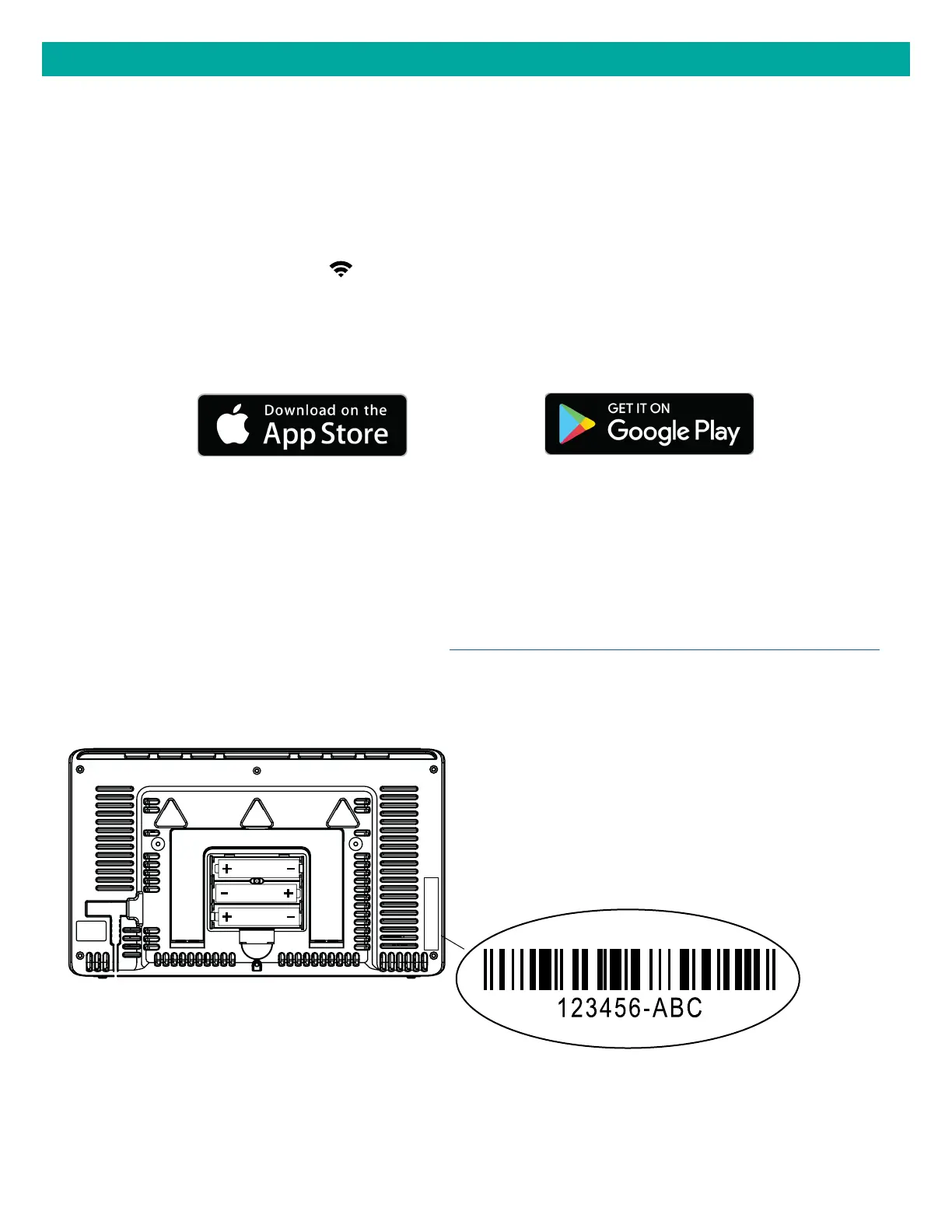
• Your device ID can be found on the back of the
station.
• Within 15 minutes after your station connects
to the La Crosse View app, you should receive
notifications to add your sensors. These will display
in your app’s Notification Center.
Station Device ID
AA
AA
AA



 To Next Page