03 04
Connecting to the App Connecting Your Station
LA CROSSE VIEW LA CROSSE VIEW
Connecting to Your Wi-Fi Network
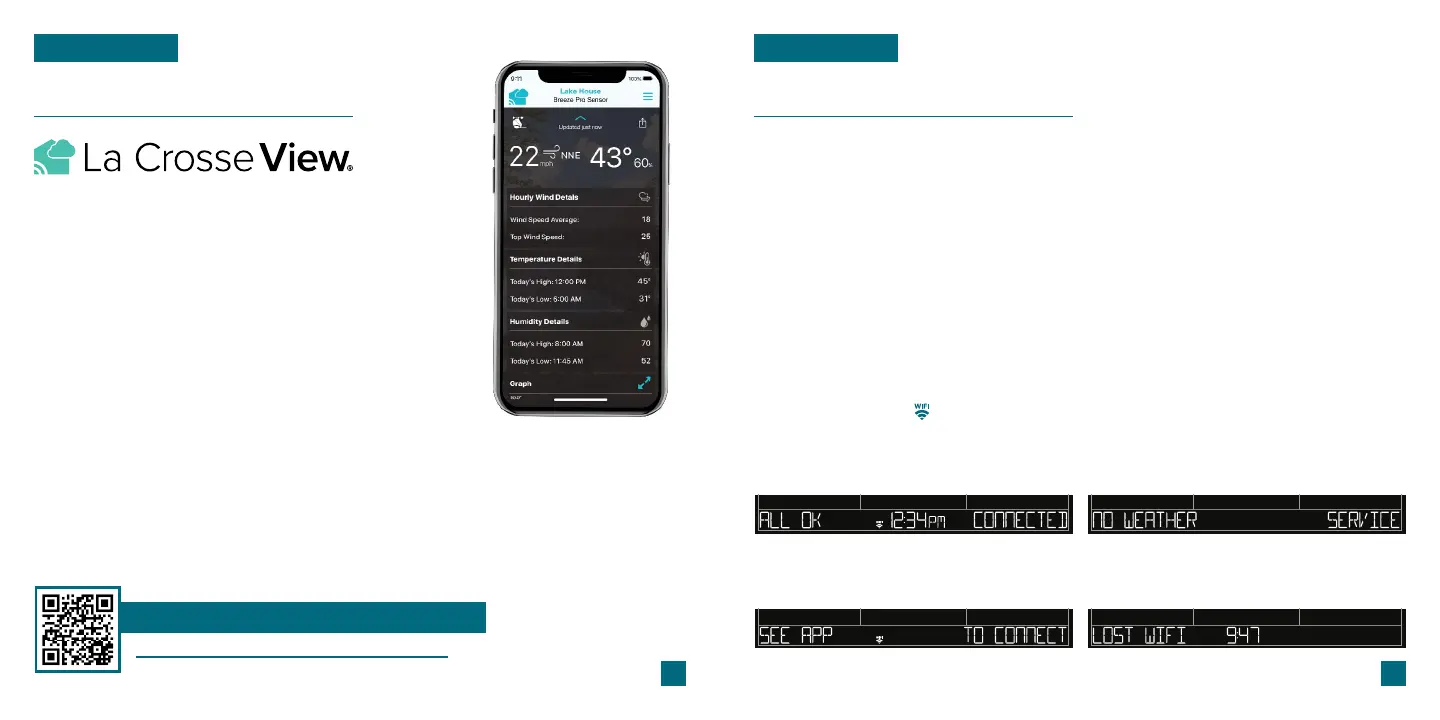
Download the La Crosse View App
Visit the App Store or Google Play Store to download the free La Crosse View
app onto your mobile device.
Stay connected to your home anytime, anywhere
with the La Crosse View app.
Monitor home conditions and set alerts so your home
can get ahold of you when something seems o.
Connecting your station is optional and the display
will function as a standalone unit without the Wi-Fi
connection. However, we recommend connecting
during the initial setup, as it will save you time and
unlock all of the advanced features right away.
Launch the App
Open the La Crosse View app and follow the on-screen setup instructions.
Stay Connected to Your Home
Anytime, Anywhere.
Checking Your Station’s Wi-Fi Status
Press the SET button on the top of the station to view your Wi-Fi Status.
ALL OK CONNECTED: Your station is connected to your
Wi-Fi and its data should be available on the station and
in the app.
SEE APP TO CONNECT: Check your La Crosse View
app for notifications.
NO WEATHER SERVICE: Your Internet weather and time
services are not connecting. These should resolve on
their own, please be patient.
LOST WIFI: Check your router and network
connections.
For more information, scan the QR code or visit:
www.lacrossetechnology.com/view
Now that you’ve created your La Crosse View account, it’s time to connect your station to
your home router using the La Crosse View app.
The La Crosse View app is required to connect the station to your Wi-Fi network. Download, install,
and log into your La Crosse View account first.
New User Initial Setup: When first setting up
your station, the app it will lead you through a
series of instructions to help get your station
added into your account and connected to
your home Wi-Fi network.
Manually Add & Connect Display: After the
initial walk-through, stations can be added and
connected via the Devices tab in the app’s
main menu. Simply tap the Add Device or Plus
(+) button at the bottom of the Devices page
in the app.
1.
Follow the initial app instructions or manually add the display into your account. 2.
When connected, the indicator on the display will become solid. 3.



 To Next Page