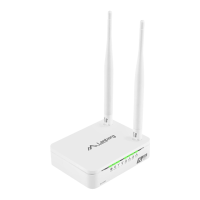
3.4) Establishing a wireless connection
using Lanberg’s router
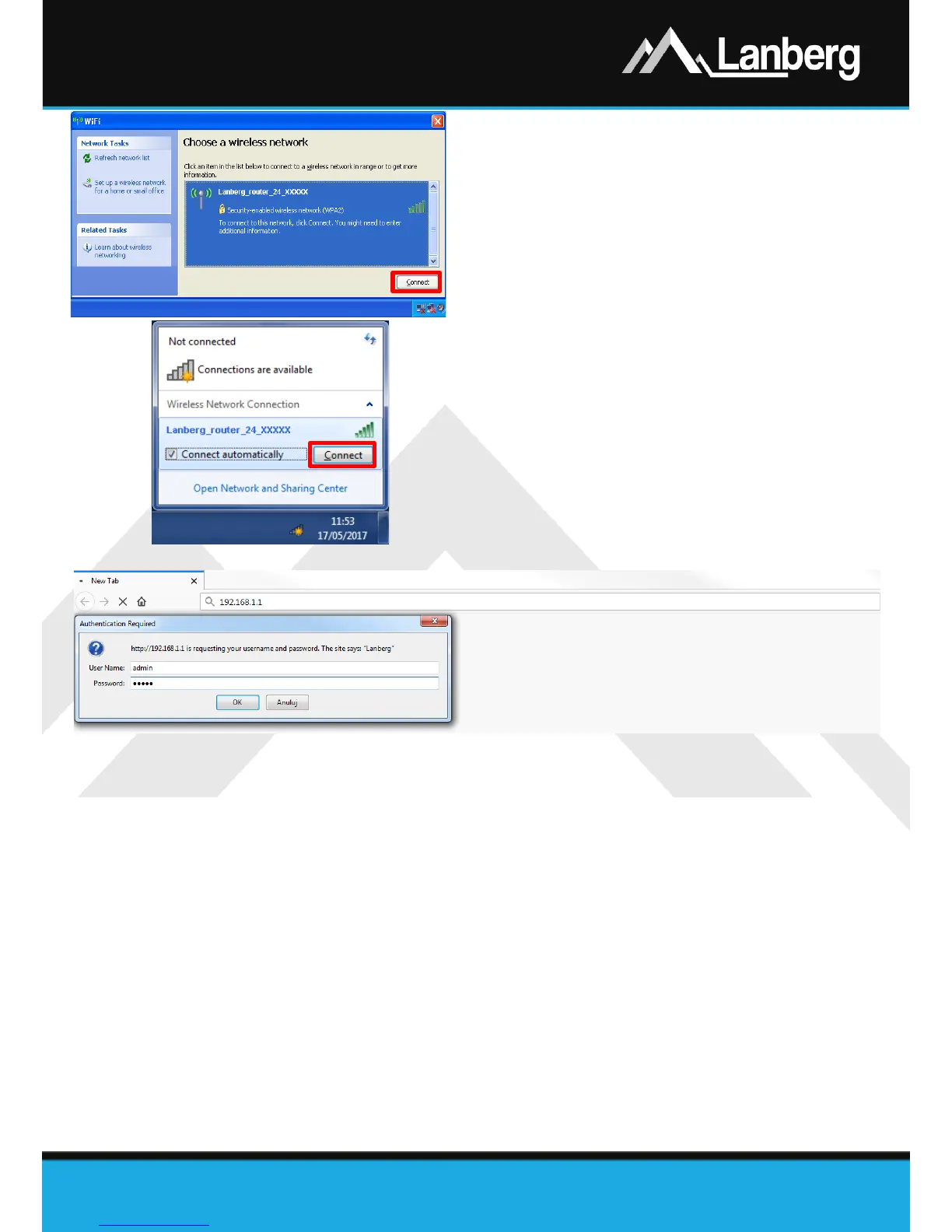
Step 1) Press twice on the wireless network icon on the
computer and search for the wireless network
"Lanberg_router_24_XXXXX" for the required
connection on 2.4GHz band or
"Lanberg_router_50_XXXXX" on 5GHz band.
XXXXX indicates the last 5 characters of the MAC
address of the router's Wi-Fi network adapter,
Step 2) Depending on the operating system, press the
„Connect” button or press the right mouse button
on the wireless network name mentioned above
and press the left mouse button once on the
„Connect” to select it,
Step 3) If you are prompted for a password, enter the Wi-
Fi network security key you are connecting to and
press „Enter”. The default key value is
„L@@n&3rG” (without the quotes).
3.5) Lanberg’s broadband router (Internet / WAN interface) configuration
Step 1) Open a web browser, on any stationary or portable device connected to the LAN port of the route,
then enter the IP address of the router in the internet browser's address field and press „Enter”
on the keyboard. The default address is „192.168.1.1”,
Step 2) The login window will launch. Enter the username „admin” and the password „admin”, and then
confirm this action by pressing the „Enter” button.



 To Next Page
 Loading...