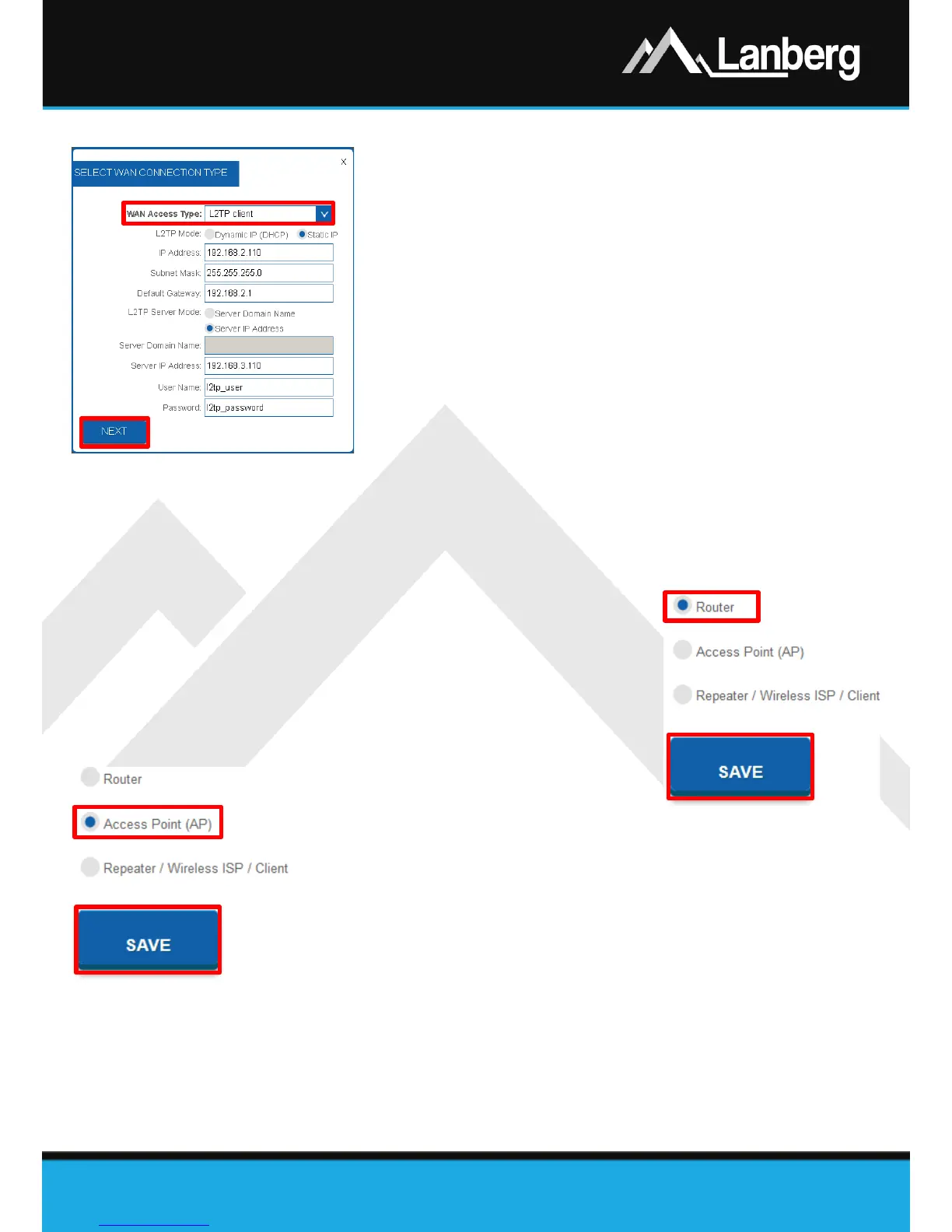
3.5.5) WAN interface setup of the router in the client mode of L2TP VPN
Step 1) On newly opened window, select the entry „L2TP client” from the
„WAN Access Type” drop-down list,
Step 2) Depending on the defined network for the WAN interface of the
router, select the automatic configuration of the WAN interface in
the field „L2TP Mode” by selecting „Dynamic IP (DHCP)” or in the
case of manual settings select „Static IP”, additionally completing
the following fields „IP Address”, „Subnet Mask” and „Default
Gateway”, as well, for the WAN interface of the router,
Step 3) Next, depending on if the customer end device, to which the VPN
tunnel connection is to be established using the L2TP protocol with
Lanberg’s router, has a variable or fixed IP address, please set the
„L2TP Server Mode” field to „ Server domain name” if applicable
customer end device has an variable IP address and its unique
identifier in the form of a domain granted by the DDNS service or
„Server IP Address” if the client’s end device has a fixed IP address.
Failure to meet one of these conditions may result in problems with the VPN tunneling setup. To
proceed further, fill in the fields „Server Domain Name” or „Server IP Address” and „User Name”
and „Password”,
Step 4) Press „Next” button,
Step 5) Further part of the configuration (Wi-Fi) is described in 3.5.11 section.
3.5.6) Router mode setup of the device
Step 1) On the left multilevel menu, expand the „Home” drop-
down list, and then click on the following sub-section
„Operation Mode”,
Step 2) From the select list of device’s possible operation modes,
select the flag „Router”
and then press the „Save”. The
router will apply the new settings in approx. 30 seconds.
3.5.7) Access point (AP) mode
setup of the device
Step 1) On the left multilevel menu, expand the „Home” drop-down list, and
then click on the following sub-section „Operation Mode”,
Step 2) From the select list of device’s possible operation modes, select the flag
„Access Point (AP)”
and then press the „Save”. The router will apply
the new settings in approx. 30 seconds.
NOTE: The DHCP server service will be disabled and access to the WAN section
will be hidden. There may also be a situation in which the device (e.g. a computer)
can still remember the previous granted lease from the DHCP server and related to it settings. In this case,
it is recommended to use the following commands on the command line:
• For the Windows operating system „ipconfig /release”, then „ipconfig /renew”,
• For the Linux operating system, those commands may differ from each other depending on the release
distribution of „dhclient -r” or „dhcpcd -k”, followed by „dhclient” or „dhcpcd”.



 To Next Page
 Loading...