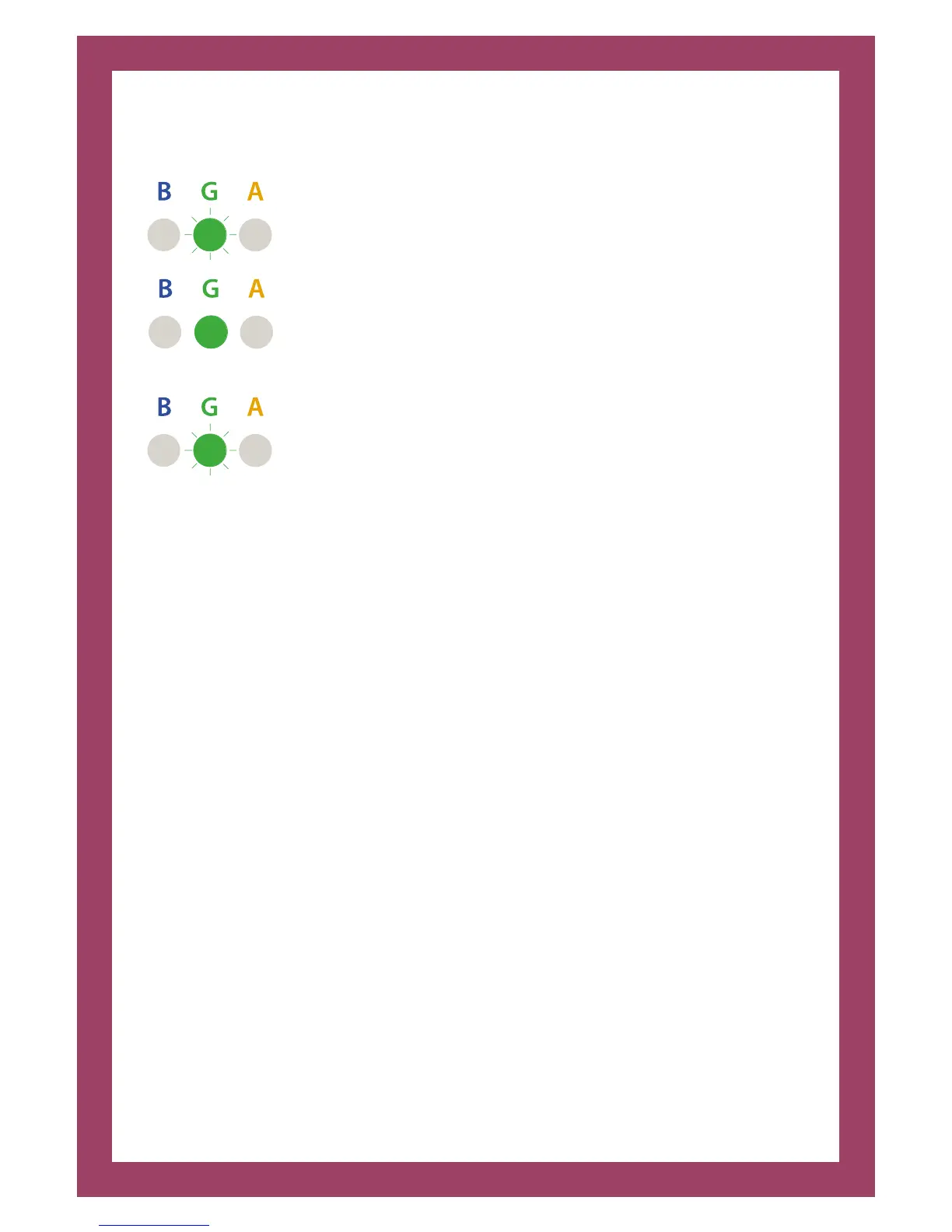
‘All Sync’ mode
Pressing three times aer power-up will also select ‘All Sync’ mode.
BLUE and AMBER lights o, GREEN light flashing slowly = sync
on standby waiting for devices and a host PC or laptop to be
connected
BLUE and AMBER lights o, GREEN light solid = syncing one or
more devices
BLUE and AMBER lights o, GREEN light blinking briefly = All
connected devices have synchronised for the preset period.
(Default is set to one hour, aer which the ClassBuddy™ will
return each device to charge status to maintain optimum
readiness.
From the ‘All Sync’ mode, pressing the black button again, returns the module to
the default ‘Sync then Charge’ mode.
7. ClassBuddy™ options
Network connectivity
If your trolley features network connectivity, you can plug the trolley into your
network by connecting a standard network cable into the auxiliary point on the
back of the trolley.
Data transfer (DTM)
If your purchase includes DTM your trolley will be network ready (these are the
red network cables within your charging bays), you can update all of your laptops
simultaneously inside the trolley using Wake ON LAN soware.
• Make sure that the trolley is connected to the network and switched on
• Plug each individual red DTM cable inside the trolley into the network ports
of each laptop and ensure that the trolley is switched on.


 To Next Page