T
utorial
46/ 68 V1.3/0
Updating the Production
You should save your settings regularly as you work by updating
the A
ctive production.
Note that updating overwrites the production data. Therefore,
make sure that you have selected the correct production to
update. To avoid accidental updates, always protect setup or
template productions.
Note that you can also undo accidental mistakes by loading a
backup production.
To update a production:
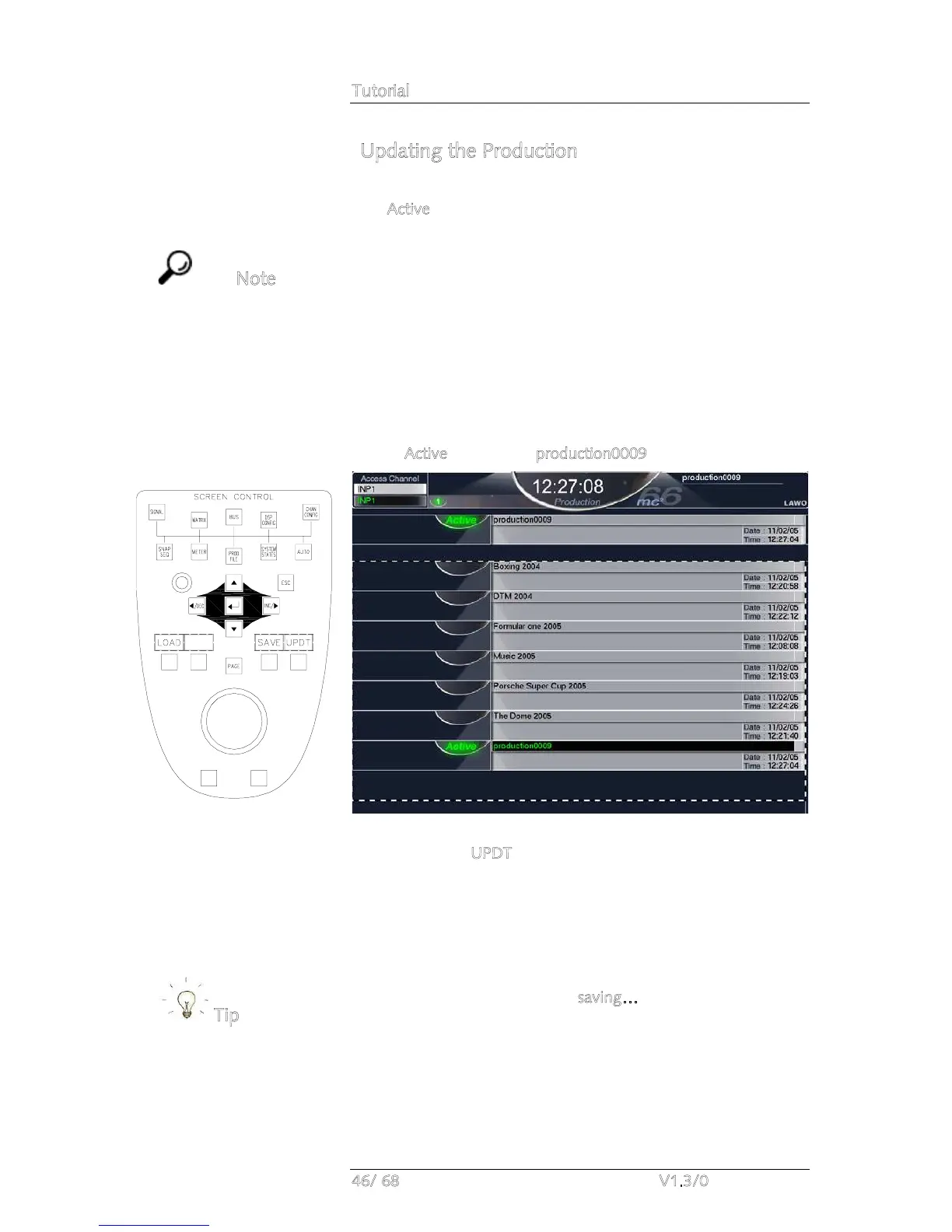
1. Select the production by focussing on its name either
using the trackball or navigation buttons. Note that the
A
ctive production, production0009, is selected by default.
2. Press the UPDT (Update) soft key, located above the
trackball.
The selected production is overwritten with the current console
settings. You can confirm this by looking at the new date and
time stamp.
For additional confirmation, watch the top of the production
display and you will see a red s
aving… message indicating that
the production data is being saved.
Note that a protected production cannot be updated.
Note
Tip


 To Next Page