- 16 -
**Note: Applications that pre-installed on the tablet cannot be uninstalled.
Free Up Tablet Memory or Storage Card Space:
If your tablet is running low on memory, you can try one or both the following to free up space:
Go to Browser and clear all temporary Internet files and Browser history information. Refer to the “Browser” section for more details.
Move applications to the micro SD card if the selected application supports it.
Reset to Factory Defaults
Resetting the tablet deletes all data, including downloaded applications, and resets the tablet back to
its initial state -the state before you turned on the tablet for the first time.
*Warning!
Make sure you have backed up the important data you have on the tablet before you perform a
factory data reset.
Reset Tablet:
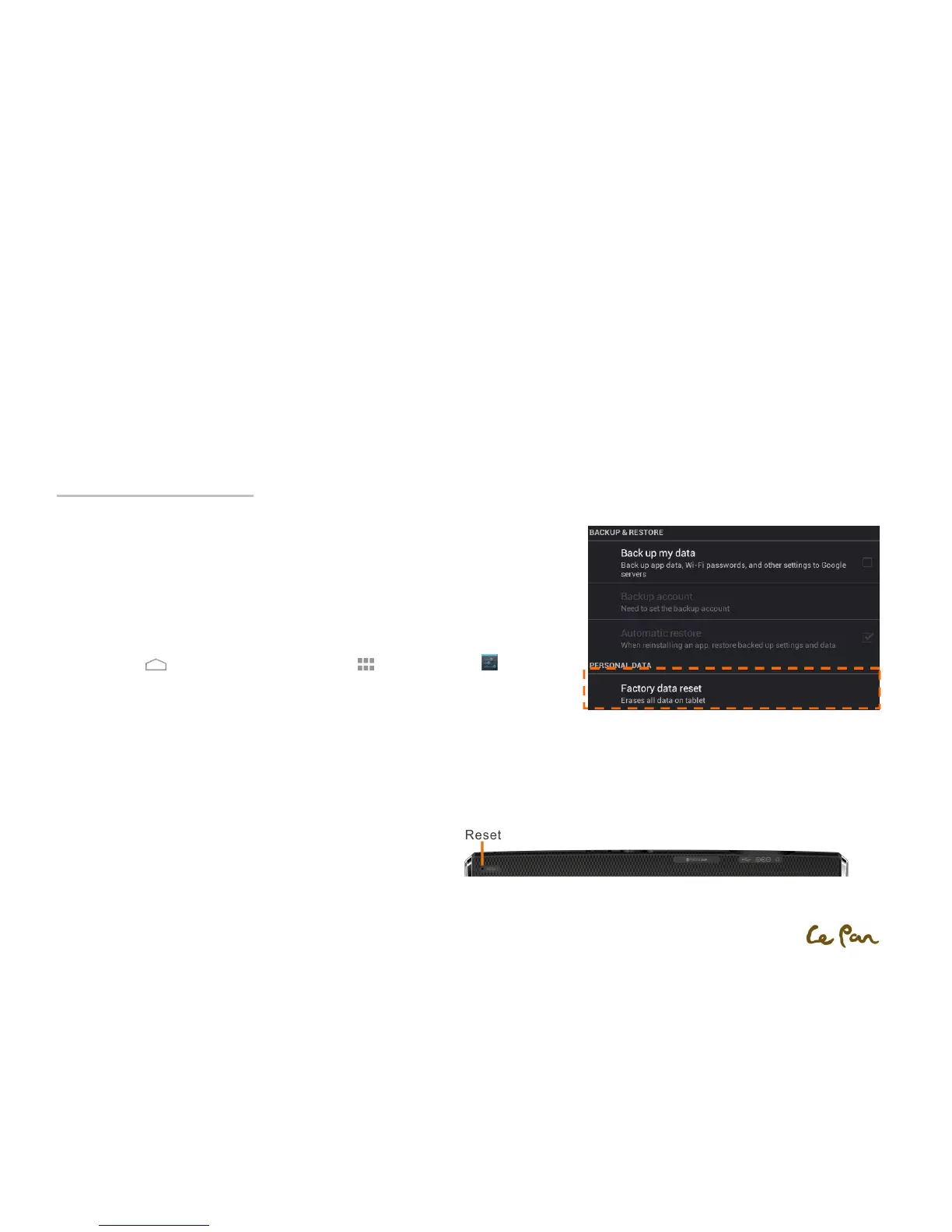
2. Press Home , then touch to open the Applications
,
then select Settings > Backup &
reset.
3. Touch Factory data reset.
4. On the Factory data reset screen, touch Reset tablet. If prompted, enter your screen unlock
pattern, then touch Erase everything.
**Warning!
A factory data reset will erase your Google account information, system and application data and settings, and downloaded applications. Remember to back up
any important data before resetting.
Force Reboot:
If your tablet does not response, press the reset button at the back of
tablet to force reboot. Your tablet will restart automatically.


 To Next Page