Group 7 Data/Programming Page 200
Release R2.0 LEIBINGER JET3
The font editor is started from the main window of the printer. To start the font
editor choose the respective menu item from the drop-down menu (3):
<Extra>-<Editors>-<Font editor>.
The user interface of the font editor consists of various components:
Menu bar
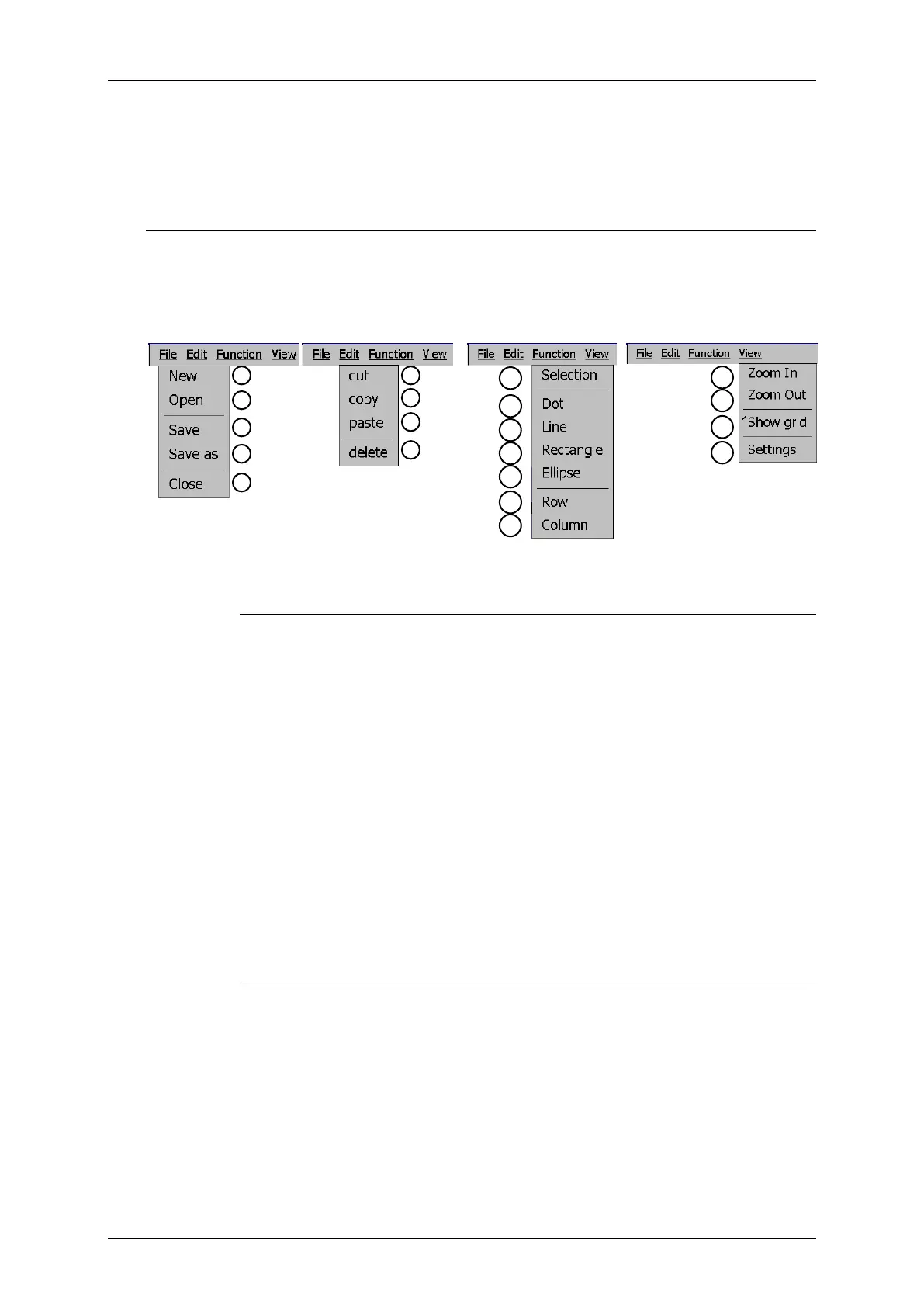
With the drop-down menus of the menu bar (4) you can select various commands,
options and tools. The following drop down menus are available:
The <File> menu provides all standard operations for file handling:
New (1): A new font file is created. In a first step you will have to
define the size of the editor and the grid (measured in dots)
Open (2): Opens a standard file dialog box to open a stored font from
the file system (harddisk, SD-card or USB-stick)
Save (3): Saves the current file. If the current file is still unnamed a
standard file dialog box will open and you will have to specify the file
name and the storage location
Save as (4): Opens a standard file dialog box to save the current file.
You will have to specify the file name and the storage location
Close (5): Closes the current file. If there were made any changes to
the file you will be asked whether you like to save them.
The <Edit> menu provides several standard commands for drawing
objects:
Cut (6): Cuts out a selected area (see: <Function>-<Selection>)
and stores it in the clipboard until you use the <cut> or <copy>
command again.
Copy (7): Copies a selected area (see: <Function>-<Selection>)
and stores it in the clipboard until you use the <cut> or <copy>
command again.
Paste (8): In the status bar of the drawing area you will be asked to
place the cursor in the upper left corner of the drawing area but this
is not mandatory.


 To Next Page
 Loading...




