Group 8 Job editor Page 226
Release R2.0 LEIBINGER JET3
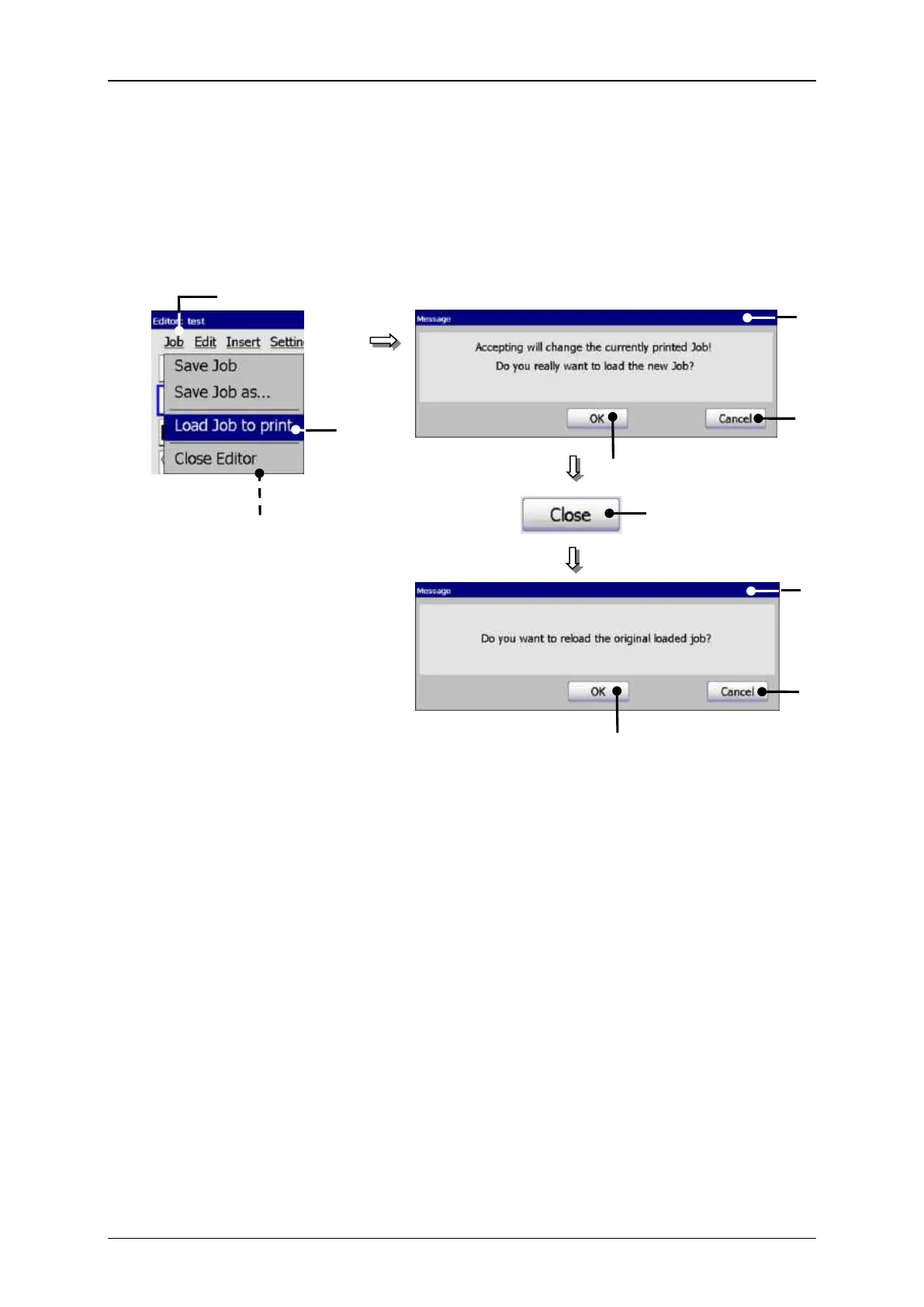
With the option <Load Job to print> the job which is currently opened in the job
editor can be loaded directly for printing.
Job editor (Load job to print)
2 – Option <Load Job to print >
7 – Option <Close Editor>
3 – Message <Print job change>
8 – Message <Reload original job>
Press the button <Job> (1) and the option <Load job to print> (2).
A safety query (3), if the print job should be really changed is faded in.
Confirm the change by pressing on the button <OK> (4) or cancel the process
with the button <Cancel> (5).
The job in the job editor is now loaded for printing. Attention! If a print start
release has already happened for the original job, the JET3 starts immediately
with the printing process.



 To Next Page