EasyManua.ls Logo

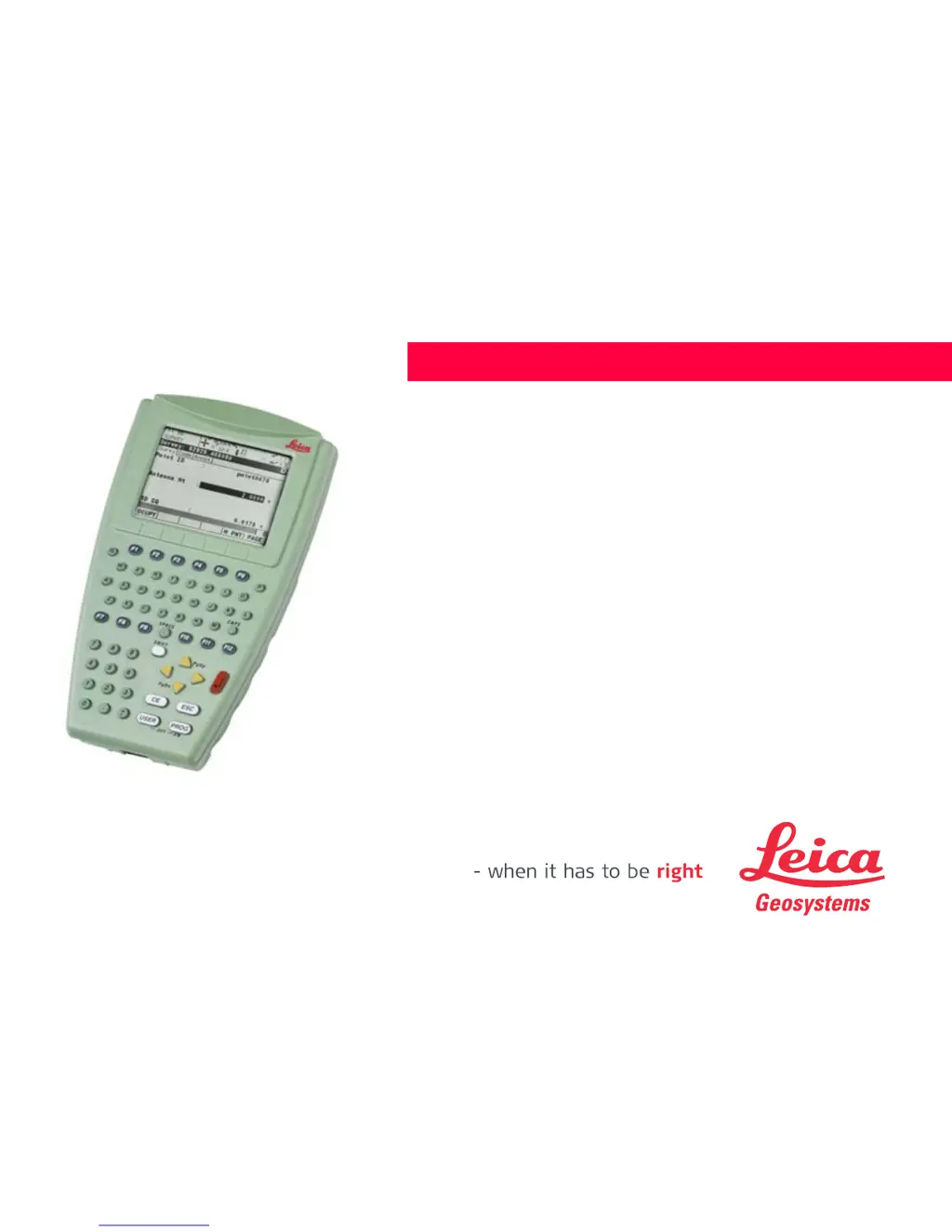
Leica RX1200 - User Manual

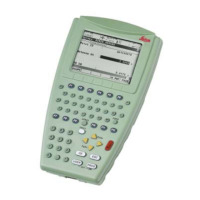
Leica RX1200
208 pages
Print Icon
To Next Page IconTo Next Page
Loading...
Leica RX1200
User Manual
Version 5.5
English

Table of Contents

Questions and Answers

  • S
    Stephen WiseAug 14, 2025
    How to fix Leica RX1200 Measuring Instruments RX if it does not turn on?
    • X
      xadamsAug 14, 2025
      If your Leica Measuring Instruments RX does not turn on, and it is an RX1250 model with a battery, ensure the battery is fully charged. For RX1210/RX1210T models, verify the clip-on connection to GPS1200, the cable connection to the GPS1200 RX port, and the connection to a fully charged battery.
  • B
    Bobby HallAug 17, 2025
    Why is the radio range not optimal on my Leica RX1200?
    • K
      Kristina EdwardsAug 17, 2025
      If the radio range of your Leica Measuring Instruments is not optimal, ensure the TCPS27B is mounted onto the tripod using the adapter. If you suspect interference, change the link number. Also, make sure the RX faces the instrument without obstructions between the antennas.
  • A
    Anthony RosalesAug 20, 2025
    What to do if Leica Measuring Instruments RX1250 does not connect to SmartAntenna?
    • P
      Pamela FisherAug 20, 2025
      If your Leica Measuring Instruments RX1250 does not connect to the SmartAntenna, ensure the SmartAntenna battery is charged and that the SmartAntenna is switched on. Also, verify the correct configuration in CONFIGURE SmartAntenna Interface and that the correct cable (GEV173, 8 pin Lemo connectors with green shielding) is being used.
  • K
    Kimberly HammondAug 25, 2025
    What to do if Leica RX1200 RX does not connect to TPS1200+/ TPS1200?
    • J
      Justin McmillanAug 25, 2025
      If your Leica Measuring Instruments RX does not connect to TPS1200+/TPS1200, select or in the Main Configuration Menu by choosing Sensor on RX. Also, ensure is selected in the Main Configuration Menu under Radio/Comms Settings on the Modes page.
  • L
    lynn06Aug 27, 2025
    Why Leica Measuring Instruments RX1250 does not recognise radio?
    • K
      Kelly KnoxAug 28, 2025
      If your Leica Measuring Instruments RX1250 does not recognise radio, ensure it is properly connected to GHT56 via clip-on-contacts and that the radio's battery is fully charged. Check if the LED indicator on GHT56 is green, indicating that the power is okay.
  • J
    Jennifer SosaAug 30, 2025
    What to do if Leica RX1200 RX1250 does not recognise CompactFlash card?
    • E
      eric46Aug 30, 2025
      If your Leica Measuring Instruments RX1250 does not recognise CompactFlash card, verify that the CompactFlash card is inserted and pushed in completely.
  • T
    Tyrone DanielsSep 3, 2025
    How to show function keys hidden by Windows CE task bar on Leica Measuring Instruments?
    • A
      Angel OwensSep 3, 2025
      If function keys on your Leica Measuring Instruments are hidden by the Windows CE task bar, tap the Start button, select Settings, then Taskbar and Start Menu. Under the General tab, tick the Auto hide option.
  • R
    Richard RichSep 6, 2025
    Where are Leica RX1200 Measuring Instruments icons on Windows CE desktop?
    • R
      Rebecca HarrisSep 6, 2025
      If icons are not visible on your Leica Measuring Instruments Windows CE desktop, tap the Start button, select Programs\Leica Geosystems. Alternatively, access the Windows directory from the Windows CE Explorer, copy the Leica software icon, and paste it to the Windows CE desktop. Note that the Leica software icon may be a hidden file.
  • L
    lisaallenSep 10, 2025
    What to do if Leica RX1200 RX1250 does not connect to PC?
    • N
      Natasha RichmondSep 12, 2025
      If your Leica Measuring Instruments RX1250 does not connect to a PC, try using another USB port to connect the Bluetooth device to the PC.

Summary

Introduction and Overview

Getting Started with Your RX1200

Welcome, product identification, and initial setup guidance.

Understanding Manual Symbols and Trademarks

Explanation of icons, warnings, and product trademarks.

Manual Scope and Resources

Information on manual validity and related documentation.

System Description

Terminology and RX Models

Definitions, abbreviations, available models, and radios.

System Concepts

Software, data storage, conversion, and power concepts.

Container and RX Components

List of package contents and identification of RX parts.

User Interface

Keyboard Operation

Details on keyboard layout, keys, and combinations.

Screen Elements and Display

Description of screen layout, icons, and display areas.

Operating Principles

How to use the interface via keyboard and touch screen.

Understanding Icons

Explanation of battery, Bluetooth, and mode icons.

Equipment Setup and Configuration

Mounting the RX Unit

Instructions for attaching the RX to holders, handstraps, and receivers.

Remote Control Setup

Procedures for setting up remote control with RadioHandle and TCPS27.

SmartPole and Rover Setup

Steps for configuring SmartPole and SmartRover systems.

Battery Management

Operating principles and changing batteries for RX, SmartAntenna, and GHT56.

CompactFlash Card Usage

Guidelines for inserting, removing, and formatting CF cards.

LED Indicators

Explanation of LED status lights on SmartAntenna and GHT56.

Clip-On Housings and SIM Cards

Using clip-on housings and managing SIM cards.

GNSS Survey Guidelines

Best practices for achieving accurate GNSS survey results.

Getting Started with SmartWorx

Initial Setup and Interface

Turning on the RX and setting instrument mode and interface.

Navigating the Main Menu

Understanding the main menu structure and keys.

Switching Between GPS;TPS Modes

Procedures for switching between GPS and TPS instrument modes.

Licence Key Management

Instructions for working with and activating software licence keys.

Device Connectivity

Connecting to cellular phones, Disto, PCs, and SmartAntennas.

Radio Communication Setup

Details on available radios and modes for remote control.

Local Mode Operations

Accessing Configuration Menu

How to enter the main configuration menu on RX.

Configuration Menu Overview

Description of main menu functions for sensor setup.

Sensor Selection and Settings

Choosing and configuring sensors, local display, and beep settings.

Radio and Communication Settings

Configuring radio communication parameters and radios.

Working with Sensors

Procedure to exit configuration and work with the selected sensor.

Equipment Care and Transport

Product Transport Guidelines

Instructions for safe transport in vehicles and by other means.

Product Storage Recommendations

Guidelines for storing the product and Li-Ion batteries.

Cleaning and Drying Procedures

Methods for cleaning the product and its accessories.

Safety and Compliance

General Safety Introduction

Enabling users to anticipate and avoid operational hazards.

Intended and Adverse Use

Defining permitted and prohibited uses of the product.

Usage Limits and Responsibilities

Environmental limits and roles of manufacturers and users.

Warranty and Licence Agreements

Information on international warranty and software licence terms.

Hazards and Precautions

Identifying potential risks and safety measures during operation.

EMC and FCC Compliance

Electromagnetic compatibility and FCC regulations for the device.

Troubleshooting Common Issues

Instrument Communication Problems

Resolving issues with turning on and connecting instruments.

Radio and Connectivity Issues

Troubleshooting radio performance and device connectivity.

RX1250 Software and PC Connection

Resolving issues with Windows CE and Bluetooth PC connections.

Technical Specifications

RX Unit Specifications

Detailed technical data for RX controllers, including dimensions and power.

SmartAntenna Specifications

Technical details on tracking, accuracy, and electrical data.

GHT56 Technical Data

Specifications for the GHT56 unit, including dimensions and battery.

Regulatory Compliance

Information on national regulations and frequency bands for various components.

Appendices

Memory Device Directory Structure

Diagram of the file system structure on the memory device.

Connecting Cables and Products

List of required cables for connecting instruments and accessories.

Leica RX1200 Specifications

General IconGeneral
Operating Temperature-20°C to +50°C
Distance Measurement Accuracy2 mm + 2 ppm
Distance Measurement Accuracy (Prism)2 mm + 2 ppm
CommunicationBluetooth
Weight5.5 kg

Related product manuals