10 X75 Quick Start Guide
X75SD/X75HD Multiple Path Converters and Frame Synchronizers Quick Start Guide
Configuring Network Settings
When shipped, the X75 is configured with a default IP address along with other network
settings, and is ready for immediate Ethernet connection. However, if you intend to
control the unit remotely or connect it to a network hub/switch along with other X75
units, you will need to reconfigure the IP with unique network settings. Local control
(with a direct connection to a PC) does not require any IP configuration.
Supported Network Protocols
The X75 supports various network protocols for remote/network control:
• Leitch CCS Protocol (for example, using an X75-RCP remote control panel).
See “Remotely Controlling X75 Systems” on page 13 for details.
• HTTP (for example, using a Microsoft Internet Explorer 6.0).
See “Configuring for HTTP Control (via Web Browser)” on page 15 for details.
Making Required Hardware Connections
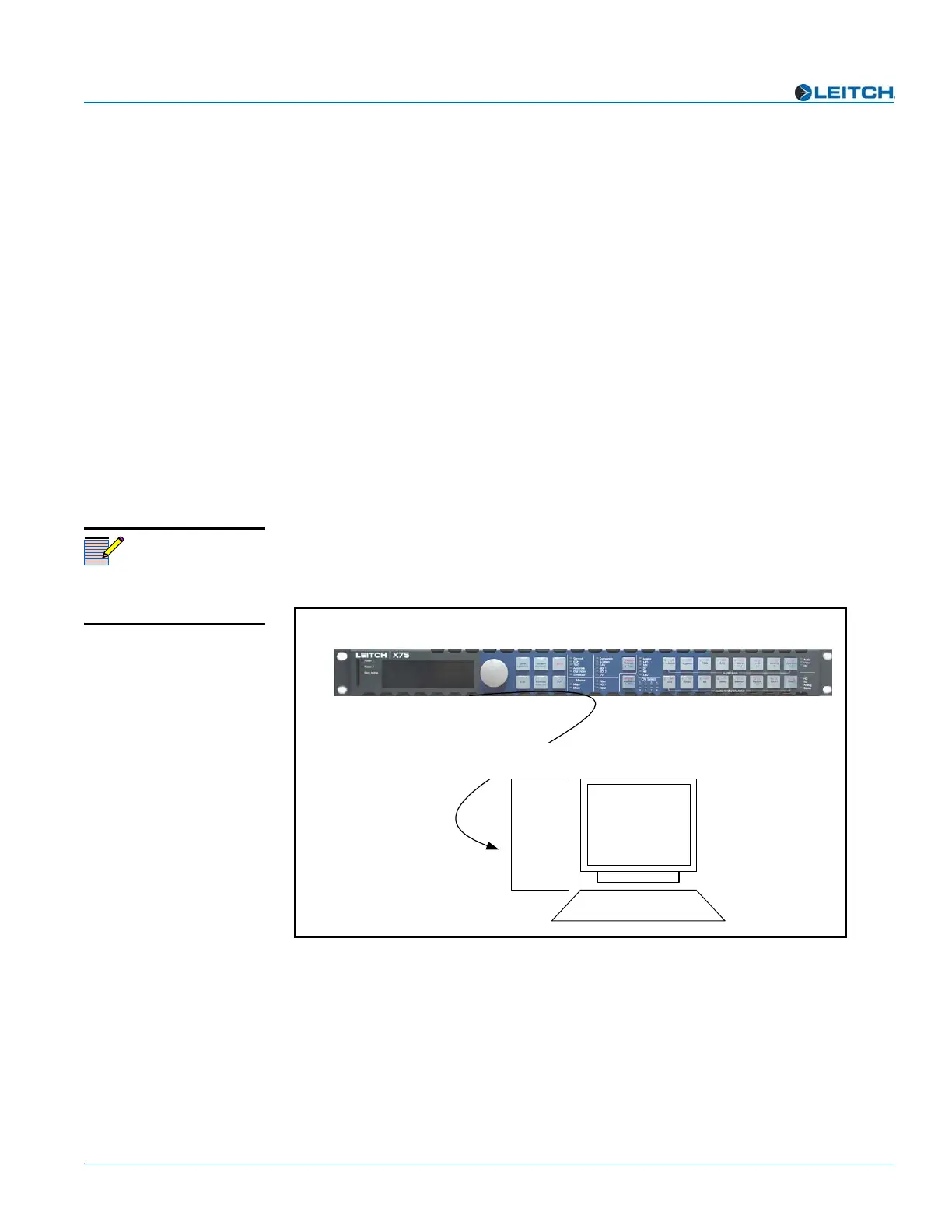
If you are connecting an X75 directly to a PC (no network connection), connect one end
of a cross-over Ethernet cable to the Ctrl/Strm RJ-45 port on the back of the X75, and
the other end to the PC Ethernet port. See Figure 8.
Figure 8. Direct-to-PC Connection
If you are establishing a network connection, connect a 10/100Base-T Ethernet cable
between the X75 Ctrl/Strm port and the network hub/switch. See Figure 9 on page 11.
Note
The Streaming RJ-45 connector
on the back of the X75 is used
for video streaming purposes.
X75 multiple path converter and frame synchronizer
Crossover Ethernet cable
PC



 To Next Page