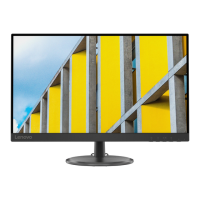
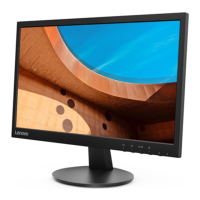
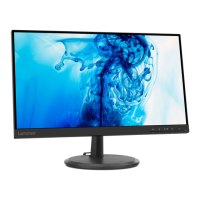
This document serves as the User Guide for the Lenovo D27q-30 monitor, providing comprehensive instructions for its setup, adjustment, and maintenance. It also includes important safety information and guidelines to ensure optimal performance and longevity of the device.
Function Description
The Lenovo D27q-30 is a flat panel monitor designed to display visual content from a connected computer. It supports various display modes and offers user-adjustable controls to optimize the viewing experience. The monitor is equipped with both HDMI and DisplayPort (DP) connectors, allowing for flexible connectivity with different computer systems. It also incorporates power management features to conserve energy when not in active use.
Usage Features
The monitor offers several features to enhance user experience and comfort:
- Adjustable Position: The monitor allows for tilt adjustments, with a range of -5° to +22°, enabling users to find a comfortable viewing angle and accommodate their preferred head and neck posture.
- User Controls: Controls located on the front of the monitor provide direct access to common adjustments like input source switching and brightness.
- On-Screen Display (OSD) Controls: A more comprehensive set of settings can be accessed through the OSD menu. This includes adjustments for brightness, contrast, dynamic contrast ratio (DCR), display mode (Standard, Game, Web, Movie, Picture), scaling mode (Full Screen, Original AR), and Over Drive (Off, Normal, Extreme).
- Image Color Settings: The OSD also offers detailed image color settings, including preset modes (Bluish, Neutral, Reddish, sRGB) and custom adjustments for red, green, and blue saturation.
- Low Blue Light Mode: To address concerns about blue light affecting eye health, the monitor features a Low Blue Light mode that can be enabled or disabled through the OSD settings, reducing blue light emissions.
- Input Signal Selection: Users can select between DP and HDMI input signals via the OSD menu, depending on their connection.
- OSD Menu Settings: Additional OSD settings include language selection, horizontal and vertical positioning of the OSD itself, transparency, and OSD timeout. A "Reset All Settings" option is available to restore factory defaults.
- DDC/CI Functionality: The monitor supports DDC/CI (Display Data Channel/Command Interface) by default, allowing for communication between the monitor and the computer for automatic configuration. This function can be disabled/enabled by pressing and holding specific OSD buttons.
- Cable Lock Slot: For security, the monitor is equipped with a cable lock slot on the rear, allowing users to attach a cable lock to prevent theft.
- VESA Mount Compatibility: The monitor is VESA mount compatible, allowing it to be mounted on a wall or an alternative stand using a VESA-compatible mounting kit. This provides flexibility in arranging the work area.
- Power Management: The monitor supports power management, entering Standby/Suspend or Off states after a user-definable period of inactivity, indicated by a steady amber or off power indicator, respectively. This helps in conserving energy.
- Flicker Reduction: ThinkVision monitors, including the D27q-30, are designed to minimize flicker, which can contribute to eye strain and headaches, by allowing users to use high-frequency display modes.
Maintenance Features
Proper maintenance is crucial for the monitor's performance and lifespan:
- Cleaning: The monitor requires special care when cleaning. Users are instructed to turn off the computer and monitor, unplug the power cord, and use a dry, soft, clean cloth for the screen. For additional cleaning, an antistatic screen cleaner can be used. The cabinet can be dusted with a damp cloth or a clean cloth dampened with isopropyl alcohol.
- Handling Precautions: Users are advised not to open the monitor cabinet, attempt self-service, or use liquid or aerosol cleaners directly on the screen. It is also important to avoid touching the screen with sharp or abrasive items, dropping the monitor, or placing it on an unstable surface.
- Stand Detachment: Instructions are provided for detaching the monitor stand, which involves placing the monitor face down on a soft surface, loosening screws, and removing the stand and base. This is particularly relevant for VESA mounting.
- Environmental Considerations: The guide emphasizes keeping the monitor in a well-ventilated area, away from excessive light, heat, or moisture. Ventilation slots and openings should not be blocked.
- Power Cord Usage: Only the power cord supplied with the monitor should be used, and it should be connected to a grounded (earthed) power outlet. Surge protection devices are recommended to protect the monitor and computer from electrical surges.
- Work Habits for Eye Health: The document provides guidelines for healthy work habits, including taking short breaks, periodically looking at distant objects to relax eye muscles, and performing eye and neck exercises to minimize strain and discomfort from prolonged computer use.
- Work Area Arrangement: Recommendations are given for arranging the work area, such as using a work surface of appropriate height, organizing materials for easy reach, and positioning the monitor to avoid glare and reflections.
- Driver Installation: Instructions are provided for manually installing the monitor driver for both Windows 10 and Windows 11, ensuring optimal display performance and access to all monitor features.
- Recycling Information: Lenovo encourages responsible recycling of IT equipment and provides information on programs and services for collecting, reusing, and recycling disused computers and monitors, including specific details for Japan regarding industrial and home-used computers.
- Warranty Information: The document outlines customer responsibilities regarding the warranty, specifying conditions that may void it, such as damage due to misuse, abuse, or unauthorized alterations. It also lists examples of misuse not covered by the warranty, such as burned images on the screen or physical damage.


 To Next Page

 General
 Weight and Dimensions