EasyManua.ls Logo

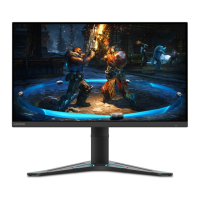
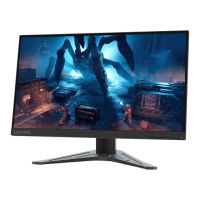
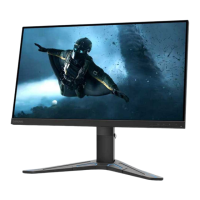
Lenovo G27qe-20 - User Manual

Lenovo G27qe-20
32 pages
Print Icon
To Next Page IconTo Next Page
Loading...
Lenovo
G27qe-20
User Guide

Other manuals for Lenovo G27qe-20

Questions and Answers

  • J
    Joshua CooperAug 7, 2025
    What to do if Lenovo Monitor screen is blank and power indicator is amber?
    • M
      Melanie MooreAug 7, 2025
      If your Lenovo Monitor screen is blank and the power indicator shows amber, the monitor is likely in Standby or Suspend mode. To resolve this: * Press any key on your keyboard or move the mouse to restore operation. * Check the Power options settings on your computer to ensure the monitor isn't set to turn off too quickly.
  • M
    Mark ChaneyAug 11, 2025
    What to do if Lenovo Monitor power indicator is amber but no image?
    • S
      Stacey HarveyAug 11, 2025
      If the power indicator on your Lenovo Monitor is amber, but there's no image, it could be due to a loose video signal cable or incorrect brightness settings. Ensure the video cable is properly connected to your system. Also, adjust the brightness and contrast settings on the OSD menu.
  • U
    usantiagoAug 15, 2025
    Why is my Lenovo Monitor power indicator not lit?
    • D
      danielpetersonAug 15, 2025
      If the power indicator on your Lenovo Monitor isn't lit and there's no image, there are a few things to check: 1. Make sure the monitor's power switch is turned on. 2. Ensure the power cord is properly connected and the outlet has power. 3. Try using another power cord or electrical outlet.
  • P
    Patrick GilmoreAug 19, 2025
    How to improve image quality on Lenovo G27qe-20?
    • G
      Gabriella PorterAug 19, 2025
      If the image quality on your Lenovo Monitor is unacceptable, there are a few potential causes: * Ensure the video signal cable is firmly plugged into both the system and the monitor. * Select another color setting from the OSD menu. * Perform automatic image setup.
  • T
    Tracy LewisAug 25, 2025
    How to resolve blurry image on Lenovo Monitor?
    • M
      Michele MendozaAug 25, 2025
      If you're experiencing fuzzy lines in text or a blurry image, or horizontal/vertical lines through the image on your Lenovo Monitor, try these steps: 1. Adjust the resolution settings on your system to match the monitor's native resolution: 2560 x 1440 at 100 Hz. 2. Perform automatic image setup. If that doesn't help, try manual image setup. 3. When working in the native resolution, you may find additional improvements by adjusting the Dots Per Inch (DPI) setting on your system.
  • R
    ramirezelizabethAug 28, 2025
    How to fix 'Out of Range' error on Lenovo G27qe-20 Monitor?
    • D
      Donna GuerreroAug 28, 2025
      If the words “Out of Range” appear on your Lenovo Monitor screen and the power indicator is flashing white, it means your system is set to a display mode not supported by the monitor. Here's what you can do: * If you've replaced an old monitor, reconnect it and adjust the display mode to be within the specified range for your new monitor. * If you're using a Windows system, restart the system in safe mode, then select a supported display mode for your computer.
  • P
    Patrick JohnsonSep 1, 2025
    What to do if Lenovo G27qe-20 has discolored pixels?
    • E
      Elizabeth GoodSep 1, 2025
      If you notice one or more discolored pixels on your Lenovo Monitor, it's generally a characteristic of LCD technology and not a defect. However, if there are more than five missing pixels, contact the Support Center.

Lenovo G27qe-20 Specifications

General IconGeneral
Screen Size27 inches
Resolution2560 x 1440
Refresh Rate165 Hz
Response Time1 ms (MPRT)
Panel TypeIPS
Contrast Ratio1000:1
Aspect Ratio16:9
Color Gamut99% sRGB
VESA Mount100 x 100 mm
Adaptive SyncAMD FreeSync Premium
Viewing Angle178° (H) / 178° (V)
ConnectivityHDMI, DisplayPort
Ports1x DisplayPort 1.4, 2x HDMI 2.0, 1x 3.5mm audio jack

Related product manuals