2.2.2 Related Touch Screen Settings
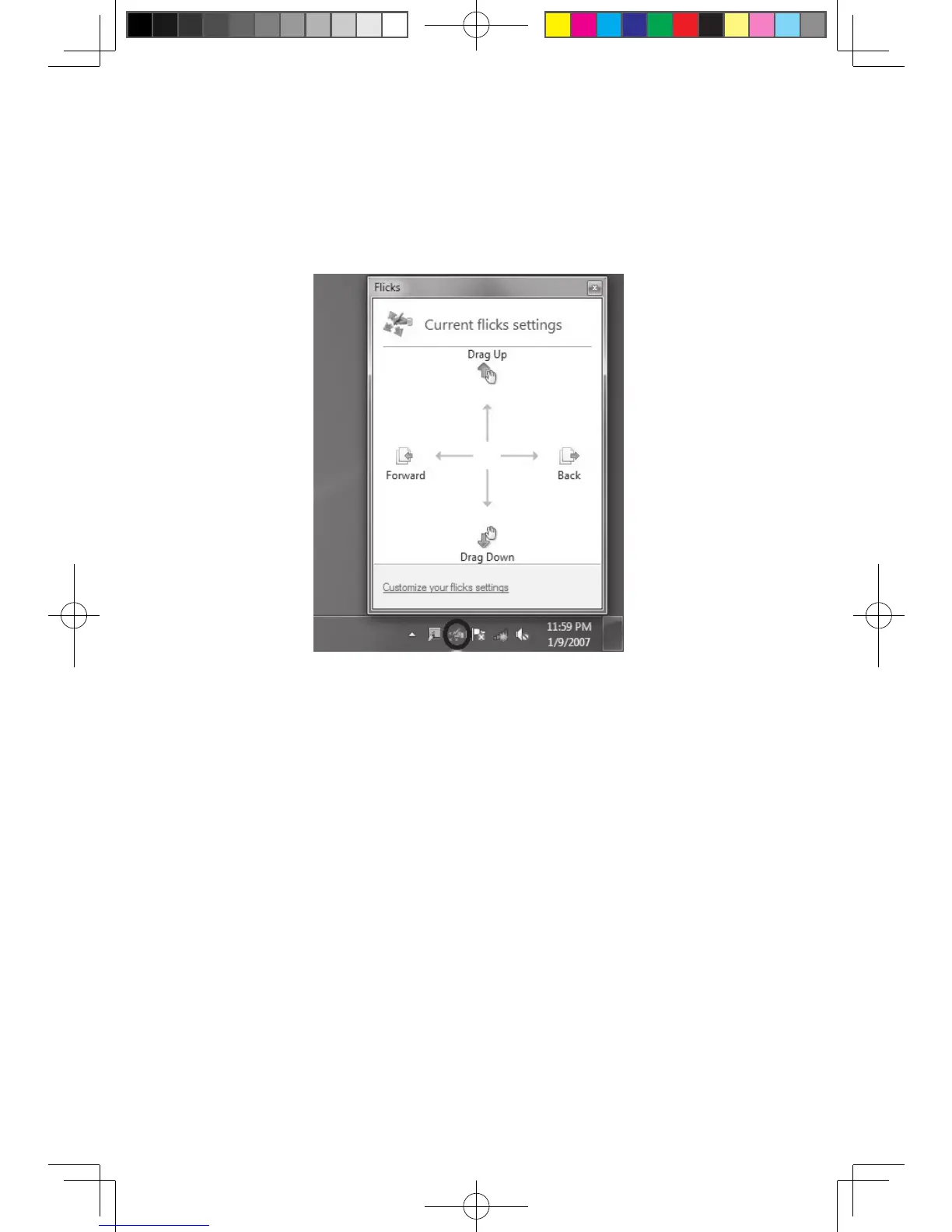
1. Flicks: In the notification area of the taskbar at the bottom of the screen, click on
the Flicks icon, and the current Flicks window will appear. Click once anywhere
in this window to enter Flicks Training. The user can perform operations
according to the advice given on screen.
2. For more detailed configuration, you can click on the Flicks icon in the
notification area of the taskbar at the bottom of the screen, then click on
“Customize your flicks setting” in the Flicks pop-up window. In the “Pen and
Touch” window, the user can adjust more settings related to “Pen and Touch”
according to their specific preferences.



 To Next Page