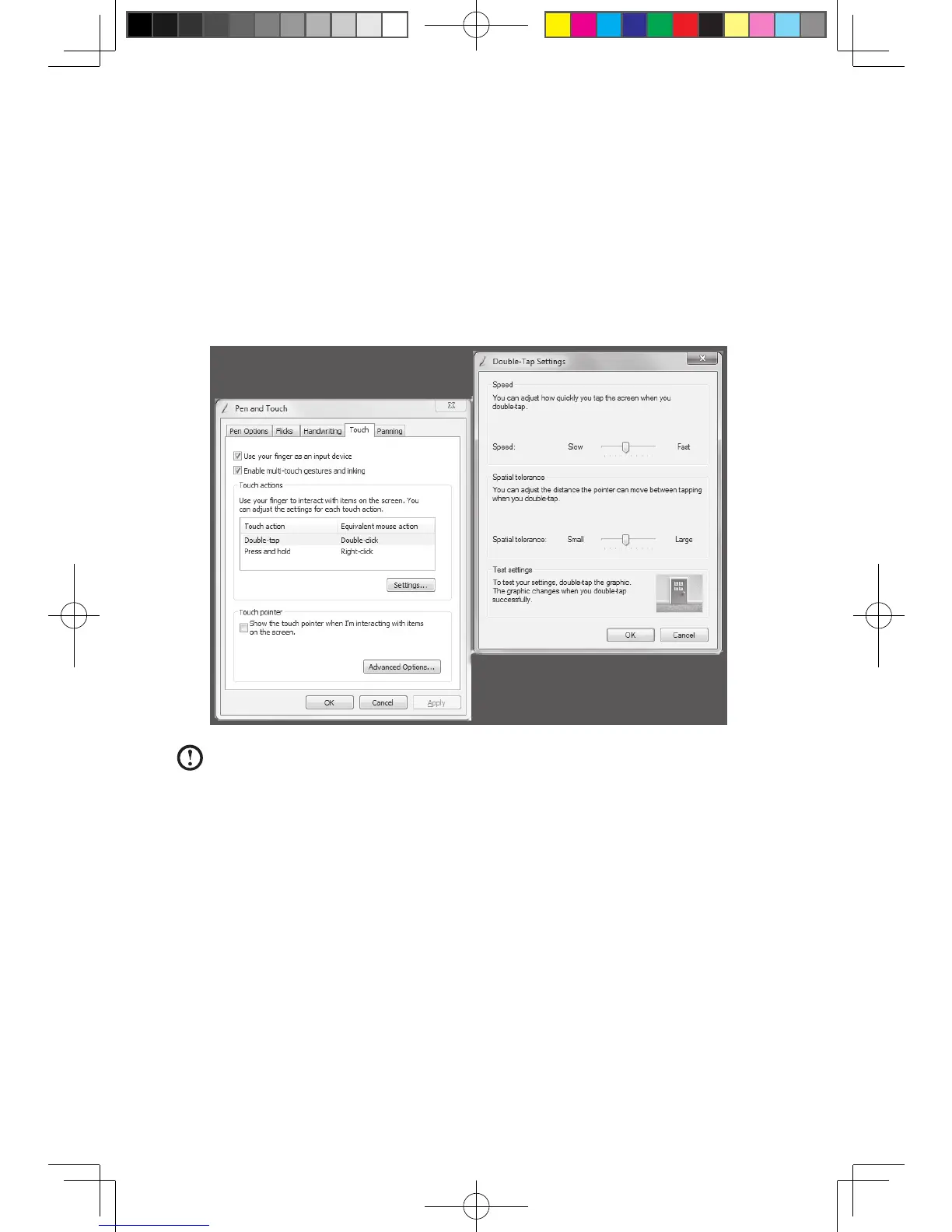
On the Touch menu you can:
• Enable/disableoptionssuchas“Use your finger as an input device” and
“Enable multi-touch gestures and inking”.
• Selecttouchactionswhichyouwishtoadjust.Byclickingon“Settings”, you
can adjust the “Speed” and “Spatial tolerance” parameters, to match the
user’s natural way of double-clicking. You can double-click on the lower right
corner of the icon to test this.
• Enable/disabletouchpoints.
Note: Users can access more help information from the Windows “Help
and Support” menu.




 To Next Page