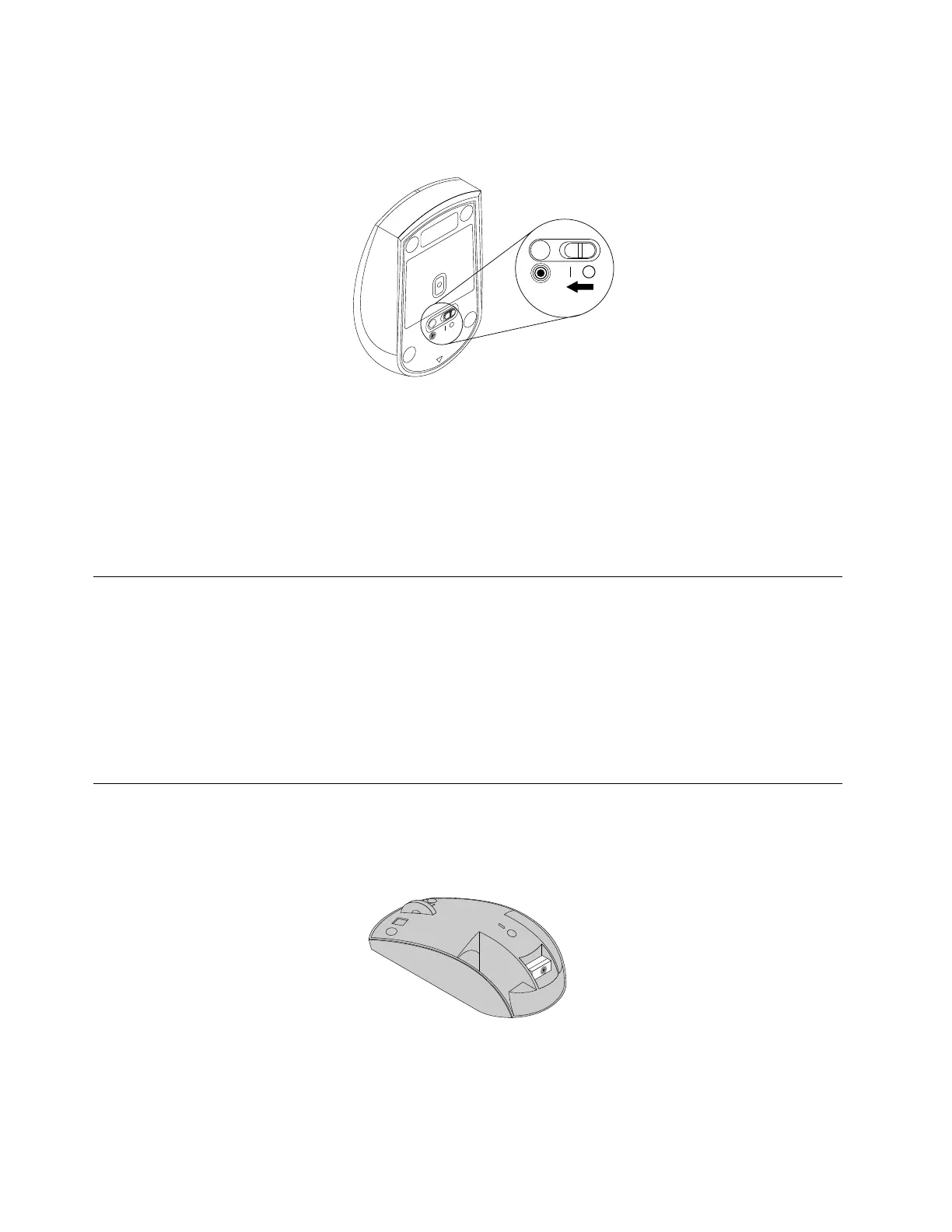
6.MovethepowerswitchontheThinkPadPrecisionWirelessMousetotheonposition.Thestatus
indicatorturnsoningreenandthenturnsoff.TheThinkPadPrecisionWirelessMouseisreadyforuse.
Figure16.Movingthepowerswitchtotheonposition
Notes:
•Ifthestatusindicatorblinksingreen,itindicatesthatthemouseisreadyforpairing.
•Ifthestatusindicatorblinksinamber,itindicatesalowbatterypowerlevel.
•Tomaximizebatterylife,movethepowerswitchonthemousetotheoffpositionwhenyouarenot
usingthemouse.
Usingthemouseandthesoftware
TheThinkPadPrecisionWirelessMousehasmultiplefunctionsandfeaturessuchaszoomingand
auto-scrolling,whichhelpyouincreaseproductivity.Youalsocanassignfrequentlyusedfunctionsor
shortcutstothemousebuttonsusingtheLenovoMouseSuitesoftware.Formoreinformationaboutusing
theLenovoMouseSuitesoftware,see“Usingthesoftware”onpage2
.
Note:Eachtimeyoustartorrestartyourcomputer,ensurethatyoumovetheThinkPadPrecisionWireless
MouseorclickthemousebuttonbeforeusingtheLenovoMouseSuitesoftware.Otherwise,theLenovo
tabishidden.
StoringtheLenovoUSBReceiver
WhenyouarenotusingtheThinkPadPrecisionWirelessMouse,storetheLenovoUSBReceiverinthe
batterycompartmentasshown:
Figure17.StoringtheLenovoUSBReceiver
24LenovoCombinedMouseUserGuide








 To Next Page