PairingtheLenovoUSBReceiverwithamouse
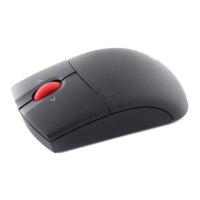
Bydefault,theThinkPadPrecisionWirelessMouseispairedwiththeLenovoUSBReceiverthatshipped
withthemouse.TheThinkPadPrecisionWirelessMouseisreadyforuseafteryouconnectittoyour
computer.InadditiontotheThinkPadPrecisionWirelessMouse,youalsocanpairtheLenovoUSBReceiver
withanyLenovowirelessmouseprintedwiththeicon.TopairtheLenovoUSBReceiverwithanew
Lenovowirelessmouse,dothefollowing:
1.ConnecttheLenovoUSBReceivertoanavailableUSBconnectoronyourcomputer.
2.Placethemousewithin10cm(3.94inches)oftheLenovoUSBReceiver.
3.Movethepowerswitchonthemousetotheonposition.
4.Pressandreleasethepairingbuttononthemouse.Afterthestatusindicatoronthemouseblinksfor
fivetimesandthenturnsoff,theLenovoUSBReceiverhasbeensuccessfullypairedwiththemouse.
Troubleshooting
Thistopicprovidesbasictroubleshootinginformationwhenyouencounterproblemswithyourmouse.
Problem:Themouseisnotrecognizedbytheoperatingsystem.
Solution:Tosolvetheproblem,performoneofthefollowingprocedures:
ProcedureA:
Dothefollowing:
•Installthemouseagain.
•AccessyourcomputerBasicInput/OutputSystem(BIOS)SetupUtilityprogramduringthestartupprocess
andmakesurethatalltheUSBconnectorsonyourcomputerareenabled.
Notes:
–ForinformationabouthowtoaccessorusetheBIOSSetupUtilityprogramonyourcomputer,seethe
documentationthatcamewithyourcomputer.
–IfallUSBconnectorsonyourcomputerdonotwork,probablythecomputerBIOSdoesnotsupport
them.Tosolvethisproblem,gotohttp://www.lenovo.com/supporttodownloadthelatestBIOS
updates,orgotohttp://www.lenovo.com/support/phonetofindtheLenovotechnicalsupportfor
yourcountryorregion.
ProcedureB:
FortheWindowsXP ,WindowsVista,orWindows7operatingsystem:
1.ClickStart➙ControlPanel.
2.DependingonyourControlPanelmode,double-clickSystemorclickPerformanceandMaintenance
➙System.
3.ClicktheHardwaretab.
4.ClickDeviceManager.
5.ScrolldownuntilyoufindMiceandotherpointingdevices.Then,expandtheMiceandother
pointingdevicescategory.
6.Right-clickHID-compliantmouse,andthenselectUninstall.Awarningwillbedisplayed,prompting
youthatyouaregoingtoremoveadevicefromtheoperatingsystem.
Chapter4.ThinkPadPrecisionWirelessMouse25



 To Next Page