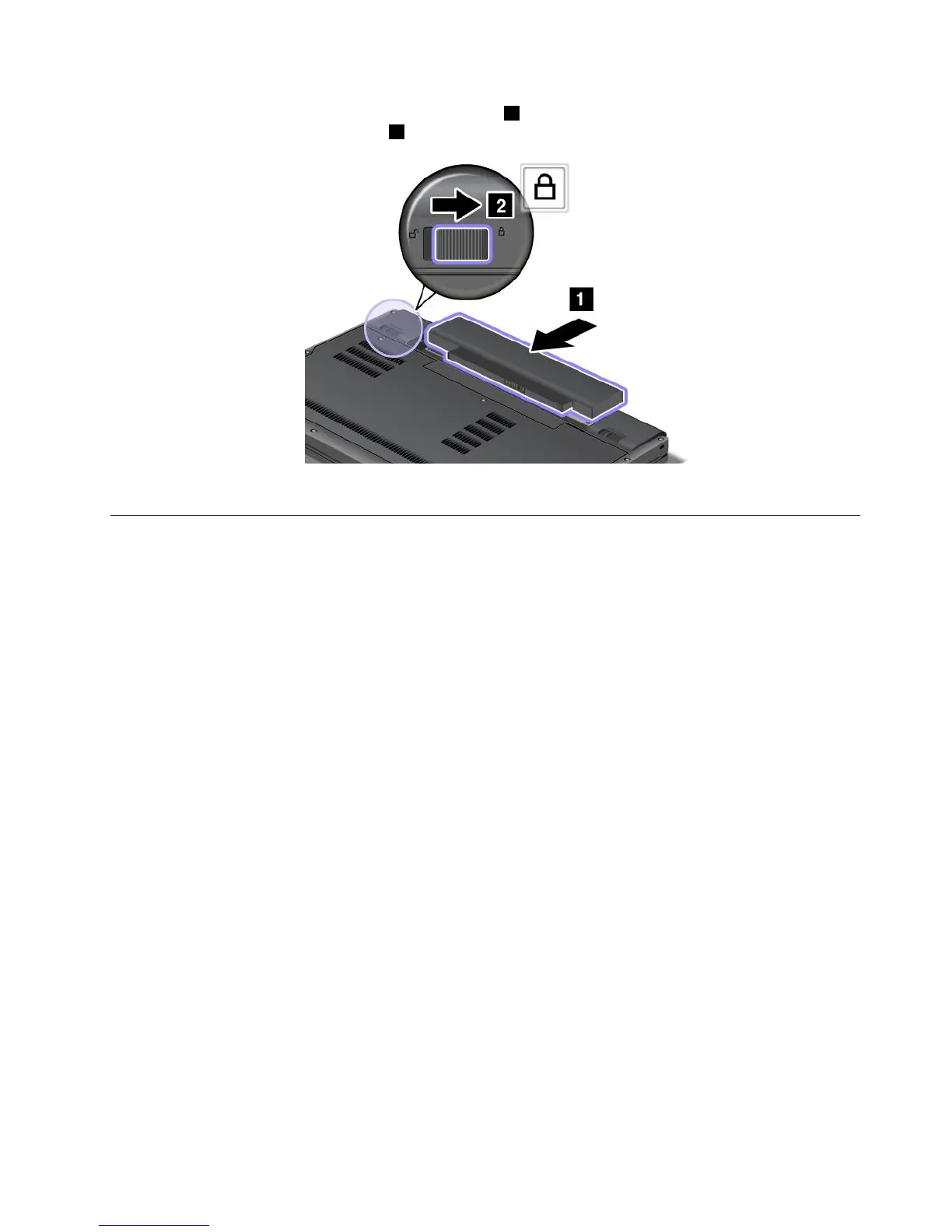
4.Insertafullychargedbatteryuntilitclicksintoplace1asshowninthedrawing,andthenslidetheright
batterylatchtothelockedposition2.
5.Turnthecomputeroveragain.Connecttheacpoweradapterandcablestothecomputer;thenturniton.
Replacingtheharddiskdriveorsolidstatedrive
Beforeyoustart,printtheseinstructions.
Youcanreplacetheharddiskdriveorsolidstatedrivewithanewonewhichcanbepurchasedfromyour
Lenovoreselleroramarketingrepresentative.Toreplacetheharddiskdriveorsolidstatedrive,readthe
followingprerequisites,andselectyourmodelfromthelistbelowforinstruction.
Note:Replacetheharddiskdriveorsolidstatedriveonlyifyouupgradeitorhaveitrepaired.Theconnectors
andslotoftheharddiskdriveorsolidstatedrivewerenotdesignedforfrequentchanges,ordriveswapping.
Prerequisitesfortheprocedure
Whenreplacingthedrive,besuretofollowtheprecautions.
Attention:Whenyouarehandlingaharddiskdriveorsolidstatedrive:
•Donotdropthedriveorsubjectittophysicalshocks.Putthedriveonamaterial,suchassoftcloth,that
absorbsanyphysicalshocks.
•Donotapplypressuretothecoverofthedrive.
•Donottouchtheconnector.
Thedriveisverysensitive.Incorrecthandlingcancausedamageandpermanentlossofdata.
Beforeremovingtheharddiskdriveorsolidstatedrive,makeabackupcopyofalltheinformationonit,
andthenturnthecomputeroff.
Neverremovethedrivewhilethesystemisoperating,insleep(standby)mode,orinhibernationmode.
Replacementinstructions
Toreplacetheharddiskdriveorsolidstatedrive,dothefollowing:
1.Turnoffthecomputer;thendisconnecttheacpoweradapterandallcablesfromthecomputer.
2.Closethecomputerdisplay,andturnthecomputerover.
Chapter6.Replacingdevices69










 To Next Page