Troubleshooting
If you have a problem setting up or using your monitor, you might be able to solve it
yourself. Before calling your dealer or Lenovo, try the suggested actions that are appropriate
to your problem.
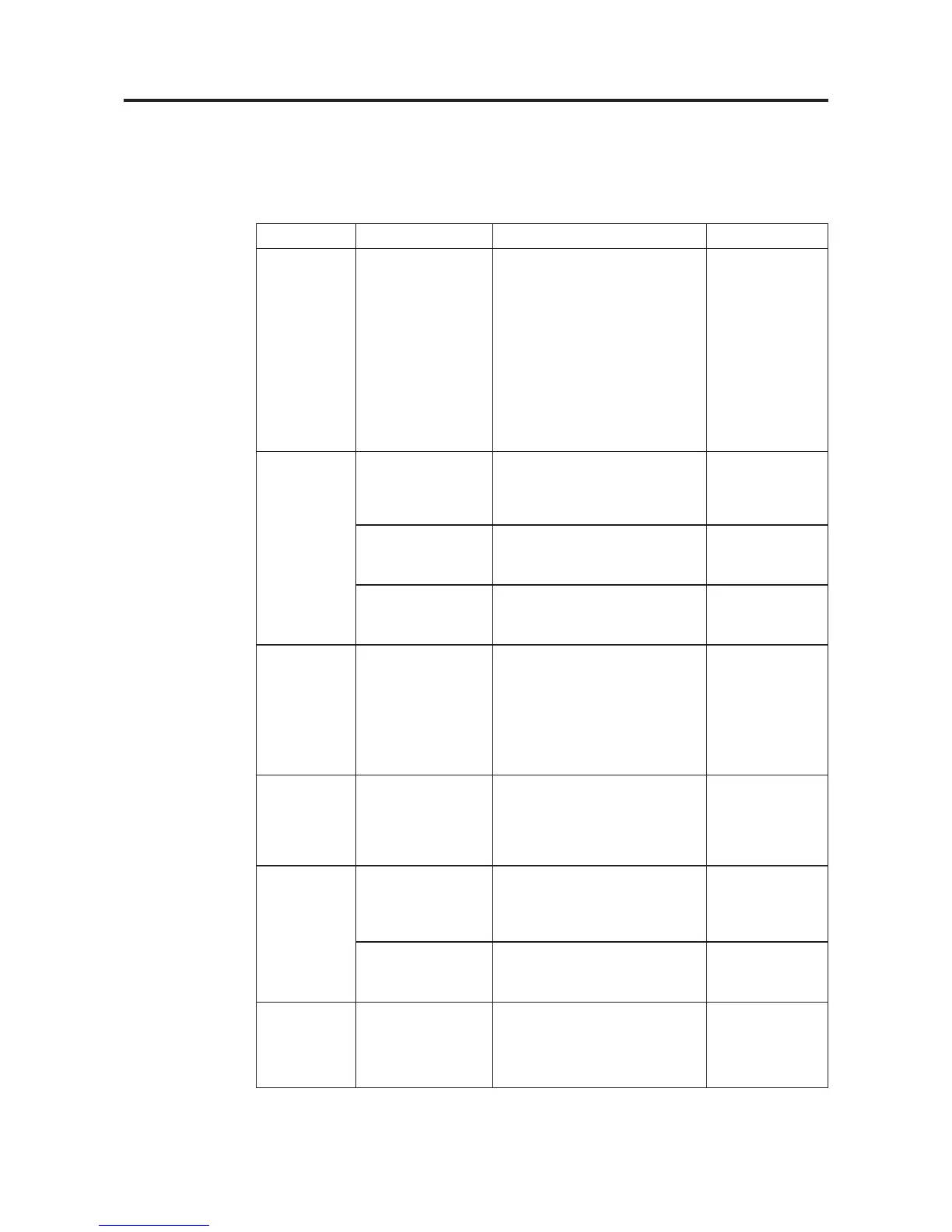
Table3-2.Troubleshooting
Problem Possiblecause Suggestedaction Reference
The words "Out
of Range" are
shown on the
screen, and the
power indicator
is ashing green
The system is set to a
display mode which is
not supported by the
monitor
If you are replacing an old monitor,
reconnect it and adjust the display
mode to within the specied range for
your new monitor
If using a Windows system, restart
the system in safe mode, then select
a supported display mode for your
computer
If these options do not work, contact
the Support Center
“Selecting a
supported display
mode” on page 2-6
The image
quality is
unacceptable
The video signal cable
is not connected with
the monitor or system
completely
Be sure the signal cable is rmly
plugged into the system and monitor
“Connecting and
turning on your
monitor” on page 1-3
The color settings may
be incorrect
Select another color setting from the
OSD menu
“Adjusting your
monitor image” on
page 2-3
The automatic image
setup function was not
performed
Perform automatic image setup “Adjusting your
monitor image” on
page 2-3
The power
indicator is not
lit and there is no
image
• The monitor’s power
switch is not switched
on
• The power cord is
loose or disconnected
• There is no power at
the outlet
• Be sure the power cord is
connected properly
• Be sure the outlet has power
•
Power on the monitor
•
Try using another power cord
• T
ry using another electrical outlet
“Connecting and
turning on your
monitor” on page 1-3
Screen is blank
and power
indicator is
steady amber
The monitor is in
Standby / Suspend
mode
• Press any key on the keyboard or
move the mouse to restore operation
• Check the Power Options settings
on your computer
“Understanding
power m
anagement”
on page 2-7
The power
indicator is
amber, but there
is no image
The video signal cable
is loose or disconnected
from the system or
monitor
Be sure the video cable is connected
with the system properly
“Connecting and
turning on your
monitor” on page 1-3
The monitor brightness
and contrast are at the
lowest setting
Adjust the brightness and contrast
setting on the OSD menu
“Adjusting your
monitor image” on
page 2-3
One or more of
the pixels appear
discolored
This is a characteristic
of the LCD technology
and is not an LCD
defect
If there are more than ve pixels
missing, contact the Support Center
Appendix A,
“Service and
Support,” on page
A-1
© Copyright Lenovo 2013. © Chapter 3. 3-2




 To Next Page