EasyManua.ls Logo

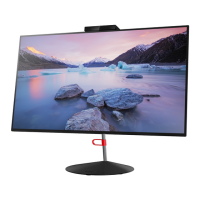
Lenovo ThinkVision X1 2nd Gen - User Manual

Lenovo ThinkVision X1 2nd Gen
39 pages
Print Icon
To Next Page IconTo Next Page
Loading...
ThinkVision X1(2nd Gen)
User Guide
Machine Types: 61C2

Questions and Answers

  • N
    Nicholas HowardAug 4, 2025
    What to do if Lenovo Monitor power indicator is not lit?
    • A
      Ana BryanAug 4, 2025
      If the Lenovo monitor's power indicator isn't lit and there's no image, ensure the power cord is properly connected and the outlet has power. Power on the monitor. You can also try another power cord and electrical outlet.
  • W
    williampinedaAug 9, 2025
    Why is my Lenovo ThinkVision X1 2nd Gen screen blank with an amber power light?
    • P
      Paul MunozAug 9, 2025
      If your Lenovo monitor screen is blank and the power indicator is amber, it's likely in Standby/Suspend mode. Press any key on the keyboard or move the mouse to restore operation. Also, check the Power Options settings on your computer.
  • M
    michelegordonAug 14, 2025
    How to resolve blurry image on Lenovo Monitor?
    • D
      Derek Smith PhDAug 14, 2025
      To resolve a blurry image on your Lenovo monitor, adjust the resolution settings on your system to match the native resolution for this monitor: 3840 x 2160 at 60 Hz. Perform automatic image setup, and if that doesn't help, perform manual image setup. When working in the native resolution, you may find additional improvements by adjusting the Dots Per Inch (DPI) setting on your system.
  • K
    kristinewrightAug 18, 2025
    How to fix unacceptable image quality on Lenovo ThinkVision X1 2nd Gen Monitor?
    • C
      Christopher SuttonAug 19, 2025
      To fix unacceptable image quality on your Lenovo monitor, ensure the video signal cable is firmly plugged into both the system and the monitor. If the issue persists, select another color setting from the OSD menu.
  • T
    Tim HubbardAug 25, 2025
    How to fix Lenovo ThinkVision X1 2nd Gen Monitor showing "Out of Range" error?
    • D
      David StevensAug 25, 2025
      If your Lenovo monitor displays an "Out of Range" error and the power indicator is flashing green, it means the system is set to a display mode not supported by the monitor. If replacing an old monitor, reconnect it and adjust the display mode to within the specified range for your new monitor. If using a Windows system, restart the system in safe mode, then select a supported display mode for your computer.
  • A
    Ann RichardAug 29, 2025
    Why are pixels discolored on my Lenovo Monitor?
    • A
      alan02Aug 29, 2025
      Discolored pixels are a characteristic of LCD technology and not necessarily a defect. If there are more than five pixels missing, contact the Support Center.

Summary

Safety Information

General Safety Guidelines

Provides essential safety instructions for using the monitor.

Getting Started

Shipping Contents

Lists all items included in the product package.

Notice for Use

Important notes and precautions for using the monitor.

Product Overview

Introduces monitor features, adjustments, and cable lock slot.

Types of Adjustments

Details monitor adjustments like tilt and swivel.

Camera Swivel

Instructions on operating the pop-up camera module.

Monitor Controls

Explains the front panel controls for display adjustment.

Cable Lock Slot

Location and purpose of the cable lock slot on the monitor.

Setting Up Your Monitor

Step-by-step guide for connecting and setting up the monitor.

Connecting and Turning On Your Monitor

Detailed instructions for connecting various cables and powering on.

Registering Your Option

Guidance on registering the product for updates and support.

Adjusting and Using Your Monitor

Comfort and Accessibility

Tips for ergonomic setup and comfortable viewing.

Arranging Your Work Area

Advice on optimizing workspace for comfort and productivity.

Positioning Your Monitor

Guidelines for optimal monitor placement and viewing angles.

Quick Tips for Healthy Work Habits

Recommendations for maintaining health while using the computer.

Accessibility Information

Information on Lenovo's commitment to accessibility.

Adjusting Your Monitor Image

How to adjust monitor settings for optimal image quality.

Using the Direct Access Controls

Explains the use of physical buttons for quick adjustments.

Using the On-Screen Display (OSD) Controls

Guide to navigating and using the monitor's OSD menu.

Selecting a Supported Display Mode

Information on choosing appropriate display resolutions and refresh rates.

Understanding Power Management

Explains power saving features and indicators.

Power Management Modes

Details different power states and consumption levels.

Caring for Your Monitor

Instructions on cleaning and maintaining the monitor.

Detaching the Monitor Base and Stand

Steps for removing the monitor's base and stand.

Reference Information

Monitor Specifications

Detailed technical specifications of the monitor.

Troubleshooting

Common problems and their solutions for monitor setup and use.

Installing the Monitor Driver in Windows 7

Specific driver installation steps for Windows 7.

Installing the Monitor Driver in Windows 10

Specific driver installation steps for Windows 10.

Getting Further Help

Information on how to contact support for additional assistance.

Service Information

Details on warranty, customer responsibilities, and service.

Service and Support

Registering Your Option

How to register your Lenovo product for support.

Online Technical Support

Information on accessing online technical assistance.

Telephone Technical Support

How to contact Lenovo support via phone for assistance.

Notices

Recycling Information

Guidelines for recycling Lenovo IT equipment.

Trademarks

Lists registered trademarks of Lenovo and other companies.

Lenovo ThinkVision X1 2nd Gen Specifications

General IconGeneral
Screen Size27 inches
Resolution3840 x 2160 (4K UHD)
Panel TypeIPS
Refresh Rate60 Hz
Brightness400 cd/m²
Contrast Ratio1300:1
Color Gamut99% sRGB
Aspect Ratio16:9
Viewing Angle (H/V)178°/178°
WebcamNo
MicrophoneNo
Power Consumption (Typical)45 W
Power Consumption (Standby)0.5 W
BacklightLED
USB HubYes
Speakers2 x 3W
VESA MountYes
Tilt Adjustment-5° to 22°
Swivel+45° / -45°
PivotNo
Response Time4 ms (Extreme mode), 6 ms (Typical mode)
Color Support1.07 billion colors
ConnectivityHDMI, DisplayPort, USB-C
StandHeight adjustable, tilt, swivel
USB-C Power DeliveryUp to 65W

Related product manuals