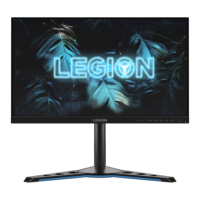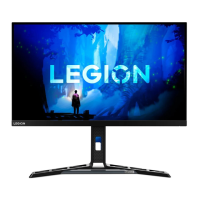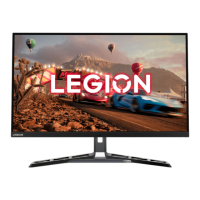
EasyManua.ls Logo

Lenovo Y32p-30 - User Manual

Lenovo Y32p-30
36 pages
Print Icon
To Next Page IconTo Next Page
Loading...
Lenovo
Y32p-30
D22315UY0
User Guide

Questions and Answers

  • P
    Paul WelchJul 29, 2025
    What to do if my Lenovo Y32p-30 Monitor shows no image but the power indicator is white?
    • C
      Caleb ToddJul 29, 2025
      If your Lenovo Monitor shows no image while the power indicator is white, the video signal cable might be loose or disconnected. Ensure the video cable is properly connected to the system. Also, the monitor's brightness and contrast might be at their lowest settings. Adjust these settings in the OSD menu.
  • J
    jcampbellAug 2, 2025
    How to fix unacceptable image quality on Lenovo Y32p-30?
    • M
      mdyerAug 2, 2025
      If the image quality on your Lenovo Monitor is unacceptable, ensure the video signal cable is firmly plugged into both the system and the monitor. Also, the color settings might be incorrect; try selecting another color setting from the OSD menu.
  • J
    jeffreypalmerAug 7, 2025
    How to fix fuzzy lines or blurry image on Lenovo Y32p-30?
    • M
      Michael PatelAug 7, 2025
      If you see fuzzy lines or a blurry image on your Lenovo Monitor, your system's Display Properties settings might not be optimized. Adjust the resolution settings on your system to match the native resolution for this monitor: 3840 x 2160 at 60Hz.
  • D
    Devin WrightAug 12, 2025
    What to do if Lenovo Monitor says 'Input Not Supported'?
    • W
      William RiceAug 12, 2025
      If your Lenovo Monitor displays 'Input Not Supported,' it means the system is set to a display mode not supported by the monitor. If you replaced an old monitor, reconnect it and adjust the display mode to the specified range for your new monitor. If using a Windows system, restart the system in safe mode and select a supported display mode. If these options do not work, contact the Customer Support Centre.
  • R
    Robin CastilloAug 17, 2025
    Why is my Lenovo Monitor power indicator not lit?
    • J
      James HillAug 17, 2025
      The power indicator might not be lit because the monitor's power switch is off, the power cord is loose or disconnected, or there is no power at the outlet. Ensure the power cord is properly connected, the outlet has power, and the monitor is powered on. Try another power cord or electrical outlet.
  • C
    Chad SchultzAug 23, 2025
    Why does my Lenovo Y32p-30 Monitor have discolored pixels?
    • D
      Destiny LopezAug 23, 2025
      The appearance of one or more discolored pixels is a characteristic of LCD technology and not necessarily a defect. If there are more than five missing pixels, contact the Customer Support Centre.

Summary

Chapter 1 Getting Started

Monitor Setup and Connection

Provides step-by-step instructions for connecting cables and powering on the monitor.

Chapter 2 Adjusting and Using Your Monitor

Positioning and Viewing Your Monitor

Offers guidance on optimal monitor placement, height, tilt, and viewing distance.

Working Habits and Exercises

Recommends breaks, eye care, and neck exercises to prevent strain and discomfort.

Working Posture and Seating Position

Explains optimal working position, seating posture, and viewing distance.

Adjusting Monitor Image with Controls

Explains how to use direct access controls for adjusting the monitor image.

Using On-Screen Display (OSD) Controls

Details how to navigate and use the On-Screen Display (OSD) menus for settings.

Chapter 3 Reference Information

Troubleshooting Common Issues

Provides common problems, their possible causes, and suggested solutions for users.

Manually Installing Monitor Driver

Provides step-by-step instructions for installing monitor drivers on Windows 10 and 11.

Lenovo Y32p-30 Specifications

General IconGeneral
Color depth10 bit
Color gamut90 %
Pixel pitch0.1811 x 0.1811 mm
Screen shapeFlat
Pixel density139 ppi
Backlight typeW-LED
Display diagonal31.5 \
Anti-glare screenYes
Display technology-
Local dimming zones16
Native aspect ratio16:9
Viewable size, vertical392.2 mm
sRGB coverage (typical)99 %
Contrast ratio (dynamic)3000000:1
Contrast ratio (typical)1000:1
Display number of colors1.073 billion colors
Display brightness (peak)400 cd/m²
Viewable size, horizontal697.3 mm
Display brightness (typical)350 cd/m²
High Dynamic Range (HDR) technologyHigh Dynamic Range (HDR) 400
USB hub version3.2 Gen 1 (3.1 Gen 1)
DisplayPort version1.4
Headphone connectivity3.5 mm
USB upstream port typeUSB Type-B, USB Type-C
USB Power Delivery up to15 W
RMS rated power10 W
AC input voltage100 - 240 V
Power supply typeInternal
AC input frequency50 - 60 Hz
Power consumption (max)175 W
Power consumption (off)0.5 W
Power consumption (standby)0.3 W
Power consumption (typical)62 W
Tilt angle range-5 - 22 °
Cable lock slot typeKensington
Panel mounting interface100 x 100 mm
Color nameRaven Black
Product colorBlack
Market positioningGaming
Cables includedAC, DisplayPort, HDMI, USB Type-A to USB Type-B, USB Type-C
HDMI cable length1.8 m
Sustainability certificatesRoHS
AMD FreeSync typeFreeSync Premium
Compatible operating systemsSupport Windows 10, Windows 11
Package depth173 mm
Package width906 mm
Package height526 mm
Package weight14200 g
Weight and Dimensions IconWeight and Dimensions
Bezel width (side)2 mm
Depth (with stand)298.4 mm
Width (with stand)715.1 mm
Height (with stand)598.8 mm
Weight (with stand)9600 g
Bezel width (bottom)21.74 mm
Depth (without stand)59.5 mm
Height (without stand)424.4 mm
Weight (without stand)7400 g

Related product manuals