Chapter 1. Getting to know your computer
9
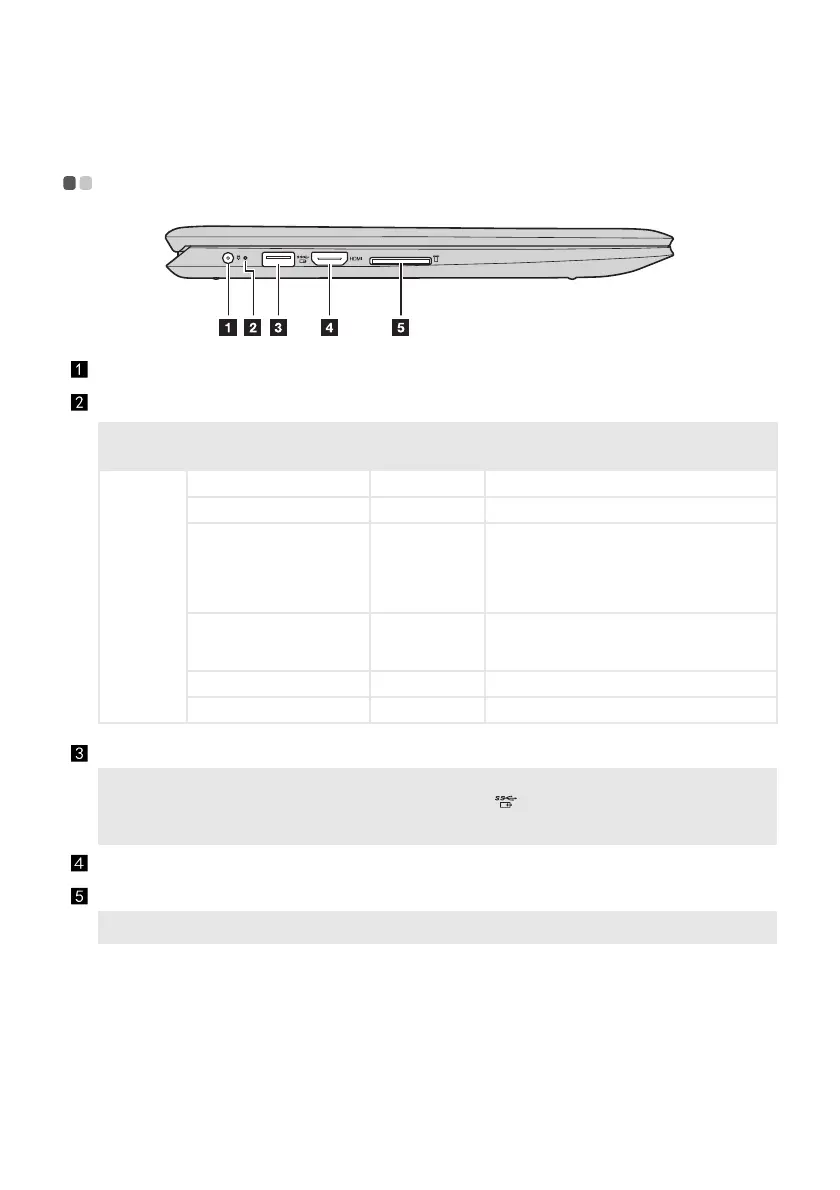
Left-side view - - - - - - - - - - - - - - - - - - - - - - - - - - - - - - - - - - - - - - - - - - - - - - - - - - - - - - - - - - - - - - - - - - - - - - - - - - - - - - - -
AC power adapter jack
Connects to the AC power adapter.
Battery status indicator
Indicator Indicator status
Charge
status
Meaning
Battery
status
indicator
On (solid white) Charging The battery has more than 80% charge.
On (solid amber) Discharging The battery has between 5% and 20% charge.
Blinking slowly (white) Charging
The battery has between 20% and 80%
charge. When the battery reaches 80%
charge, the light will stop blinking.
However, charging will continue until the
battery is fully charged.
Blinking slowly (amber) Charging
The battery has less than 20% charge. When
the battery charge reaches 20%, the blinking
color will change to white.
Blinking quickly (amber) Discharging The battery has less than 5% charge.
Off Discharging The battery has more than 20% charge.
USB 3.0 port
Connects to USB devices.
Notes:
• If the battery charge is more than 20%, the USB port with a
mark supports charging of an external
USB device, even when the computer is turned off.
• For details, see “Connecting USB device” on page 10.
HDMI port
Connects to devices with HDMI input such as a TV or an external display.
Memory card slot
Accepts memory cards (not supplied).
Note: For details, see “Using memory cards (not supplied)” on page 11.




 To Next Page