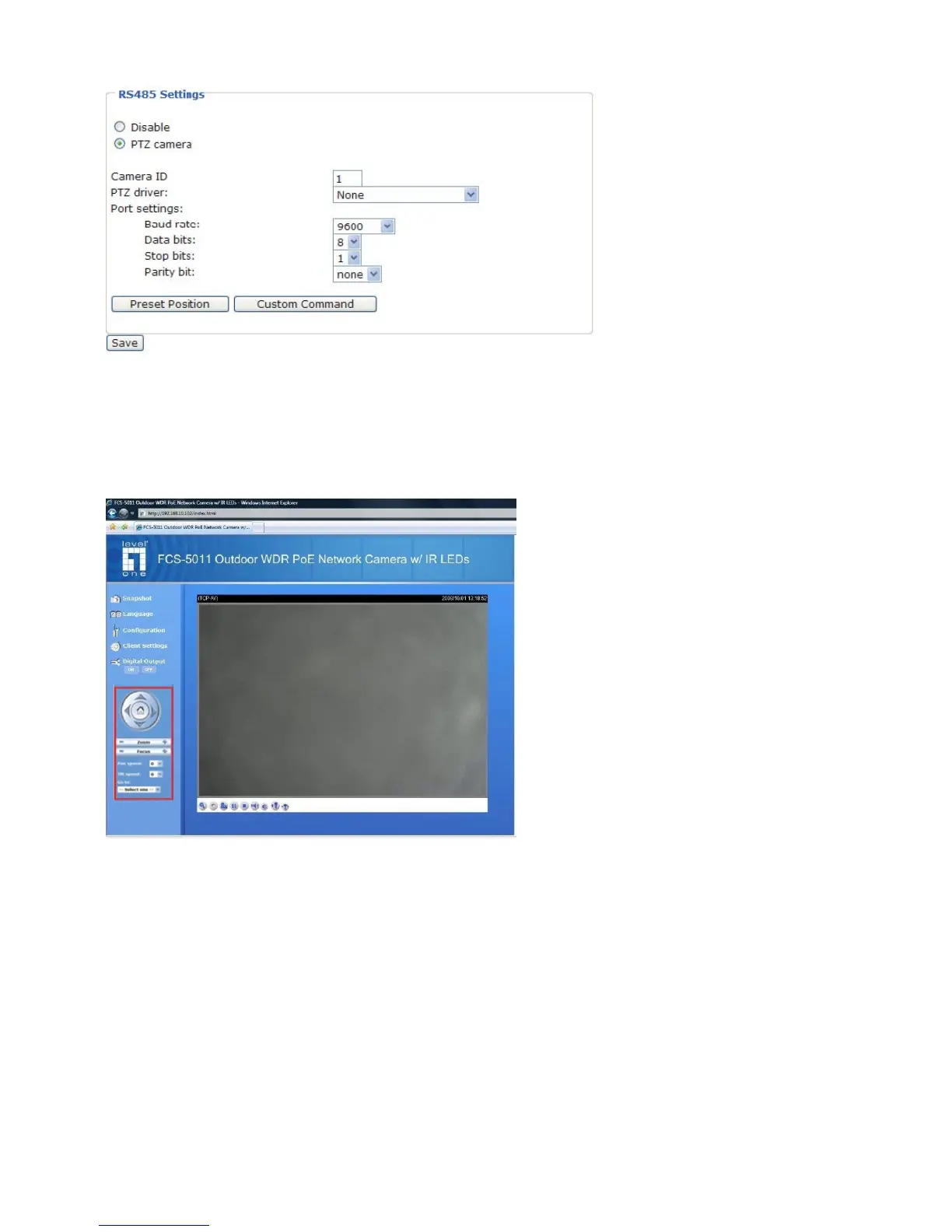
the following diagram.
LEVELONE offers three PTZ drivers: DynaDome/SmartDOME, Lilin PIH-7x00 and Pelco D
protocol. If none of the above PTZ drivers is supported by your PTZ scanner, please select
Custom camera (scanner). please refer to the user’s manual of your PTZ scanner to set the
Camera ID, PTZ driver, and Port settings. The Camera ID is necessary for multiple cameras
control. If you select PTZ camera and click Save to enable this function, the camera control
panel will be displayed in the main page as the following diagram:
Preset Position
Click Preset Position to open the Preset Position page. In this page, you can set the preset
position for the Network Camera. A total of 20 preset positions can be configured.
Follow the steps below to set preset positions:
1. Adjust the Network Camera to a desired position with the buttons on the right side of the
window.
2. In the Preset position name text box, enter a descriptive name for the preset position. The
preset position name allows up to forty characters. Click Add to take effect. The preset position
name will appear in the Preset Positions drop-down list. To remove a preset position from the
list, select a preset position name from the Preset Positions drop-down list and then click
Delete.
3. You can click “Go to” to aim at preset positions, which will also displayed in the main page.
4. Click Save to take effect.



 To Next Page