9 10 11 12 13
1514 16 17
What to do if...
Safety first
Limited 2 Year Warranty & Exclusions
Visit leviton.com/decorasmart or contact Technical
Services for additional help.
When power is applied, the light turns ON, but the
dimmer is not able to change the light level:
• For proper operation, the dimmer needs a Line (Hot),
Load, and Ground connection. Make sure your wires are
connected properly and that the wire connectors are
secure.
The dimmer does not dim low enough or begins to flicker
at the low end of the dimming range:
• Use the My Leviton app to increase the minimum dim level
to the point that it does not cause the LED bulb to flicker.
Intermittent dimmer operation:
• Confirm the Load does not exceed its ratings.
Not connected or intermittent connection to the Decora
Smart Wi-Fi Bridge:
• Make sure the MLWSB Wi-Fi Bridge is in range and powered;
move the Bridge closer if possible.
Pair to a different Wi-Fi Bridge:
• Make sure the MLWSB Wi-Fi Bridge is in range and powered.
• Using the My Leviton app, go to dimmer’s device
settings, select “Reconfigure Wireless” and follow the
in-app instructions.
How do I clean my device?
• To clean, use a damp cloth with mild soap. DO NOT use
disinfecting products, including foggers, sprays, or other
types of atomized cleaning agents.
For Leviton’s limited product warranty, go to www.leviton.com. For a printed copy of the
warranty, call 1-800-824-3005.
FOR CANADA ONLY
For warranty information and/or product returns, residents of Canada should contact
Leviton in writing at Leviton Manufacturing of Canada ULC to the attention of the Quality
Assurance Department, 165 Hymus Blvd, Pointe-Claire (Quebec), Canada H9R 1E9 or by
telephone at 1 800 405-5320.
Status LED
Please see My.Leviton.com support for additional
diagnostic assistance.
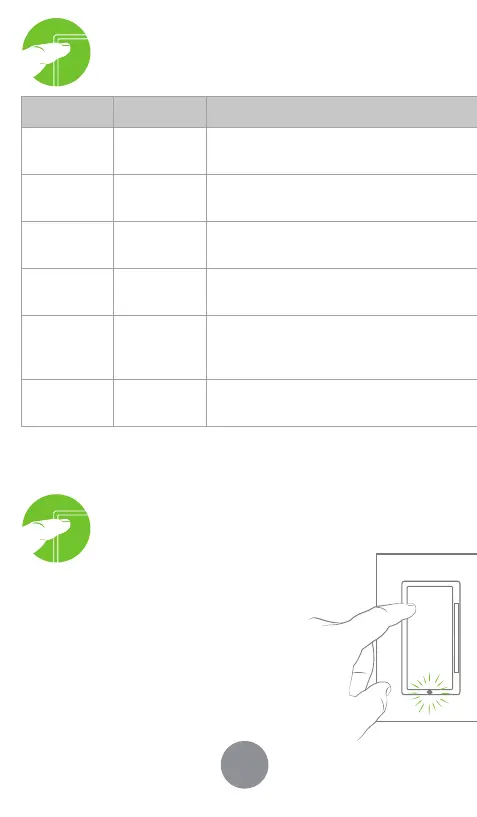
If your device is not connecting, the Status LED can be used as a
diagnostic tool. Press the top of the rocker for at least 2 seconds,
but less than 7 seconds, and then release. The Status LED will blink a
diagnostic code for 2 seconds.
COLOR ACTIVITY STATUS
Green Flashing
In Setup mode and r
eady to be added
to a Decora Smart Wi-Fi Bridge.
Green or
OFF
Solid
Normal operation, can be configured
in a setup.
Amber Slow Blink
Device is not connected to the Bridge,
but is attempting to reconnect.
Green/
Amber
Alternating
Blink
Device is in wireless Anywhere
Companion Pairing mode.
Red Blink
Wireless Anywhere Companion devices
have unpaired or at max. number of
paired devices.
Green/
Red/Amber
Alternating
Blink
Identify feature triggered from the
My Leviton app.
CO LO R STAT US
Red
Cannot communicate to the Decor
a Smart Wi-Fi
Bridge; Bridge may be out of range or not powered.
Amber Not paired to a Decora Smart Wi-Fi Bridge.
Green
Connected to a Decora Smart Wi-Fi Bridge and
working properly.
Factory default reset
Diagnostic light
Setup mode
WARNINGS:
• TO AVOID FIRE, SHOCK, OR DEATH, TURN OFF POWER at circuit breaker
or fuse and test that power is off before wiring!
• TO AVOID FIRE, PERSONAL INJURY, OR PROPERTY DAMAGE, DO NOT
i
nstall to control a receptacle, a motor, or transformer operated appliance.
• This product is to be installed and/or used in accordance with electrical
codes
and regulations.
• For indoor use only.
• If you are unsure about any part of these instructions,
consu
lt an electrician.
CAUTIONS:
• Use with compatible 120V dimmable LED/CFL bulbs, incandescent,
h
alogen, or magnetic-low-voltage (MLV) fixtures only. Use a Leviton
electronic low-voltage dimmer to control electronic (solid state) low-
voltage transformers. For a list of compatible LED and CFL bulbs, refer to
www.leviton.com.
• DO NOT mix bulb types when multiple bulbs are used with one dimmer.
U
sing the same make/model of each bulb will enhance
dimmer performance.
• Save this instruction sheet. It contains important technical data along
w
ith testing and troubleshooting information, which will be useful after
installation is complete.
• Dimmer may feel warm to the touch during normal operation.
• Recommended minimum wall box depth is 2-3/4 in.
• Use this dimmer with copper or copper-clad wire only.
ADD
ITIONAL RATINGS:
• Purpose of Control: Operating Control
• Action Control Type: 1
• Pollution Degree: 2
• Impulse Voltage: 2500V
• Disconnection Type: Micro
1. Open the My Leviton app.
2. Tap icon to turn ON/OFF.
Test My Leviton
app control
Quick tip
• The My Leviton app includes many features such as:
scheduling, remote control, Vacation mode,
Auto-Shut-Off, room scenes, and advanced options for
bulb type, fade rates, preset light level, and minimum
dim/maximum brightness.
Additional self-service support options can be found in
the My Leviton app or at leviton.com/decorasmart.
Test and install
(continued)
3. Gently push wires
into wall box.
Screw dimmer
to box.
4. Snap on Decora
®
wallplate and
restore power.
WARNING: Turn off power at the
circuit breaker before screwing in
your dimmer.
Once power is restored, the status
LED will blink GREEN, indicating
your device is in Setup mode. See
page 15 if your Status LED is not
blinking GREEN.
Congratulations!
Your Decora Smart Dimmer
is ready to control your light.
To download the app,
visit my.leviton.com and select the link or s
can
the QR code below for your device.
Get the app
Device setup
Connect your Dimmer
to a Decora Smart Wi-Fi
Bridge with My Leviton
• The Decora Smart No-Neutral Dimmer pairs to a Decora
Smart Wi-Fi Bridge for connectivity to My Leviton, Apple
HomeKit, or both.
• Use the My Leviton app to pair your Decora Smart No
Neutral Dimmer (DN6HD) to your Wi-Fi Bridge.
• For voice control with Amazon Alexa or Google Assistant,
you will need to pair your Dimmer to a MLWSB Wi-Fi Bridge
that is enrolled in My Leviton.
• For voice control with Siri, you will need to pair your
Dimmer to a MLWSB Wi-Fi Bridge that is added to HomeKit.
• See MLWSB Getting Started Guide for additional Wi-Fi
Bridge setup details.
1. Make sure a MLWSB Wi-Fi Bridge is installed within range of
the DN6HD Dimmer.
2. Verify the DN6HD Dimmer is in Setup mode (Status LED
should be blinking GREEN).
•
If the Status LED is not blinking GREEN, see page 15 for
instructions on how to put the device into Setup mode.
3. Launch the My Leviton app.
4. Log in or choose “Sign Up” to create a new account.
5. Follow the instructions on the screen.
6. Once logged in, tap the “+” in the upper right-hand corner of
the screen and select “Add Device”
7. Follow the app instructions to add your device and connect
it to a MLWSB Wi-Fi Bridge.
Connect to My Leviton
partners (optional)
Visit my.leviton.com for a complete
list of compatible smart home
products and services.
1. Hold the top rocker for 7 seconds
and release when the Status LED
turns AMBER.
2. The Status LED will flash GREEN.
The device is now in Setup mode.
3. To exit Setup mode manually, hold
the top rocker for 7 second.
1.
Hold the top rocker for 14 seconds.
2. After the first 7 seconds, the Status LED will turn AMBER.
Continue to hold.
3. After 7 more seconds, the Status LED will quickly flash
RED/AMBER.
4. Release the top rocker and then the device will reset.
NOTE: If you are only using HomeKit and do not wish to
create a My Leviton account, select “Use with HomeKit
Only” on the My Leviton sign-up screen.
When connected to a MLWSB Wi-Fi Bridge,
your dimmer can work with Amazon Alexa,
Apple HomeKit, Google Assistant, IFTTT,
and more.
1. Restore power. Status LED should flash GREEN.
2. After powering on the dimmer to confirm it is receiving
power, turn the power back off again at the breaker prior
to completing the installation.
Test and install
1. Tap the menu icon, followed
by Integrations. Locate the
desired service, select it, and
follow instructions.
Learn more about Companion devices and find connection
instructions at leviton.com/decorasmart.
Pair an Anywhere
Companion
1. Make sure your Wi-Fi Bridge is enrolled to
My Leviton and your Decora Smart No-Neutral
device is paired to your Wi-Fi Bridge.
2. Place the Anywhere Companion in Pairing
mode by pressing the top rocker 5 times.
Its Status LED will blink GREEN.
3. Place the primary Decora Smart No-Neutral
device into Pairing mode by pressing the top
rocker 5 times. The Status LED will flash GREEN/AMBER.
4. The Decora Smart No-Neutral device will be automatically
paired to the Anywhere Companion in wireless RF range via
the Wi-Fi Bridge. Once paired, the Status LED will quickly
flash GREEN to show a successful connection.


 To Next Page
 Loading...