Note: You must create your own VeSync account
to access voice assistants.
• To disconnect Wi-Fi, press and hold the
On/O button for 15 seconds until the
Wi-Fi indicator turns o. This will restore
the smart air purifier’s default settings and
disconnect it from the VeSync app.
• To reconnect, please follow the
instructions in the VeSync app for adding
a device.
You can use the VeSync app to connect
your smart air purifier to Amazon Alexa or
Google Assistant™. Please follow the in-app
instructions to set up your voice assistant.
Wi-Fi Connection:
Connect with Amazon Alexa or
Google Assistant™
Note: The VeSync app is continually being
improved and may change over time. If there are
any dierences, follow the in-app instructions.
Note: For Android™ users, choose “Allow” to
use VeSync.
Note: You must create your own VeSync
account to use third-party services and
products. These will not work with a guest
account. With a VeSync account, you can
also allow your family and friends to control
your smart air purifier.
Note: Your phone must have Location
turned on while your phone is connecting to
your smart air purifier. This is required to
establish the Bluetooth® connection. You
can turn Location o after your smart
air purifier is finished connecting to
the VeSync app.
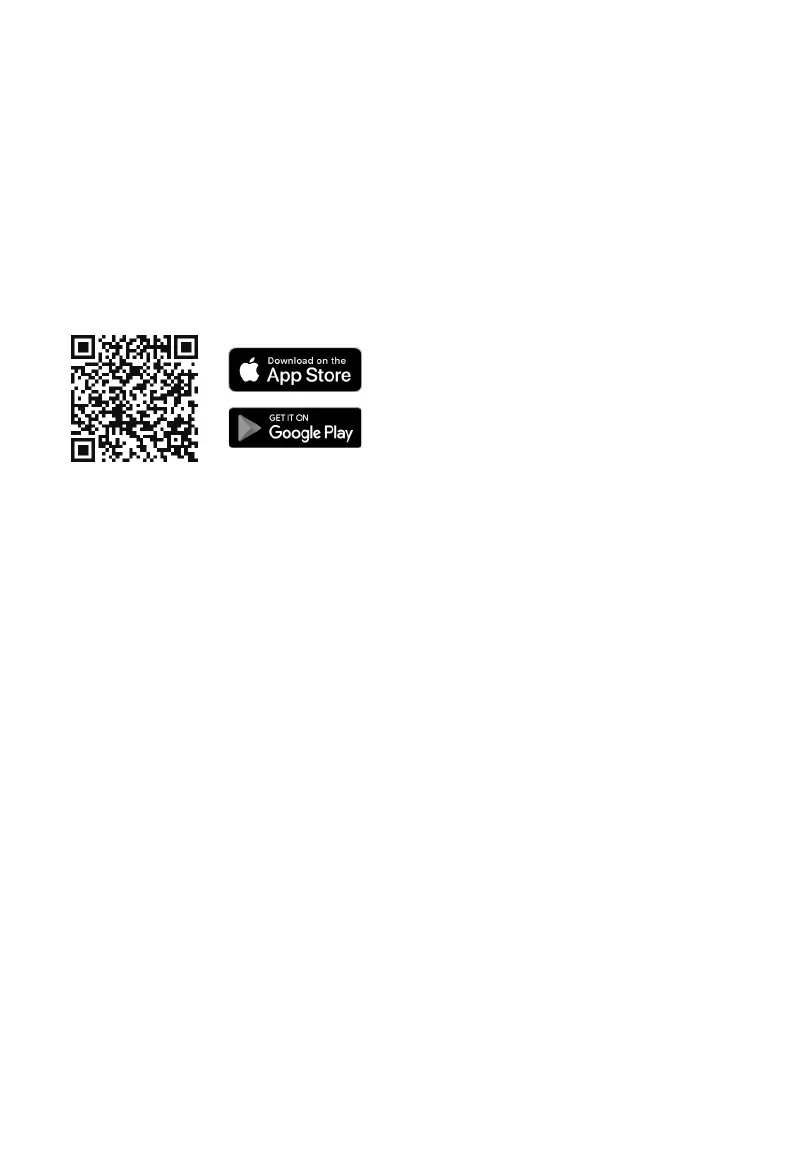
1. To download the VeSync app, scan the
QR code or search “VeSync” in the Apple
App Store® or Google Play Store.
VeSync App Setup
2. Open the VeSync app. Log In or
Sign Up.
3. Follow the in-app instructions to set up
your smart air purifier.
GETTING STARTED CONT.
EN
10



 To Next Page