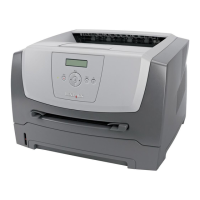
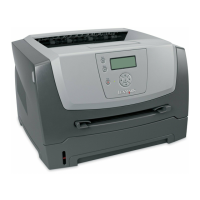
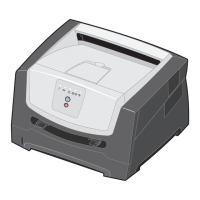
This document is a Maintenance Guide for the Lexmark E260, E260d, and E260dn Series printers, published in May 2008. It provides essential information for maintaining the printer to ensure optimum print quality and longevity.
Function Description:
The Lexmark E260, E260d, and E260dn Series are laser printers designed for various printing needs. While the specific functions beyond printing are not detailed in this maintenance guide, the document focuses on keeping these devices in optimal working condition. These printers are likely monochrome laser printers, given the emphasis on toner cartridges and photoconductor kits, which are common components in such devices. The "d" and "dn" in the model names typically indicate duplex printing (automatic two-sided printing) and network connectivity, respectively, suggesting these models offer enhanced functionality for office or workgroup environments.
Important Technical Specifications (inferred from maintenance tasks):
- Print Technology: Laser (uses toner cartridges and a photoconductor kit).
- Consumables: Toner cartridges (e.g., E260A21A, E260A11A, E260A21E, E260A11E, E260A21P, E260A11P, E260A21L, E260A11L) and a photoconductor kit (E260X22G). The guide lists specific part numbers for regular and Lexmark Return Program Cartridges across different regions (US and Canada, Europe/Middle East/Africa, Asia Pacific, Latin America), indicating regional variations in supply availability.
- Paper Handling: Supports letter- or A4-size plain paper, as well as specialty media. The ability to print multiple pages per sheet (N-up: 2-Up, 3-Up, 4-Up, 6-Up, 9-Up, 12-Up, and 16-Up) and duplex printing (printing on both sides of a sheet) are mentioned as features accessible through printer menus, highlighting efficient paper usage.
- Connectivity (inferred): USB or parallel cable connection to a computer is supported for local printer settings. Network connectivity is also implied, as the guide describes checking supply status from a network computer using the printer's IP address and Embedded Web Server.
- Environmental Operating Conditions for Supplies: Supplies should not be exposed to direct sunlight, temperatures above 35°C (95°F), high humidity above 80%, salty air, corrosive gases, or heavy dust. These specifications are crucial for maintaining the quality and lifespan of consumables.
Usage Features:
- Printer Menus: Users can access printer settings through the Embedded Web Server (for network-connected printers) or the Local Printer Settings Utility (for locally connected printers via USB or parallel cable).
- Toner Darkness Adjustment: The "Quality" menu allows users to adjust toner darkness from 1 (lightest) to 10 (darkest), with 8 being the factory default. This feature enables users to control print output and potentially conserve toner.
- N-up (Multipage Print) Setting: The "Finishing" menu offers options to print multiple page images on one side of a sheet, ranging from 2-Up to 16-Up, promoting paper conservation.
- Duplex Printing: Also available in the "Finishing" menu, this feature allows printing on both sides of a sheet, further reducing paper consumption.
- Supply Status Monitoring: The printer displays messages when replacement supply items are needed or maintenance is required. For network printers, supply levels can be checked remotely via the "Device Status" page on the Embedded Web Server.
- Toner Redistribution: When "88 Toner is low" appears or print becomes faded, users can extend the toner cartridge life by removing and shaking it side-to-side and front-to-back to redistribute toner. This can be repeated until print quality no longer improves.
Maintenance Features:
- Exterior Cleaning: The guide provides instructions for cleaning the printer's exterior, emphasizing safety precautions (unplugging the printer, disconnecting cables) and proper cleaning materials (damp, lint-free cloth, no household cleaners or detergents). It specifically warns against using a damp cloth to clean the interior.
- Supply Storage: Detailed guidelines are provided for storing printer supplies in a cool, clean area, right side up in their original packing, and away from environmental hazards like direct sunlight, high temperatures, and humidity.
- Conserving Supplies: Beyond adjusting toner darkness and using N-up/duplex printing, the guide suggests printing a single copy first to check for accuracy before printing multiple copies, thereby preventing waste.
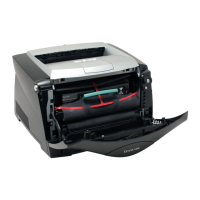
- Toner Cartridge Replacement: Step-by-step instructions are given for replacing the toner cartridge, including opening the front door, pressing a button to release the old cartridge, unpacking and rotating the new cartridge to distribute toner, aligning and installing it, and closing the door. A warning is included about not exposing the new cartridge to direct light for extended periods to avoid print quality problems.
- Photoconductor Kit Replacement: The printer notifies users when the photoconductor kit is nearing or at its end of life through specific light sequences ("Photoconductor life warning" or "Replace photoconductor"). Instructions include opening the front door, pulling out the combined photoconductor kit and toner cartridge unit, separating the toner cartridge from the old photoconductor kit, unpacking the new kit, inserting the toner cartridge into the new kit, installing the unit back into the printer, and closing the door. A critical warning advises against touching the photoconductor drum and emphasizes the importance of resetting the photoconductor counter only after replacement to avoid damage and voiding the warranty. The guide notes that print quality significantly decreases once the photoconductor kit reaches its official end-of-life.
- Recycling Lexmark Products: Lexmark provides a recycling program, accessible via their website (www.lexmark.com/recycle), where users can find product-specific recycling instructions for their region.
- Moving the Printer: Guidelines are provided for safely moving the printer, including turning it off, unplugging it, disconnecting all cables, lifting it correctly (especially if an optional drawer is present), and avoiding placing fingers under the printer. It warns that damage caused by improper moving is not covered by the warranty.
- Shipping the Printer: For shipping, users are advised to use the original packaging or contact the place of purchase for a relocation kit.

 Need help?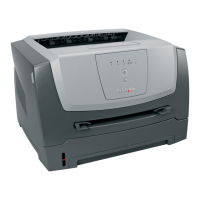


 To Next Page
 General