EasyManua.ls Logo

Lexmark MS415 - User Manual

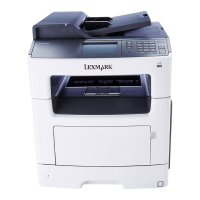
Lexmark MS415
226 pages
Print Icon
To Next Page IconTo Next Page
Loading...
MS312, MS315, and MS415
User's Guide
July 2014 www.lexmark.com
Machine type(s):
4514
Model(s):
330, 335, 530

Table of Contents

Other manuals for Lexmark MS415

Questions and Answers

  • B
    bcolemanAug 31, 2025
    How to troubleshoot network error on Lexmark Printer?
    • K
      Kayla CareySep 1, 2025
      To resolve a 'Network error, port [x]' message on your Lexmark Printer, you can press on the printer control panel to clear the message and continue printing. You can also try unplugging the router, waiting 30 seconds, and then plugging it back in. Additionally, turn off the printer, wait 10 seconds, and then turn it back on. Finally, you may need to update the network firmware in the printer or the print server. For more information, visit the Lexmark website.
  • T
    Tonya MillerAug 27, 2025
    How to fix paper too short error on Lexmark Printer?
    • Y
      ywestAug 27, 2025
      To resolve the 'Paper too short' message on your Lexmark Printer, try the following: * Load the correct size of paper in the tray. * You can press on the printer control panel to clear the message and print using a different tray. * Check the tray length and width guides to ensure the paper is loaded properly. * Make sure the correct paper size and type are specified in Print Properties or the Print dialog, as well as in the Paper menu on the printer control panel. * Ensure the paper size is correctly set. For example, if the MP Feeder Size is set to Universal, make sure the paper is large enough for the data being printed. * As a last resort, cancel the print job.
  • P
    Patricia GoldenAug 27, 2025
    What does 'Bin full' mean on my Lexmark All in One Printer and how to fix it?
    • T
      terrance54Aug 27, 2025
      If your Lexmark All in One Printer displays 'Bin full', remove the paper stack from the standard bin.
  • G
    ghicksAug 27, 2025
    How to resolve 'Load Manual Feeder with [paper size] [orientation]' error on Lexmark All in One Printer?
    • M
      morenokimberlyAug 27, 2025
      To resolve the 'Load Manual Feeder with [paper size] [orientation]' error on your Lexmark All in One Printer: - Load the feeder with the correct size of paper. - From the printer control panel, press to clear the message and continue printing. - You can also cancel the current job.
  • C
    Chase RogersAug 27, 2025
    How to fix 'Load MP feeder with [custom type name] [orientation]' error on Lexmark All in One Printer?
    • M
      martindonnaAug 27, 2025
      To fix the 'Load MP feeder with [custom type name] [orientation]' error on your Lexmark All in One Printer: - Load the feeder with the correct size and type of paper. - From the printer control panel, press to clear the message and continue printing. - Alternatively, cancel the current job.
  • E
    Emma ShermanAug 26, 2025
    What to do if Lexmark All in One Printer has paper curl?
    • T
      Thomas MejiaAug 27, 2025
      If you are experiencing paper curl with your Lexmark All in One Printer: - Move the width and length guides in the tray to the correct positions for the size of the paper loaded. - Resend the print job.
  • K
    Kimberly MiddletonAug 26, 2025
    Why is the print too light on my Lexmark All in One Printer?
    • M
      Michael BrownAug 26, 2025
      If the print from your Lexmark All in One Printer is too light, increase the toner darkness from the Quality menu on the printer control panel.
  • K
    Kristine HollowayAug 26, 2025
    What to do if Lexmark All in One Printer says 'Incorrect paper size, open [paper source] [34]'?
    • C
      Christina AguilarAug 26, 2025
      If your Lexmark All in One Printer displays an 'Incorrect paper size, open [paper source] [34]' message, try the following: - Load the correct size of paper in the paper source. - Press the button on the control panel to clear the message and print using a different paper source.
  • C
    christine63Aug 25, 2025
    How to fix 'Load [paper source] with [paper size] [orientation]' error on Lexmark All in One Printer?
    • M
      Marcus HarrisAug 25, 2025
      To resolve the 'Load [paper source] with [paper size] [orientation]' error on your Lexmark All in One Printer: - Load the tray or feeder with the correct size of paper. - Press the button on the printer control panel to clear the message and continue printing.
  • M
    Matthew ChangAug 25, 2025
    What to do if my Lexmark All in One Printer says 'Paper too short'?
    • J
      James McdanielAug 25, 2025
      If your Lexmark All in One Printer displays a 'Paper too short' message, consider the following: - Load the correct size of paper in the tray. - Press the button on the printer control panel to clear the message and print using a different tray. - Check the tray length and width guides to ensure the paper is loaded properly. - Verify that the correct paper size and type are specified in Print Properties or the Print dialog. - You can also cancel the print job.

Summary

Safety information

Using this guide

Explains how to use the guide and find information within it.

Finding information about the printer

Directs users to resources for finding printer information.

Additional printer setup

Installing internal options

Details on installing internal hardware and memory options.

Installing hardware options

Guides on adding optional trays and other hardware.

Setting up the printer software

Steps for installing printer drivers and software.

Using MS312

Using the printer control panel

Details the functions of the MS312 control panel.

Understanding the colors of the Sleep button and indicator lights

Explains indicator light colors and Sleep button states.

Using MS315 and MS415

Using the control panel

Details the functions of the MS315/MS415 control panel.

Understanding the colors of the Sleep button and indicator lights

Explains indicator light colors and Sleep button states.

Loading paper and specialty media

MS312 paper size and type setup

Configuring paper settings for MS312 models.

MS315 and MS415 paper size and type setup

Configuring paper settings for MS315/MS415 models.

Loading trays

Step-by-step instructions for loading paper into printer trays.

Paper and specialty media guide

Paper guidelines

Explains paper characteristics affecting print quality.

Unacceptable paper

Lists paper types not recommended for use.

Printing

Printing a document

Instructions for printing documents from different operating systems.

MS312 toner darkness adjustment

How to adjust toner darkness for MS312.

Saving money and the environment

Saving paper and toner

Tips for reducing paper and toner consumption.

Using recycled paper

Information on using recycled paper.

Conserving supplies

General tips for conserving printer supplies.

Recycling

Recycling Lexmark products

Instructions for returning Lexmark products for recycling.

Managing the printer

Finding advanced networking and administrator information

Points to resources for advanced network tasks.

Copying printer settings to other printers

How to copy settings to multiple printers.

Configuring supply notifications from the Embedded Web Server

Setting up notifications for printer supplies.

MS312 printer management

Management tasks specific to the MS312 model.

Securing the printer

Using the security lock feature

How to use the physical security lock.

Erasing non-volatile memory

Instructions to erase non-volatile memory.

Understanding the printer menus

MS312 menus list

Lists the menus and options available on the MS312 model.

Paper menu

Details the options within the printer's Paper menu.

Clearing jams

Avoiding jams

Provides tips to prevent paper jams.

MS312 jams

Information on clearing MS312 paper jams.

Maintaining the printer

Cleaning the printer

Step-by-step guide on how to clean the printer.

Checking the status of parts and supplies

How to check the status of printer components and supplies.

Ordering parts and supplies

Information on how to order replacement parts and supplies.

Troubleshooting

Understanding the printer messages

Explains common printer messages and their solutions.

MS312 printer messages

Specific error messages and troubleshooting for MS312.

Embedded Web Server does not open

Troubleshooting steps for accessing the Embedded Web Server.

Troubleshooting

Network [x] software error [54]

Resolving network software errors.

Non-Lexmark [supply type], see User’s Guide [33.xy]

Handling non-Lexmark supplies and warnings.

Troubleshooting

Serial option [x] error [54]

Troubleshooting serial port errors.

Standard network software error [54]

Resolving standard network software errors.

Standard parallel port disabled [56]

Troubleshooting parallel port issues.

Troubleshooting

Standard USB port disabled [56]

Troubleshooting USB port issues.

Unformatted flash detected [53]

Steps for detecting unformatted flash memory.

Troubleshooting

Cartridge, imaging unit mismatch [41.xy]

Resolving cartridge and imaging unit mismatches.

Cartridge low [88.xy]

Actions to take when the toner cartridge is low.

Troubleshooting

Imaging unit low [84.xy]

Actions to take when the imaging unit is low.

Insert tray [x]

Instructions to insert a specific printer tray.

Troubleshooting

Print quota exceeded. Print job canceled.

Handling print quota exceeding issues.

Troubleshooting

Replace cartridge, printer region mismatch [42.xy]

Replacing cartridges based on printer region.

Troubleshooting

Solving printer problems

General section for resolving printer issues.

Basic printer problems

Addresses fundamental printer issues like not responding.

Troubleshooting

Printer display is blank

Troubleshooting steps for a blank printer display.

Option problems

Resolving issues related to printer options.

Troubleshooting

Tray problems

Troubleshooting steps for printer tray issues.

Troubleshooting

MS312 paper feed problems

Specific solutions for MS312 paper feed issues.

Troubleshooting

MS315 and MS415 paper feed problems

Specific solutions for MS315/MS415 paper feed issues.

Troubleshooting

Jammed pages are not reprinted

Troubleshooting why jammed pages are not reprinted.

Solving print problems

General section for resolving printing issues.

Troubleshooting

Printing slows down

Reasons and solutions for slow printing.

Job prints from the wrong tray or on the wrong paper

Ensuring jobs print from the correct tray and paper.

Troubleshooting

Incorrect characters print

Resolving issues with incorrect characters in print.

Tray linking does not work

Troubleshooting tray linking problems.

Troubleshooting

Large jobs do not collate

Solutions for large jobs that don't collate.

Unexpected page breaks occur

Addressing unexpected page breaks.

Troubleshooting

MS312 printing problems

Specific printing issues for MS312.

Troubleshooting

MS315 and MS415 printing problems

Specific printing issues for MS315/MS415.

Troubleshooting

Print quality problems

General section for print quality issues.

Clipped pages or images

Fixing clipped pages or images.

Troubleshooting

Shadow images appear on prints

Resolving shadow images on prints.

Troubleshooting

Gray background on prints

Fixing gray backgrounds on prints.

Troubleshooting

Incorrect margins on prints

Correcting incorrect print margins.

Troubleshooting

Paper curl

How to resolve paper curl issues.

Troubleshooting

Print irregularities

Steps to resolve various print irregularities.

Troubleshooting

Repeating defects appear on prints

Fixing repeating defects on prints.

Print is too dark

Resolving prints that are too dark.

Troubleshooting

Print is too light

Resolving prints that are too light.

Troubleshooting

Printer is printing blank pages

Steps to resolve blank pages being printed.

Troubleshooting

Skewed print

Fixing skewed prints.

Troubleshooting

Printer is printing solid black pages

Resolving printers printing solid black pages.

Transparency print quality is poor

Improving transparency print quality.

Troubleshooting

Streaked horizontal lines appear on prints

Fixing streaked horizontal lines on prints.

Troubleshooting

Streaked vertical lines appear on prints

Fixing streaked vertical lines on prints.

Troubleshooting

Horizontal voids appear on prints

Resolving horizontal voids on prints.

Troubleshooting

Vertical voids appear on prints

Resolving vertical voids on prints.

Troubleshooting

Toner specks appear on prints

Fixing toner specks on prints.

Troubleshooting

Toner rubs off

Fixing toner that rubs off.

Uneven print density

Resolving uneven print density.

Troubleshooting

MS312 print quality problem

General print quality issues for MS312.

MS315 and MS415 print quality problem

General print quality issues for MS315/MS415.

Troubleshooting

Embedded Web Server does not open

Troubleshooting steps for accessing the Embedded Web Server.

Troubleshooting

Contacting customer support

Information on how to contact customer support.

Lexmark MS415 Specifications

General IconGeneral
Duplex printingYes
Print technologyLaser
Maximum resolution1200 x 1200 DPI
Time to first page (black, normal)6.5 s
Print speed (black, normal quality, A4/US Letter)40 ppm
Duplex print speed (black, normal quality, A4/US Letter)18 ppm
Printing colorsBlack
Maximum duty cycle80000 pages per month
Recommended duty cycle750 - 7200 pages per month
Number of print cartridges1
Page description languagesMicrosoft XPS, PCL 5e, PCL 6, PDF 1.7, PostScript 3, PPDS
Paper input typePaper tray
Total input capacity300 sheets
Total output capacity150 sheets
Maximum input capacity850 sheets
Total number of input trays2
Maximum number of input trays3
Multi-Purpose tray input capacity50 sheets
Envelopes sizes7 3/4, 9, 10, DL
Paper tray media typesCard stock, Envelopes, Labels, Plain paper, Transparencies
Non-ISO print media sizesExecutive (184 x 267mm), Folio (media size), Letter (media size), Oficio (media size), Statement (140 x 216mm), Universal, Legal (media size)
ISO A-series sizes (A0...A9)A4, A5, A6
JIS B-series sizes (B0...B9)B5
Maximum ISO A-series paper sizeA4
Paper tray media weight (imperial)16 - 24 lbs
Multi-Purpose Tray media weight (imperial)16 - 43 lbs
Wi-Fi-
Wi-Fi standards802.11b, 802.11g, Wi-Fi 4 (802.11n)
Security algorithms802.1x RADIUS, HTTPS, LEAP, MD5, PEAP, SSL/TLS
Mobile printing technologiesApple AirPrint
Supported network protocols (IPv4)TCP/IP IPv4, AppleTalk
Supported network protocols (IPv6)TCP/IP IPv6, TCP, UDP
Standard interfacesEthernet, Parallel, USB 2.0
Optional connectivityWireless LAN
USB 2.0 ports quantityUSB 2.0 ports have a data transmission speed of 480 Mbps, and are backwards compatible with USB 1.1 ports. You can connect all kinds of peripheral devices to them.
Processor model2-Core
Noise level (idle)15 dB
Sound pressure level (printing)54 dB
DisplayLCD
CertificationICES-003 Class B, BSMI Class B, VCCI Class B, US FDA, UL 60950-1, FCC Class B, cUL CAN/CSA-C22.2 60950-1, NOM, CB EN/IEC 60950-1, CB EN/IEC 60825-1, CE DoC (EN 62301 Class B, EN 62311, CE EN/IEC 60950-1, CE EN/IEC 60825-1, EN 61000-3, EN 55022 Class B, EuP, EN 55024, UL), EFTA (CE), KCC, CCC, CECP, CEL, C-tick DoC, UL-AR, KC mark, UL GS mark, EC 1275, MET-I, ISO 532B, ECMA-370, TED, GOST-R, SII, TER
Product colorBlack, White
Display diagonal2.4 \
Power consumption (printing)560 W
Sustainability certificatesENERGY STAR
Server operating systems supportedWindows Server 2003, Windows Server 2003 x64, Windows Server 2008, Windows Server 2008 R2, Windows Server 2008 x64, Windows Server 2012, Windows Server 2012 R2
Operating altitude0 - 2896 m
Operating temperature (T-T)16 - 32 °C
Operating relative humidity (H-H)8 - 80 %
Package depth472 mm
Package width431.8 mm
Package weight16034 g
Weight and Dimensions IconWeight and Dimensions
Depth381 mm
Width400 mm
Height261.6 mm

Videos

HOW TO REPLACE PICKUP ROLLER ON LEXMARK MS415

Related product manuals