EasyManua.ls Logo

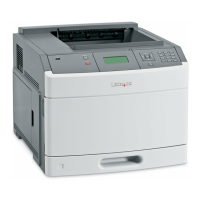
Lexmark T640 - User Manual

Lexmark T640
125 pages
Print Icon
To Next Page IconTo Next Page
Loading...
www.lexmark.com
T640, T642, T644
User’s Guide
March 2005
Lexmark and Lexmark with diamond design are trademarks of Lexmark International, Inc.,
registered in the United States and/or other countries.
© 2005 Lexmark International, Inc.
All rights reserved.
740 West New Circle Road
Lexington, Kentucky 40550

Table of Contents

Other manuals for Lexmark T640

Questions and Answers

  • W
    Wesley SawyerAug 20, 2025
    What to do if Lexmark T640 Printer prints a blank white page?
    • N
      Natasha ZimmermanAug 20, 2025
      If your Lexmark printer is producing entire white pages, ensure all packaging material is removed from the print cartridge and that the cartridge is installed correctly. Also, the toner may be low. Remove the cartridge, grip the handles with both hands, shake it back and forth with the cartridge arrows pointing downward, and reinstall it.
  • J
    Jordan MortonAug 22, 2025
    What to do if my Lexmark T640 Printer is unresponsive?
    • J
      Jordan SuarezAug 22, 2025
      If your Lexmark Printer is unresponsive, try turning it off and then back on.
  • S
    shannonwolfeAug 25, 2025
    How to fix light print on Lexmark Printer?
    • S
      Stephanie WeaverAug 25, 2025
      If the print from your Lexmark printer is too light, the toner may be low. You can try to utilize the remaining toner by removing the cartridge, gripping the handles with both hands and shaking it back and forth with the cartridge pointing downward. Then, reinstall the cartridge. You can also adjust the Toner Darkness setting in the Quality Menu. If you are printing on an uneven surface, change the Paper Weight and Paper Texture settings in the Paper Menu. Make sure that you are using the correct print media.
  • E
    Edward CooperAug 26, 2025
    How to fix a cartridge region mismatch on a Lexmark Printer?
    • A
      Anna DominguezAug 26, 2025
      To resolve a cartridge region mismatch on your Lexmark Printer, install the correct cartridge for the printer's region.
  • D
    daniellegoodwinAug 27, 2025
    Why does toner smear on my Lexmark Printer?
    • K
      kkingAug 28, 2025
      If the toner smears or the print comes off the page when using your Lexmark printer, and you are printing on an uneven print surface, try adjusting the Paper Weight and Paper Texture settings in the Paper Menu. Also, verify that the print media you are using is within the printer's specifications. If the problem continues, turn the printer off, and contact the place you bought your printer.
  • S
    salasmichaelAug 29, 2025
    How to remove streaks from Lexmark Printer prints?
    • P
      Phillip EdwardsAug 29, 2025
      If streaks appear on the page when printing with your Lexmark printer, the toner may be low. To utilize the remaining toner, remove the cartridge by gripping the handles with both hands. With the cartridge arrows pointing downward, shake the print cartridge back and forth. Reinstall the cartridge. If you are using preprinted forms, make sure the ink can withstand temperatures of 212°C (414°F).
  • K
    kimberly13Aug 31, 2025
    How to lighten print on Lexmark T640 Printer?
    • L
      Lacey NelsonAug 31, 2025
      If your Lexmark printer is printing too dark, adjust the Toner Darkness setting in the Quality Menu. Macintosh computer users should ensure the lines per inch (lpi) setting is not set too high in the software application.
  • J
    johnhernandezSep 2, 2025
    Why does my Lexmark Printer print with a gray background?
    • J
      Jason JohnsonSep 2, 2025
      If your Lexmark printer is producing a gray background on prints, the Toner Darkness setting may be too dark. Change the Toner Darkness setting in the Quality Menu. Alternatively, the print cartridge may be defective, and you should replace it.
  • M
    Mikayla NovakSep 4, 2025
    How to eliminate toner fog on Lexmark T640 Printer?
    • K
      Kristin RothSep 4, 2025
      If toner fog or background shading appears on the page when using your Lexmark printer, check the print cartridge to make sure it is installed correctly. If the issue persists, try replacing the print cartridge or the charge rolls.
  • R
    raymondfranklinSep 6, 2025
    Why are ghost images appearing from my Lexmark Printer?
    • M
      Michael WoodsSep 6, 2025
      If ghost images are appearing on prints from your Lexmark printer, make sure the Paper Type setting in the Paper Menu is correct. If that does not solve the issue, replace the print cartridge.

Summary

Learning About the Printer

Identifying Printers

Explains printer models, features, and configured examples.

Understanding the Printer Operator Panel

Details the function of buttons, display, and indicator lights.

Installing Drivers for Local Printing

Windows Driver Installation

Step-by-step guide for installing drivers on Windows.

Serial Printing Setup

Procedures for configuring serial printer connections.

Macintosh and UNIX;Linux Driver Installation

Instructions for Mac OS and UNIX/Linux systems.

Installing Drivers for Network Printing

Network Setup and IP Configuration

Steps to print setup pages and assign IP address.

Verifying Network Settings

Procedures to confirm network configuration.

Windows Network Printing

How to set up direct and shared printing in Windows.

Macintosh Network Printing

Steps for network printing on Mac OS.

UNIX;Linux and NetWare Network Printing

Guides for UNIX/Linux and NetWare environments.

Installing and Removing Options

Installing Input Options and Drawers

Guides for adding drawers, duplex units.

Accessing Printer Hardware

Procedures for opening the printer and accessing components.

Installing Memory, Flash, and Option Cards

Detailed steps for installing various cards.

Printing Operations

Sending and Managing Print Jobs

Basic printing, cancellation, and USB printing.

Printing Diagnostic Pages

Printing setup pages and network status.

Confidential, Held, and Specialty Printing

Secure printing methods and specialty media use.

Loading Paper Trays and Feeders

Instructions for all paper input sources.

Setting Media Type and Linking Trays

Configuring media settings and tray linking.

Paper and Media Guidelines

Supported Print Media Details

Lists compatible media sizes, types, and weights.

Selecting, Storing, and Avoiding Jams

Guidelines for choosing, storing media, and preventing jams.

Printer Maintenance

Routine Maintenance and Supply Status

Procedures for upkeep and checking supplies.

Conserving Supplies and Ordering Parts

Tips for usage reduction and purchasing.

Recycling and Moving the Printer

Procedures for product recycling and safe relocation.

Clearing Paper Jams

Identifying and Understanding Jam Messages

How to recognize and interpret jam indicators.

Clearing Printer and Staple Jams

Step-by-step instructions for resolving various jams.

Administrative Support

Operator Panel Configuration

Adjusting settings, managing menus, and restoring defaults.

Power Saver, Disk Encryption, and Security

Configuring power saving, disk security, and network settings.

Troubleshooting

Printer Messages and Technical Support

Interpreting alerts and finding help.

Solving Printing, Option, and Feed Problems

Addressing common issues with printing, options, and paper.

Solving Print Quality Problems

Resolving issues with print output defects.

Notices and Legal Information

Trademarks, Licensing, and Conventions

Legal notices regarding branding, software, and document conventions.

Emissions, Noise, ENERGY STAR, and WEEE

Compliance information on emissions, sound, energy, and disposal.

Laser Safety and Limited Warranty

Laser precautions and warranty terms.

Lexmark T640 Specifications

General IconGeneral
ColorNo
Print technologyLaser
Time to first page (black, normal)6 s
Print speed (black, normal quality, A4/US Letter)33 ppm
Processor frequency400 MHz
Maximum internal memory562 MB
Sound power level (standby)30 dB
Sound pressure level (printing)53 dB
Total input capacity350 sheets
Total output capacity250 sheets
Maximum input capacity3850 sheets
Envelopes sizes7 3/4, 9, 10, DL
Paper tray media typesEnvelopes, Labels, Plain paper, Transparencies
Non-ISO print media sizesExecutive (184 x 267mm), Folio (media size), Letter (media size), Statement (140 x 216mm), Legal (media size)
ISO A-series sizes (A0...A9)A4, A5
JIS B-series sizes (B0...B9)B5
Maximum ISO A-series paper sizeA4
Mac compatibilityYes
Compatible operating systems-Apple Mac OS X, -Apple Mac OS 9.2, -Microsoft Windows 2000 Server Terminal Services + Citrix MetaFrame XP Presentation Server / Citrix MetaFrame Presentation Server 3.0. -Microsoft Windows Server 2003 Terminal Services + Citrix MetaFrame XP Presentation Server / Citrix MetaFrame Presentation Server 3.0, -Microsoft Windows 2000 Server Terminal Services + Citrix Presentation Server 4.0, -Microsoft Windows Server 2003 Terminal, Services + Citrix Presentation Server 4.0, -Red Hat Linux 7.3, 8.0, 9.0, -Red Flag Linux Desktop 4.0, 5.0, -Linpus Linux Desktop 9.2, 9.3, -Red Hat Enterprise Linux WS 3.0, 4.0, 5.0, -SUSE Linux Enterprise Server 8.0, 9.0, 10.0, -SUSE Linux Professional 9.1, 9.2, 9.3, -Debian GNU/Linux 3.1, 4.0, -Linspire Linux 5.0, -Microsoft Windows 2000, -Microsoft Windows NT (4.00/4.00 Server), -Microsoft Windows Me, -Microsoft Windows XP, -Microsoft Windows Server 2003, -Microsoft Windows 98 2 Edition, -Microsoft Windows XP x64, -Microsoft Windows Server 2003 Terminal Services, -Microsoft Windows 2000 Server Terminal Services, -Microsoft Windows Server 2003 x64, -Microsoft Windows Server 2003 x64, Terminal Services, -Microsoft Windows Vista, -Microsoft Windows Vista x64, -Novell Open Enterprise Server, Netware + NDS, iPrint / Novell Distributed Print Services (NDPS), -Novell NetWare 3.2, 4.2 (bindery), -Novell NetWare 4.2, 5.x & 6.x (NDS), -Novell NetWare 5.x, 6.x + iPrint/Novell Distributed Print Services (NDPS), -Sun Solaris SPARC 8, 9, 10, -HP-UX 11.00, 11.1, -IBM AIX 5.1, 5.2, 5.3, -IBM iSeries IBM AS/400 Systems + TCP/IP + OS/400 V3R1.
Maximum duty cycle200000 pages per month
Recommended duty cycle3000 pages per month
Page description languagesPPDS
Sustainability certificatesENERGY STAR
Operating altitude0 - 3048 m
Operating temperature (T-T)16 - 32 °C
Operating relative humidity (H-H)8 - 80 %
CertificationCSA, ICES Class B, BSMI Class B, VCCI Class B, FCC Class B, UL 60950 3rd Edition, IEC 320-1, CE Class B, CB IEC 60950, IEC 60825-1, GS (TÜV), SEMKO, UL AR, CS, TÜV Rh, N Mark, C-tick Class B CCC Class B
Weight and Dimensions IconWeight and Dimensions
Dimensions (WxDxH)421 x 498 x 345 mm

Related product manuals