Step 2: Establish a connection from your personnel Wi-Fi capable device (laptop, tablet, smartphone)
See the operation instruction of the above mentioned device to establish the connection.
! Note: The default SSID is LEXUS-xxxxx (where xxxxx are digits from 0 to 9). The default password is <Lexus123>.
Step 3: Select Language and view Help menu if needed
Select your own language in the drop donw list on the top right corner. The Help menu above there will be a good support if
needed as well.
Step 4: Logging In to the Web Management Page
Make sure the connection between the Lexus Hotspot and the Wi-Fi device is working normally.
Open the browser and enter mylexuswifi.home (or 192.168.1.1) in the address box.
Enter the password to log in to the web management page.
If the PIN verification function is enabled, enter the correct PIN according to the instructions. PIN/PUK codes are supplied by
your operator along with the SIM card. For details, please consult your operator.
! Note: The default username and password are <admin>.
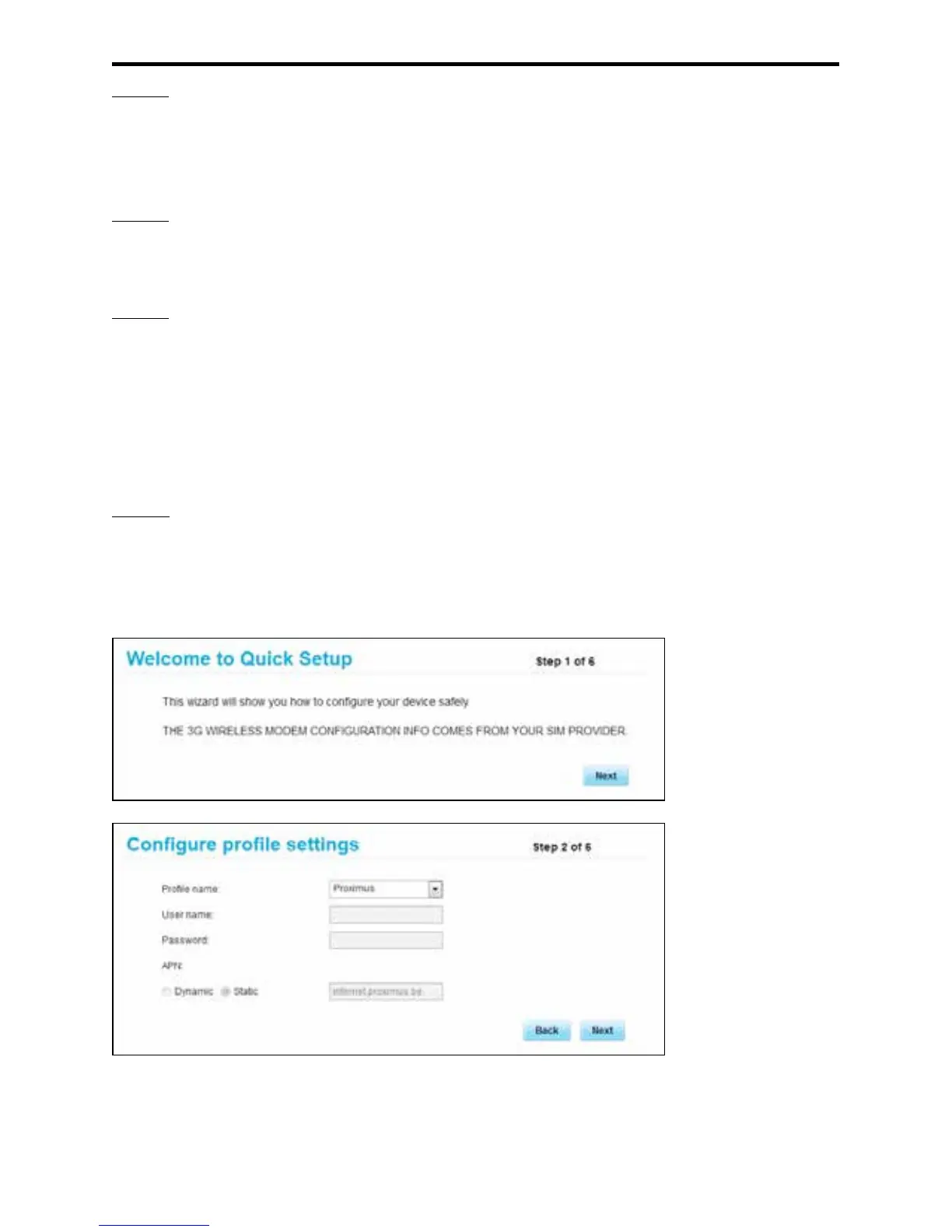
Step 5: Quick Setup
The Quick setup, in the Settings management tab, is the wizard that helps configurate the Lexus Hotspot device. It’s devided in
steps 1 to 6.
! Note: The Profile name and APN might be filled in automatically if the provider is recognized by the Lexus Hotspot.



 To Next Page