10
● SETTING UP THE WEATHER STATION
POWERING UP THE WEATHER STATION
Plug the power adapter into the power jack located in the back of the weather station.
Insert 3 new AAA alkaline batteries (not included) for backup.
Once the weather station is turned on, it will automatically enter pairing mode.
●
●
PAIRING THE WIRELESS 7-IN-1 SENSOR
Once your weather station powers on, it should automatically search for and connect to
the wireless sensors. If the weather station does not connect within the first 5 minutes,
refer to the following section, “RE-PAIRING SENSOR”.
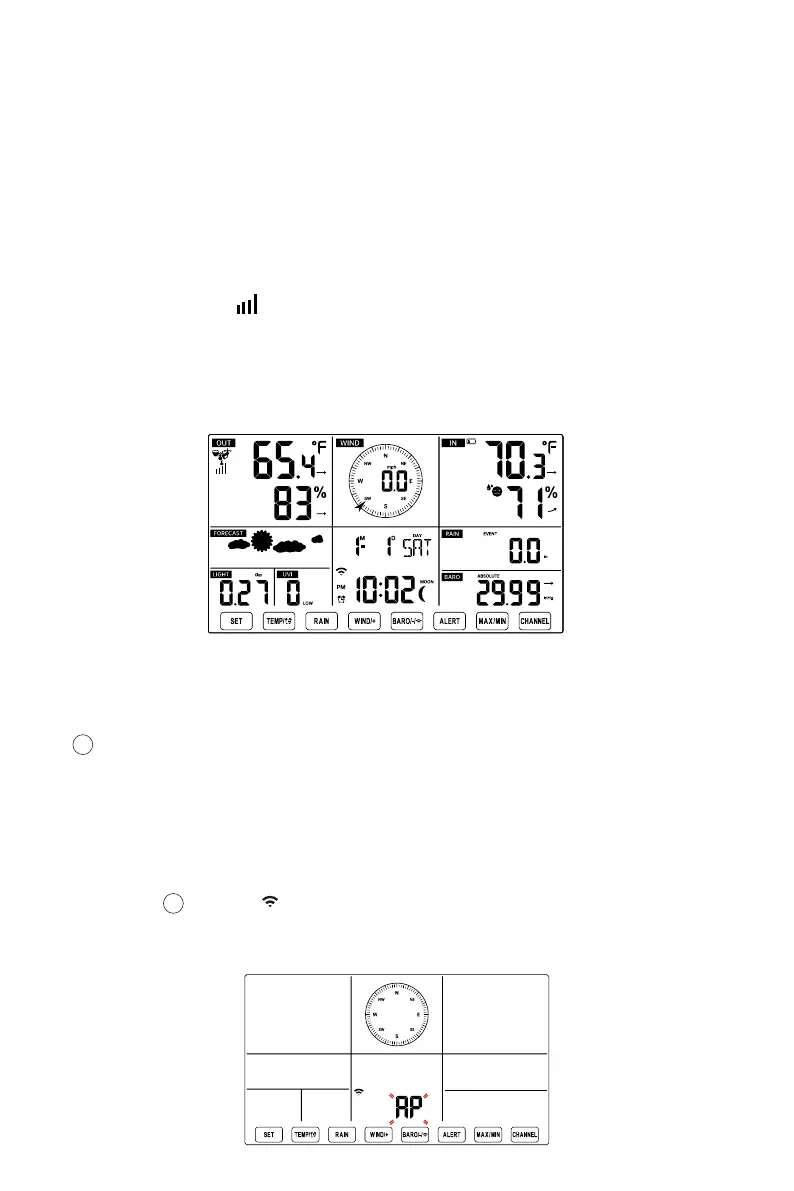
You will see the icon of an antenna scrolling in the temperature and humidity
(outdoor) section of the display.
Once the pairing process completes, the antenna icon will appear solid (not flashing),
and the readings for outdoor temperature and humidity, wind speed, wind direction, UV,
light intensity, and rainfall will appear in their designated sections of the LCD display.
●
●
●
NORMAL TIME DISPLAY
● SETUP INSTRUCTION
SETTING UP WI-FI CONNECTION AND WEATHER SERVER CONNECTION
Press and hold 【BARO/-/ 】 button over 3 seconds, the weather station LCD display
will show the letter “AP” that it has entered Access Point (AP) mode. At this time it will be
ready for the Wi-Fi settings to be adjusted.
●
RE-PAIRING SENSOR
If the connection fails or the weather station is reset, then press and hold the
【CHANNEL】button over 2 seconds to enter pairing mode, and the weather station
will re-register all the sensors that have already been registered to it before, (i.e. the
weather station will not lose the connection of the sensors that you’d paired up before.)
17
14


 To Next Page