11
Use your smartphone, tablet, or computer to connect to the weather station via
Wi-Fi by following these steps:
1.)
2.)
3.)
4.)
On PC, open your Wi-Fi network settings. On Android™ or iOS devices, go to settings
menu and then select Connections/WI-FI to open the network settings.
Locate the weather station SSID from the list. It should appear as WWS-XXXXXX (where
all the X’s are integers) in the list. Tap on the SSID to connect. This step will take several
seconds.
Once you are connected to the weather station, open up your internet or mobile web
browser, and enter the following address into the address bar: http://192.168.1.1 to
access the weather station web interface. (Make sure to include the http:// or else the
web browser may interpret the address as a search query). We recommend using the
latest version of reputable web browsers.
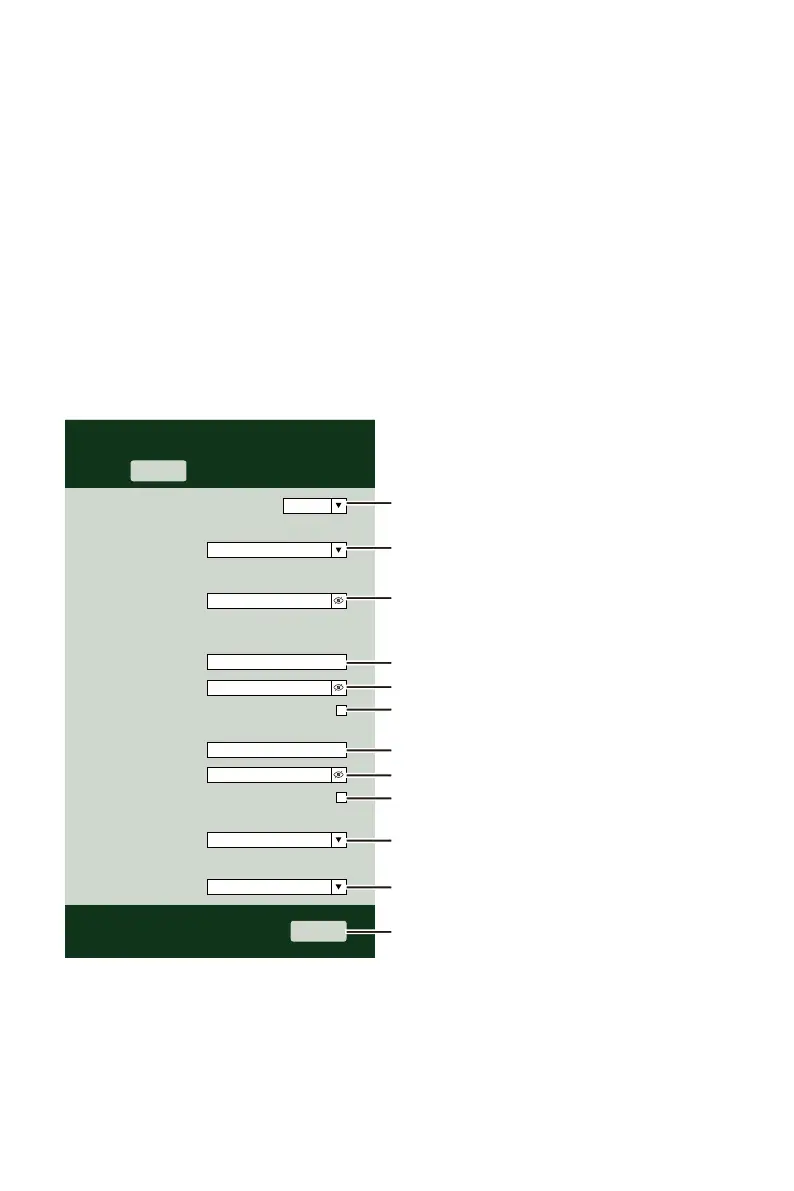
Enter the following information into the web-interface (Figure 1). Make sure all of the
information is entered prior to selecting Save. If you choose not to upload Wunder-
ground.com, or upload weathercloud.net, leave the check boxes unchecked.
SETTINGS
Wi-Fi Router Setup
Time Zone Setup
Weather Server Setup
WeatherUnderground
Language:
SETUP ADVANCED
Router
English
Time Zone
Station ID KCACANTI9
Upload wunderground.com
Password
Station Key
WeatherCloud
Station ID
Upload weatherCloud.net
Station Key
Select the menu and choose your 2.4GHz WIFI Router
Time Server Setup
Apply
Server URL
Firmware Version: 1.0.1
+0.00
time.windows.com
Router 12345
**********
**********
a7d9d2a279fbbafa
**********
NOTE :
Time zone Setup (default : 0h). To automatically set the time display to your time-zone,
change the time zone in Time server setup section of the SETUP page from ‘0:00’ (default)
to your time zone (e.g.+1:00 for Germany).
5.) If all of the information you entered is correct, press “Apply” to confirm
(Figure 1). If it does not, check your web interface information again.
Select setup UI display language
Select your Wi-Fi Router (SSID) from the list
Router Password
Enter your station ID
Enter your station key/password
check to confirm upload to
WeatherUnderground server
Enter your station ID
Enter your station key/password
check to confirm upload to
Weathercloud.net
Time zone setting
Internet time server setting
Press Apply to confirm the setting
Figure 1


 To Next Page
 Loading...