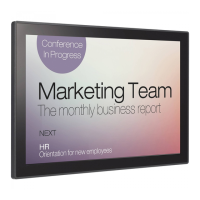
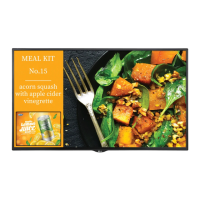
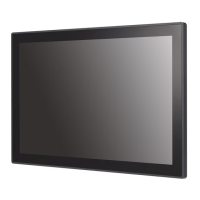
This document serves as the Owner's Manual for the LG Digital Signage (Monitor Signage), model 10SM3TB. It provides comprehensive guidelines for the safe and effective operation, installation, and maintenance of the device. The primary function of this product is the display and reception of audio-visual signals, making it suitable for various digital signage applications.
Safety Precautions
The manual emphasizes a strong focus on safety, categorizing precautions into 'WARNING' (potential for serious injury or death) and 'CAUTION' (potential for injury or product damage). Key safety instructions include:
- Indoor Use Only: The device is strictly for indoor use.
- Installation: Avoid placing the product near heat sources (radiators, fires, stoves) to prevent fire hazards. Do not install in damp or dusty areas, which could lead to fire, electric shock, or damage. If the product is dropped or its case is damaged, immediately turn off power, unplug it, and contact a service center. Children should not hang from or climb on the product to prevent personal injury or damage.
- Handling: Do not drop, apply shock, or throw objects at the panel. In case of smoke, strange smells, or sounds, disconnect the power cord and contact a service center. Ensure power and signal cables are not left in walkways to prevent tripping hazards, fire, or electric shock.
- Packaging Materials: Keep anti-moisture material or vinyl film from packaging out of reach of children to prevent accidental ingestion.
- Wet Environments: Do not use the product in damp places like bathrooms.
- Foreign Objects: Prevent metal pieces (coins, hairpins, debris) or flammable materials (paper, matches) from entering the product, as this can cause fire or electric shock. If foreign materials enter, disconnect power and contact a service center.
- Professional Installation: Do not install the product on the wall yourself; it should be installed by a qualified professional to prevent injury. Avoid installing near sources of oil or oil mist, which could damage the product or cause it to fall.
- Ventilation: Maintain at least 100 mm distance from walls for good ventilation to prevent deformation or fire due to increased internal temperature. Do not block air vents with tablecloths or curtains. Avoid installing in poorly ventilated areas (bookshelves, closets) or on cushions/carpets, as this can lead to fire from increased internal temperature.
- Stability: Do not place the product on unstable or vibrating surfaces to prevent it from falling or flipping over.
- Outdoor Antennas: If using an outdoor antenna, ensure it is installed away from electrical wires to prevent electric shock, especially during heavy winds.
- Electromagnetic Interference: Do not install the product in areas with electromagnetic interference (applicable to TV function models).
Precautions to the AC Adapter and Power
- Water/Foreign Substances: If water or foreign substances enter the product (TV, Device, power cord, AC adapter), immediately disconnect power and contact a service center to prevent fire or electric shock.
- Grounding: Always connect the power cord to a grounded outlet to prevent electric shock.
- Thunder/Lightning: Do not touch the power cord or signal cable during thunder and lightning.
- Wet Hands: Do not touch the power plug or AC adapter with wet hands. Wipe and dry wet or dusty pins before use.
- Secure Connection: Insert the power plug securely. Do not use if the power outlet is loose, as this can cause fire or electric shock. Ensure the power cord is fully inserted into the AC adapter.
- Conductors: Do not insert conductors (e.g., chopsticks) into the wall outlet while the power cord is inserted. Avoid touching the power plug immediately after unplugging.
- Approved Components: Use only power cords and AC adapters provided or approved by LG Electronics to prevent fire or electric shock.
- Rated Voltage: Use the product only at the rated voltage to prevent damage or electric shock.
- Multi-tap Outlets: Do not use a multi-tap outlet shared with many devices. Use a dedicated multi-tap outlet with a ground terminal to prevent fire from excessive heat.
- Long-term Storage: Disconnect the power cable if the product will not be used for a long period to prevent electrical shorts, electric shock, or fire from dust accumulation.
- Unplugging: Always pull the power cord by the plug, not by bending the cord with excessive force, to prevent fire or electric shock.
- Cable Protection: Be careful not to step on or place heavy objects on the power cord or AC adapter. Avoid damaging them with sharp objects. Never disassemble, repair, or modify them.
- Main Power Off: To turn off the main power, remove the power cord, ensuring it is easily accessible.
- Energy Saving: Removing the power cord reduces energy usage to '0'.
- Power Cord Removal: Do not remove the power cord while the product is in use, as this can damage the product due to sudden power loss.
- Clean Connections: Keep the outlet, AC adapter, and power plug pins clean from dust.
- Power Switch: Do not turn the device on or off by plugging/unplugging the power plug.
- Heat Sources: Keep the power cord away from heating devices to prevent melting of the cord coating, fire, or electric shock.
- PoE Usage: If using Power over Ethernet (PoE) with a LAN cable, removing the AC adapter while PoE is active may cause a malfunction.
Precautions When Moving the Product
- Disconnect Cables: Before moving, disconnect the power cord and all other connected cables to prevent fire or electric shock.
- Screen Orientation: When carrying, ensure the screen faces forward and hold it firmly with both hands.
- Original Packaging: Do not discard the delivery box with the original packaging. Use it to transport the product.
Precautions When Using the Product
- Disassembly/Repair: Do not disassemble, repair, or modify the product yourself. Contact a service center for inspection, reset, or repair.
- Water Exposure: Do not allow water to enter or wet the product, as this can cause fire, electric shock, malfunction, or deformation.
- Gas Leaks: In case of a gas leak, do not touch the power outlet; open windows for ventilation to prevent fire or electric shock.
- Screen Protection: Do not impact the front or sides of the screen with hard objects (e.g., metal) or scratch the screen, as this can damage it.
- Liquid/Foreign Objects: If liquid or foreign objects fall into the product, switch it off, unplug it, and contact a service center.
- No Image/Sound: If no image appears or no sound is heard, stop using the product, switch it off, unplug it, and contact a service center.
- Environmental Conditions: Do not use the product in environments with excessively high temperature or humidity.
- High-Voltage Goods: Avoid using high-voltage electrical goods near the device, as this can cause malfunction due to electric shock (e.g., electric mosquito swatter).
- Flammables: Do not use or store the product near inflammables to prevent fire or explosion.
- Eye Health: Take breaks to protect your health and vision during prolonged use.
- Still Images: Displaying a still image for a prolonged time can damage the screen, leading to image retention. This damage is not covered by the product warranty.
- Screen Contact: Do not push hard or scratch the screen surface with hands or sharp objects (nails, pencils, pens), as this can damage the screen or cause malfunction.
- Resolution/Frequency: Set up the product with suitable resolution and frequency according to the owner's manual (for PC-supported models only) to avoid blurred vision.
- LCD Pixels: Pixilated spots (red, green, white, or black) may appear on the screen due to high-technology LCD manufacturing. This is normal and not a malfunction.
- Liquid on Product: Do not leave the product in wet places or place liquid-containing items (e.g., flower vases) on top of it.
Precautions When Cleaning the Product
- Water/Flammables: Do not spray water directly onto the product or use inflammable materials (thinner, benzene) to wipe it, as this can cause fire or electric shock.
- Internal Cleaning: Contact a sales representative or service center for internal cleaning approximately once a year. Accumulated dust can cause fire or malfunction.
- Unplug Before Cleaning: To clean the product, unplug the power cord and wipe gently with a soft cloth. Do not spray with water or wipe with a wet cloth.
- Cleaning Agents: Do not use cleanser, automobile or industrial shiner, abrasive or wax, benzene, alcohol, etc., on the product or screen, as this can cause fire, electric shock, or product damage (deformation, corrosion, breakage).
- Screen Cleaning: Spray water onto a soft cloth 2 to 4 times and wipe the front frame in one direction only. Too much moisture may cause staining.
Precautions When Experiencing Image Sticking
- Still Images: Displaying a still image for a prolonged time can cause screen damage, resulting in image retention. This is a common issue with most third-party products, and damage from long-term static images is not covered by the product warranty.
- Prevention: Image sticking does not occur with constantly changing images. To reduce the likelihood of image sticking with fixed images, change the screen content at least once every 12 hours (more frequently is better).
- Recommended Conditions: Change background and character colors at the same time interval. Using complementary colors helps prevent image sticking. Ensure characters/images remain in the same location after changing.
- What is Image Sticking?: This phenomenon occurs when a static image is displayed for an extended period, causing a voltage difference between liquid crystal electrodes. This difference aligns liquid crystals in one direction, making the previously displayed image visible.
Assembly and Preparation
- Genuine Components: Always use genuine components for safety and product performance. Damage or injury from counterfeit components is not covered by the warranty.
- Dusty Environments: The warranty does not cover damages caused by using the product in excessively dusty environments.
- The manual illustrates the screen buttons, including the power on/off button and the Home screen button. The exact image may vary by model.
Installing in Portrait Position
- The device can be installed in a portrait orientation.
Using the Kensington Lock
- (Available on certain models) The Kensington security system connector is on the back of the device. Refer to the Kensington lock owner's manual or kensington.com for installation and usage. Connect the Kensington security system cable between the device and a table.
- The Kensington security system is optional; additional accessories can be obtained from electronics stores. The illustration is general and may differ from the actual product.
Installing the Wall Mount Plate
- The device meets specifications for wall mount plates or other compatible devices.
- Installation Steps:
- Place the screen face down on a soft cloth to protect it from scratches.
- Place the wall mount plate onto the device, aligning it with the screw holes.
- Tighten the four screws with a screwdriver to fix the plate.
- Notes: The wall mount plate is sold separately. Refer to its installation guide for more information. Be careful not to apply too much force when mounting, as this can damage the screen.
Installing on the Wall
- Install the device at least 100 mm from the wall on each side for sufficient ventilation.
- Detailed installation instructions can be obtained from local retail stores. Refer to the manual for tilting wall mounting bracket setup.
- Wall Mounting: Attach an optional wall mounting bracket to the back of the device, ensuring it is secure.
- Using longer screws than standard length may damage the device interior.
- Non-VESA standard screws can damage the product and cause it to fall. LG Electronics is not liable for accidents from non-standard screws.
- Wall Mount Plate Dimensions: The manual provides a diagram for wall mount plate dimensions and screw specifications (M4 x L10, 4 screws required).
- Wall Mount (A x B) Diagram: A diagram shows the wall mount plate with screw locations (A and B).
- Notes: Use VESA-specified screws. The wall mount kit includes an installation guide and all necessary parts. The wall mounting bracket is optional, and screw length may vary, so use the proper length. Refer to the user manual for the wall mounting bracket.
- Cautions: Unplug the power cord before moving or installing to avoid electric shock. Installing on the ceiling or a slanted wall can cause the device to fall, leading to injury. Excessive force when tightening screws can damage the device, and this damage is not covered by warranty. Use VESA-compliant wall mounting brackets and screws. This apparatus must be securely attached to the wall per installation instructions (Australia and New Zealand). The length of each installed screw from the back of the device must be 8 mm or less.
Connect a USB/Micro SD Storage Device
- Connect a USB flash memory or Micro SD storage device to the display device for multimedia features.
- Cautions: Do not turn off the device or remove the USB storage device when the multimedia screen is active, as this can cause file loss or damage to the device. Frequently back up files on USB storage devices, as data loss is not covered by warranty.
- Unsupported Devices: Devices using an external power source (e.g., USB HDD) are not supported. USB HIDs (mouses, keyboards) are not supported. Compatibility for USB 3.0 devices is not guaranteed.
Tips for Using USB/Micro SD Storage Devices
- Recognition: Only USB storage devices are recognized. USB may not work with a USB hub. Devices using automatic recognition programs or their own drivers may not be recognized. Recognition speed varies by device.
- Disconnection: Do not turn off the display or unplug the USB device while it's working, as this can damage stored files or the USB device.
- File Integrity: Do not connect USB storage devices artificially created on a PC, as this can cause malfunction or playback issues. Use devices with normal music, image, or movie files.
- Formatting: Storage devices formatted with utility programs not supported by Windows may not be recognized.
- External Power: Connect external power to USB storage devices requiring over 0.5 A.
- Cables: Connect USB storage devices with the cable provided by the device maker.
- Compatibility: Some USB storage devices may not be supported or operate smoothly.
- File Naming: File arrangement is similar to Windows, and file names can be up to 100 English characters.
- Data Backup: Back up important files, as data stored on USB memory devices can be damaged. The manufacturer is not responsible for data loss.
- Partitions/Card Readers: If a USB storage device has multiple partitions or if a USB multi-card reader is used, up to four partitions or USB memory devices can be used. Volume data may not be detected if a USB storage device is connected to a USB multi-card reader.
- Troubleshooting: If a USB storage device doesn't work, remove and reconnect it.
- Speed: Detection speed varies by device.
- Capacity: Recommended capacity is 32 GB or less for USB memory drives. Devices exceeding this capacity may not work properly.
- USB 2.0/Below: USB storage devices (USB 2.0 or below) are supported but may not work properly in video lists.
- Micro SD: Micro SD supports SDHC type. Format SDXC cards to NTFS first. The exFAT file system may not work properly for Micro SD and USB storage devices.
- Caution: Some files may not play if there is no supporting codec.
- Supported Video Codecs: H.263, H.264 AVC, MPEG-4 SP, VP8.
- Supported Music Codecs: AAC LC/LTP, HE-AACv1 (AAC+), HE-AACv2 (enhanced AAC+), AAC ELD (enhanced low delay AAC), AMR-NB, AMR-WB, FLAC, MP3, MIDI, Ogg Vorbis, PCM/WAVE.
- Supported Photo Codecs: JPEG, GIF, PNG, BMP, WebP.
Troubleshooting
The manual provides a troubleshooting guide for common issues:
- No Image Displayed:
- Problem: Power cord not connected, screen not turning on.
- Action: Check power cord connection, press and hold power button for over a second.
- Image Sticking:
- Problem: Image sticking occurs when the product is off.
- Action: Use screen saver function to prevent pixel damage from fixed images. Image sticking from high-contrast images is normal for LCD screens.
- Audio Not Working:
- Problem: No sound, only LED/screen on; sound too low.
- Action: Adjust volume, check audio settings, adjust volume level.
- Abnormal Screen Color:
- Problem: Black spots on screen.
- Action: Several pixels (red, green, white, or black) are normal for LCD panels and not a malfunction.
- Normal Operation Issues:
- Problem: Power suddenly turned off.
- Action: Check if timer is set, check power control settings, power supply interruption. May happen with uncertified AC adapters; use the provided adapter.
- Problem: Touch not working.
- Action: Try turning power on after disconnecting AC adapter and cleaning the contacting port.
- Problem: Photo/video/multimedia content not played.
- Action: Ensure content is officially provided by an additional service provider. Other content (sound, video, background) from the Internet may not play.
- Other Issues:
- Problem: Product generates heat.
- Action: Normal during prolonged use for games or Internet; does not affect product life or performance.
- Problem: Saved data deleted.
- Action: Data damaged by device reset or malfunction cannot be restored without backup. Back up data in advance. Manufacturer bears no responsibility for data loss.
- Problem: Want to upgrade memory.
- Action: Memory upgrade is not available for this device.
The manual concludes with product specifications and regulatory information, including wireless module specifications and compliance warnings.

 To Next Page

 General